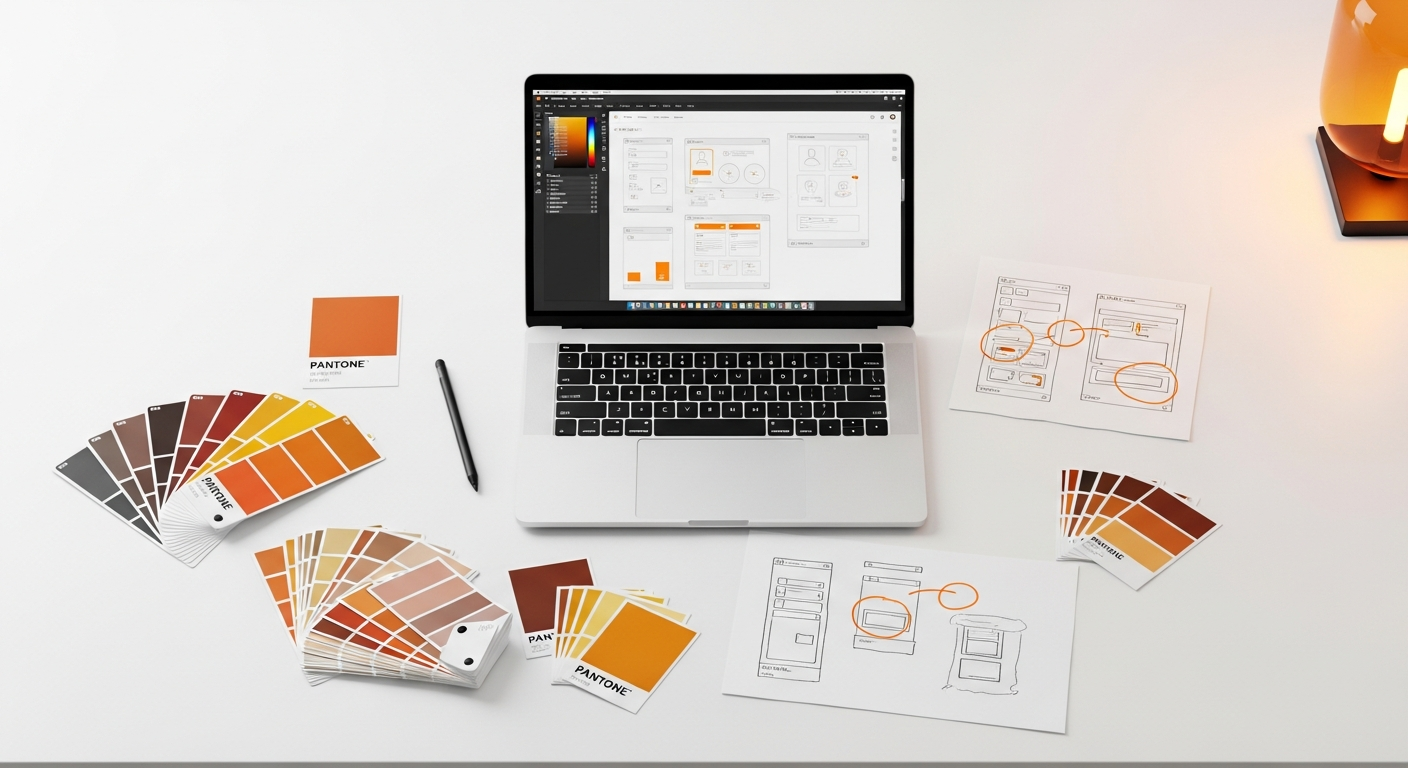
Form Design Best Practices Guide 2026: Crafting Conversions & User Delight

In the ever-evolving landscape of digital interaction, forms remain the unsung heroes—the critical gateways where users share information, make purchases, sign up for services, and ultimately, convert. Yet, for something so fundamental, forms are often overlooked, leading to frustrating experiences, abandoned carts, and missed opportunities. As we steer towards 2026, the stakes are higher than ever. Users expect seamless, intuitive, and even delightful interactions, powered by intelligent design and a deep understanding of human behavior.

This comprehensive guide is your essential toolkit for mastering form design. We’ll dive deep into the principles, techniques, and tools that empower you to craft forms that not only function flawlessly but also elevate the user experience, driving higher conversions and fostering genuine user delight. Think of this as hard-won knowledge from years in the trenches, distilled into actionable insights you can apply to your projects today.

Foundational Principles: The User at the Core

Before we even consider a single input field, we must anchor our design process in foundational principles that prioritize the user. A well-designed form is a conversation, not an interrogation. It respects the user’s time and cognitive load, guides them effortlessly, and builds trust.

Reduce Cognitive Load Through Thoughtful Grouping

One of the quickest ways to overwhelm a user is to present a monolithic block of questions. Our brains struggle to process too much information at once. The solution? Chunking. Group related fields together, visually separating them with whitespace, subtle borders, or section headings. For example, all “personal information” fields should live together, distinct from “shipping details” or “payment information.”

Practical Tip: Use Figma’s Auto Layout to easily group and distribute elements, ensuring consistent spacing and responsiveness as you add or remove fields. This also helps maintain a clear visual hierarchy, guiding the user’s eye through logical steps.

Prioritize Accessibility from the Outset

Accessibility isn’t a feature; it’s a fundamental right. Forms must be usable by everyone, regardless of ability. This means:

  • Semantic HTML: Use correct HTML5 input types (e.g., <input type="email">, <input type="tel">) and associate labels correctly with inputs using the for and id attributes. This is crucial for screen readers.
  • Keyboard Navigation: Ensure all form elements are reachable and operable via keyboard (Tab key for navigation, Space/Enter for activation). Pay attention to focus states—they should be clearly visible.
  • Color Contrast: Text and interactive elements must have sufficient contrast against their backgrounds (WCAG 2.1 AA standards are a good benchmark). Don’t rely solely on color to convey meaning (e.g., for error states).
  • ARIA Attributes: Use ARIA (Accessible Rich Internet Applications) attributes judiciously for dynamic content or custom components to provide additional context for assistive technologies.

Tool Tip: Browser developer tools often include accessibility checkers, and plugins like Stark for Figma or Adobe XD can help you verify color contrast ratios during the design phase.

Embrace a Mobile-First Approach

With an increasing number of users accessing the web on mobile devices, designing for small screens first is no longer optional—it’s imperative.

  • Large Touch Targets: Ensure buttons and interactive elements are large enough (at least 44×44 CSS pixels) for comfortable tapping.
  • Responsive Layouts: Forms should fluidly adapt to different screen sizes. Figma’s Auto Layout is invaluable here, allowing you to define how elements resize and reflow.
  • Optimized Keyboards: Leverage HTML5 input types to automatically bring up the most appropriate keyboard (numeric for phone numbers, email for email addresses).

Progressive Disclosure for Complex Forms

Don’t overwhelm users with every possible field upfront. Progressive disclosure involves revealing information or options only when the user needs them. This could mean:

  • Breaking long forms into multi-step processes with clear progress indicators.
  • Hiding optional fields until the user explicitly indicates they want to fill them out (e.g., “Add a different shipping address”).

Crafting Input Fields & Labels: Clarity is King

The individual elements of your form—labels, input fields, and instructions—are the building blocks of clarity. Each must be meticulously designed to minimize ambiguity and guide the user efficiently.

Label Placement: Above All Else

Where you place your labels significantly impacts form completion rates. Research consistently shows that top-aligned labels offer the best balance of scanning speed and comprehension.

  • Top-aligned labels: Users can quickly scan labels and then input fields vertically. This placement works well for most forms, especially on mobile, as it uses vertical space efficiently.
  • Left-aligned labels: Can create a longer visual path between label and field, especially if labels vary in length, increasing cognitive load.
  • Inline/Placeholder labels: While space-saving, these disappear once the user starts typing, making it difficult to review input or remember the field’s purpose. Avoid using placeholder text as a substitute for a permanent label.

Best Practice: Stick to top-aligned labels wherever possible. They are clear, consistent, and perform well across devices.

Placeholder Text: A Helpful Hint, Not a Label

Placeholder text (the grey text inside an empty input field) should serve as a supplementary hint or example, not as the primary label. Use it for:

  • Examples: “e.g., [email protected]
  • Format guidance: “MM/DD/YYYY” or “XXX-XX-XXXX”

Crucially, ensure the placeholder text has sufficient contrast, but also make it clear that it’s not actual input. Once the user starts typing, the placeholder should disappear, leaving the permanent label visible.

Leverage Smart Input Types

HTML5 offers a rich set of input types that do more than just style the field; they provide semantic meaning, trigger appropriate virtual keyboards on mobile, and offer built-in browser validation.

  • <input type="email"> for email addresses.
  • <input type="tel"> for phone numbers.
  • <input type="number"> for numerical input (though for complex numbers, type="text" with custom validation might be better to allow for commas, decimals, etc.).
  • <input type="url"> for website URLs.
  • <input type="date"> for dates, often triggering a native date picker.

Using these types not only improves usability and accessibility but also provides a layer of basic validation before server-side checks.

Field Sizing and Visual Consistency

The visual length of an input field should generally correspond to the expected length of the input. For instance, a ZIP code field should be shorter than an address line field.

  • Consistent Height: Maintain a consistent height for all input fields to create a clean, organized look.
  • Appropriate Width: While a full-width field might seem ideal for responsiveness, it can sometimes make short inputs look awkward. Balance full-width for major text fields with shorter widths for specific, shorter data points.
  • Visual Hierarchy: Use consistent typography, spacing, and border styles across all fields. This visual consistency builds trust and makes the form feel professional.

Design Principle: Adhere to a robust design system. Tools like Figma allow you to create components for input fields with predefined states (default, hover, focus, error, disabled), ensuring consistency across your entire product.

Required Fields: Less is More

Every field you ask for increases friction. Challenge every “required” field: Is it truly essential for the current task? If not, make it optional or remove it. For fields that are genuinely required:

  • Clear Indication: Use a standard asterisk (*) next to the label. Ensure the asterisk has sufficient contrast.
  • Contextual Explanation: Include a small note at the top of the form explaining what the asterisk means (e.g., “Fields marked with an * are required”).
  • Minimize Required Fields: The fewer required fields, the better the conversion rate.

Validation & Feedback: Guiding Users, Not Punishing Them

Validation isn’t just about preventing bad data; it’s about guiding users to success. Effective feedback is immediate, clear, and helpful, turning potential frustration into a smooth experience.

Inline Validation: Real-Time Guidance

The gold standard for validation is inline validation—providing feedback as the user types, or immediately after they leave a field.

  • Positive Reinforcement: Show a green checkmark as soon as a field meets the criteria (e.g., password strength, valid email format). This reduces anxiety.
  • Immediate Error Indication: If an input is incorrect, display an error message right below the field as soon as the user attempts to move on. Don’t wait until submission.
  • Clear Visual Cues: Use color (e.g., red for errors, green for success) and icons consistently. For example, a red border around the field and a small error icon.

Step-by-Step in Figma: Create multiple states for your input field component (default, active, valid, invalid). Use interactive components to switch between these states based on user input, simulating real-time feedback in your prototypes.

Clear, Specific, and Actionable Error Messages

Generic error messages (“Invalid input”) are useless. Error messages should be:

  • Specific: Pinpoint exactly what went wrong (“Email address is not in a valid format” instead of “Invalid email”).
  • Actionable: Tell the user how to fix it (“Password must be at least 8 characters long and include one uppercase letter, one number, and one special character”).
  • Polite and Non-Blaming: Frame messages constructively.
  • Visually Prominent: Display error messages close to the offending field, often in a distinct color (like red), and ensure they are read out by screen readers (using ARIA live regions).

Success States and Confirmation

Don’t leave users guessing after a successful submission.

  • Clear Confirmation: A prominent success message, a green checkmark, or redirection to a “Thank You” page confirms the action.
  • Next Steps: If applicable, guide the user to their next logical step (e.g., “Check your email for confirmation,” “Continue shopping”).

Error Prevention: Better Than Correction

The best error message is one you never have to show. Design your forms to prevent errors where possible:

  • Input Masks: Guide users with a visual mask for structured data like phone numbers or credit card numbers (e.g., (XXX) XXX-XXXX).
  • Confirm Password/Email: For critical inputs, ask the user to re-enter to ensure accuracy.
  • Smart Defaults: Pre-fill fields with the most common or likely value (e.g., “United States” for country).
  • Autocomplete: Suggest addresses or common terms as the user types.

Optimizing Flow & Experience: The Journey, Not Just the Destination

A form isn’t just a collection of fields; it’s a journey. Optimizing the flow means making that journey as smooth, intuitive, and delightful as possible, reducing friction at every turn.

Mastering Multi-Step Forms

For longer or more complex processes, breaking a form into multiple steps is crucial.

  • Clear Progress Indicators: Visually show users where they are in the process and how many steps remain (e.g., “Step 2 of 4,” a progress bar, or numbered tabs). This manages expectations and reduces perceived length.
  • Logical Grouping: Each step should represent a distinct, logical chunk of information (e.g., “Personal Details,” “Shipping Address,” “Payment”).
  • “Save and Continue” Option: For very long forms, allow users to save their progress and return later.
  • Back Button Functionality: Ensure a clear “Back” button is available and works as expected, allowing users to review or edit previous steps without losing data.

Design Technique: In Adobe XD or Figma, use artboards or frames for each step. Link them with interactive prototypes, ensuring smooth transitions and persistent data across steps.

Smart Defaults and Pre-filling

Leverage available data to pre-populate fields. This is a huge time-saver and reduces user effort.

  • User Data: If a user is logged in, pre-fill their name, email, and address.
  • Contextual Data: Pre-select the user’s country based on their IP address.
  • Common Choices: For dropdowns, pre-select the most frequently chosen option.

Always allow users to edit pre-filled information. The goal is convenience, not coercion.

Autocompletion and Suggestions

Typing is effort. Reduce it by offering intelligent autocompletion and suggestions.

  • Address Autocomplete: Integrate with services like Google Places API to suggest full addresses as users type, drastically reducing input time and errors.
  • Search Suggestions: For fields that involve selecting from a large list (e.g., product categories), provide type-ahead suggestions.

Micro-interactions for Delight and Clarity

Subtle animations and visual feedback, known as micro-interactions, can significantly enhance the user experience.

  • Loading States: When a form is submitting or an API call is being made, show a clear loading spinner or animation on the submit button. This prevents users from clicking multiple times.
  • Button States: Animate button hovers, clicks, and disabled states.
  • Input Focus: A subtle glow or border change on a focused input field helps users orient themselves.

Tool Tip: Use tools like Lottie for lightweight, custom animations for loading states or success confirmations. Figma’s interactive components and smart animate features in Adobe XD are perfect for prototyping these subtle interactions.

Reduce Friction with Modern Authentication

The dreaded “password reset” loop is a prime example of form friction. Consider alternatives for authentication:

  • Social Logins: Allow users to sign up or log in using their existing Google, Apple, or social media accounts.
  • Passwordless Authentication: Implement magic links sent to email or phone numbers, or use biometric authentication (Face ID, Touch ID) for a truly frictionless experience.

While these might introduce new design challenges, the reduction in user effort and improved security often outweigh them.

Testing, Iteration & Analytics: The Perpetual Pursuit of Perfection

Even the most meticulously designed form can have hidden friction points. The only way to uncover them is through continuous testing and data analysis. Form design is an iterative process, not a one-off task.

Conduct Usability Testing

Observe real users interacting with your forms. Even a handful of participants can reveal significant usability issues.

  • Early Stage: Test prototypes (even low-fidelity ones) with tools like UserTesting or Maze.
  • Task-Based Scenarios: Give users specific tasks to complete (e.g., “Sign up for an account,” “Purchase this product”).
  • Think-Aloud Protocol: Encourage users to vocalize their thoughts, frustrations, and expectations as they navigate the form.

Key Takeaway: Usability testing provides invaluable qualitative insights into why users struggle.

A/B Testing for Quantitative Optimization

Once your form is live, use A/B testing (also known as split testing) to compare different versions of your form elements and measure their impact on conversion rates.

  • Hypothesis-Driven: Test specific changes based on a hypothesis (e.g., “Changing the CTA button text from ‘Submit’ to ‘Get Started’ will increase clicks by 10%”).
  • Single Variable: Test one change at a time to accurately attribute performance differences.
  • Examples: Test different label placements, CTA button text, field order, error message wording, or number of steps.

Tools: Optimizely, Google Optimize (though Google Optimize is being sunset, other platforms like VWO, Convert.com, or even custom solutions with Google Analytics are options) allow you to run and analyze A/B tests.

Leverage Heatmaps & Session Recordings

Tools like Hotjar or FullStory provide a bird’s-eye view of how users interact with your forms in the wild.

  • Heatmaps: Visualize where users click, scroll, and hover, identifying areas of interest or confusion.
  • Session Recordings: Watch anonymized recordings of actual user sessions to see their exact mouse movements, clicks, and form interactions. This is incredibly powerful for identifying friction points you might have missed.

Analyze Form Analytics

Dive into specific form analytics data to understand performance metrics:

  • Conversion Rate: The percentage of users who start and successfully complete the form.
  • Drop-off Rates: Identify at which field or step users are abandoning the form most frequently.
  • Time-on-Field: How long users spend on individual fields, which can indicate confusion or difficulty.
  • Error Rates: Which fields generate the most validation errors.

Tools: Google Analytics (with enhanced e-commerce tracking), dedicated form analytics platforms, or even custom event tracking can provide this crucial data.

Embrace an Iterative Design Process

Form design is never truly “finished.” The digital landscape, user expectations, and your business goals are constantly evolving.

  • Regular Reviews: Periodically review your forms’ performance and user feedback.
  • Agile Adaptations: Be prepared to make small, continuous improvements based on new data and insights.
  • Stay Current: Keep an eye on emerging technologies and design patterns that could further enhance the form experience.

Design Principle: Treat your forms as living components of your product, always subject to refinement and improvement.

Conclusion

Designing effective forms is a meticulous craft, demanding empathy, precision, and a commitment to continuous improvement. As we look ahead to 2026, the principles remain steadfast: prioritize the user, ensure clarity, provide helpful feedback, optimize the flow, and relentlessly test and iterate.

By applying these best practices—from leveraging Figma’s Auto Layout for responsive design to implementing inline validation and analyzing drop-off rates with Hotjar—you’re not just building forms; you’re crafting seamless interactions that build trust, reduce frustration, and ultimately drive higher conversions. Remember, every field, every label, and every interaction is an opportunity to delight your users and reinforce the value of your product or service. So go forth, design with purpose, and transform your forms into powerful engines of user satisfaction and business success.