Mastering Mobile Gesture Design: A 2026 Playbook for Intuitive App Experiences

In the dynamic world of mobile app design, gestures are the silent conductors of user experience. They’re the intuitive nudges, swipes, and taps that transform a static interface into a fluid, responsive environment. As we look towards 2026, the landscape of mobile interaction is evolving faster than ever, driven by advancements in hardware, AI, and user expectations. For UI/UX designers, web designers, and creative professionals, understanding and skillfully implementing gesture design isn’t just a best practice—it’s a critical differentiator. This comprehensive guide will equip you with the principles, processes, and tools to craft gesture-driven experiences that feel natural, powerful, and utterly essential to the modern mobile user.

The Foundational Principles of Effective Gesture Design

Designing effective gestures is more than just assigning an action to a movement. It requires a deep understanding of human psychology, ergonomics, and interaction patterns. Here are the core principles that should guide every gesture design decision:

  • Affordance & Discoverability

    A gesture’s affordance refers to its inherent suggestion of how it can be used. For example, a scrollbar affords scrolling. While some gestures are hidden, a good design ensures they are either immediately discoverable through visual cues (like an arrow indicating a swipe direction) or easily learned and remembered. For less obvious gestures, consider subtle onboarding hints or a quick tutorial during a user’s first interaction. The goal is to minimize cognitive load and make the interaction feel natural, not like a puzzle. Think about a card UI: the slight overlap or shadow might afford swiping to dismiss or reveal more content.

  • Consistency

    Consistency is paramount. A swipe-to-delete gesture should work similarly across different lists within your app. Furthermore, strive for consistency with established platform conventions (e.g., iOS’s edge swipe for back navigation, Android’s system-level gestures). Deviating from these widely understood patterns can lead to frustration and a steep learning curve. Consistency builds mental models, allowing users to transfer knowledge from one part of your app to another, or even from other apps, creating a sense of familiarity and ease.

  • Feedback

    Every gesture, whether a tap or a complex multi-finger interaction, demands immediate and clear feedback. This can be visual (a button animating, an item moving), haptic (a subtle vibration), or auditory (a click sound). Feedback confirms that the system has registered the input and is processing the action, reducing user anxiety and improving confidence. Without feedback, users are left guessing, leading to repeated attempts or abandonment. Tools like Figma and Adobe XD allow for sophisticated animation curves and haptic feedback simulations, which are crucial for prototyping this principle effectively.

  • Accessibility

    Inclusive design means ensuring your app is usable by everyone, regardless of physical ability. Not all users can perform complex multi-touch gestures or even precise taps. Always provide alternative methods for critical actions. This might include larger tap targets, voice commands, keyboard shortcuts, or on-screen buttons that duplicate gesture functionality. Consider users with motor impairments, those using assistive technologies, or even someone simply holding their device with one hand. Accessibility isn’t an add-on; it’s a fundamental aspect of good design.

  • Efficiency & Ergonomics

    Gestures should simplify, not complicate. They should feel natural and require minimal physical effort. Avoid gestures that necessitate awkward hand positions, require excessive travel across the screen, or demand extreme precision. Prioritize common, single-finger gestures for frequent actions and reserve more complex gestures for less frequent, advanced functionality. Conduct user testing to observe how users naturally interact and adjust your gesture designs to match their ergonomic comfort.

Common Gesture Patterns and When to Use Them

While innovation is exciting, mastering the established gesture vocabulary is crucial before venturing into the unknown. Here’s a breakdown of common gesture types and their ideal applications:

  • Taps & Double Taps

    The bedrock of mobile interaction. A single tap is universally understood for selection, activation, and primary actions (e.g., opening an item, submitting a form). Double taps are less common but can be effective for specific actions like zooming into content (e.g., an image, a map) or liking a post, provided they don’t conflict with single tap actions.

  • Swipes (Horizontal & Vertical)

    Swipes are powerful for navigation and revealing contextual actions.

    • Horizontal Swipes: Ideal for moving between tabs, navigating carousels, dismissing items (e.g., swipe-to-delete/archive in a list), or revealing hidden menus from the screen edge (e.g., a hamburger menu).
    • Vertical Swipes: Primarily for scrolling content. Can also be used for pull-to-refresh actions at the top of a list or feed.
  • Pinch & Zoom

    A multi-touch gesture used for scaling content. Essential for images, maps, documents, or any content where users need to inspect details or get a broader overview. Ensure the content actually benefits from scaling and that the interaction is smooth and responsive.

  • Long Press (Press & Hold)

    This gesture is excellent for revealing secondary or contextual menus, initiating drag-and-drop actions, or selecting multiple items. It adds depth to an interaction without cluttering the UI with always-visible buttons. For instance, long-pressing an icon on the home screen to access app shortcuts or long-pressing a message to copy it.

  • Drag & Drop

    Used for reordering lists, moving items between containers, or attaching files. A long press often initiates the drag action, followed by dragging the item to its new destination. Visual feedback, such as an item lifting or changing appearance, is critical during this process.

  • Edge Swipes

    Platform-specific gestures like the iOS edge swipe for “back” navigation are deeply ingrained in user behavior. On Android, edge swipes can also trigger system navigation or reveal app-specific side menus. Leveraging these established patterns enhances familiarity and reduces the learning curve.

  • Emerging & Advanced Gestures (2026 Perspective)

    Beyond current norms, we anticipate more nuanced interactions. Haptic Touch (the evolution of 3D Touch) offers pressure-sensitive interactions for quick actions and previews. Multi-finger gestures, while less common, could become more prevalent for power users or specialized applications (e.g., creative tools). As spatial computing and AR/VR evolve, we’ll see the integration of mid-air gestures, gaze control, and even subtle micro-gestures detectable by advanced sensors. For mobile, this means anticipating how devices might interpret subtle hand movements or even micro-expressions to augment traditional touch interactions.

The Gesture Design Process: From Concept to Code (and Beyond)

A robust design process ensures that gestures are not just aesthetically pleasing but also functional, intuitive, and thoroughly tested. Here’s a step-by-step approach:

  1. 1. Research & User Understanding

    Begin by deeply understanding your target users. Who are they? What are their technical proficiencies? What devices do they use? Conduct competitor analysis to see what gestures are used in similar apps and how users respond to them. Pay attention to platform guidelines (Apple Human Interface Guidelines, Material Design) for native gesture conventions. Consider the context of use: will users be in a hurry? One-handed? In a noisy environment? This initial research informs everything that follows.

  2. 2. Ideation & Sketching

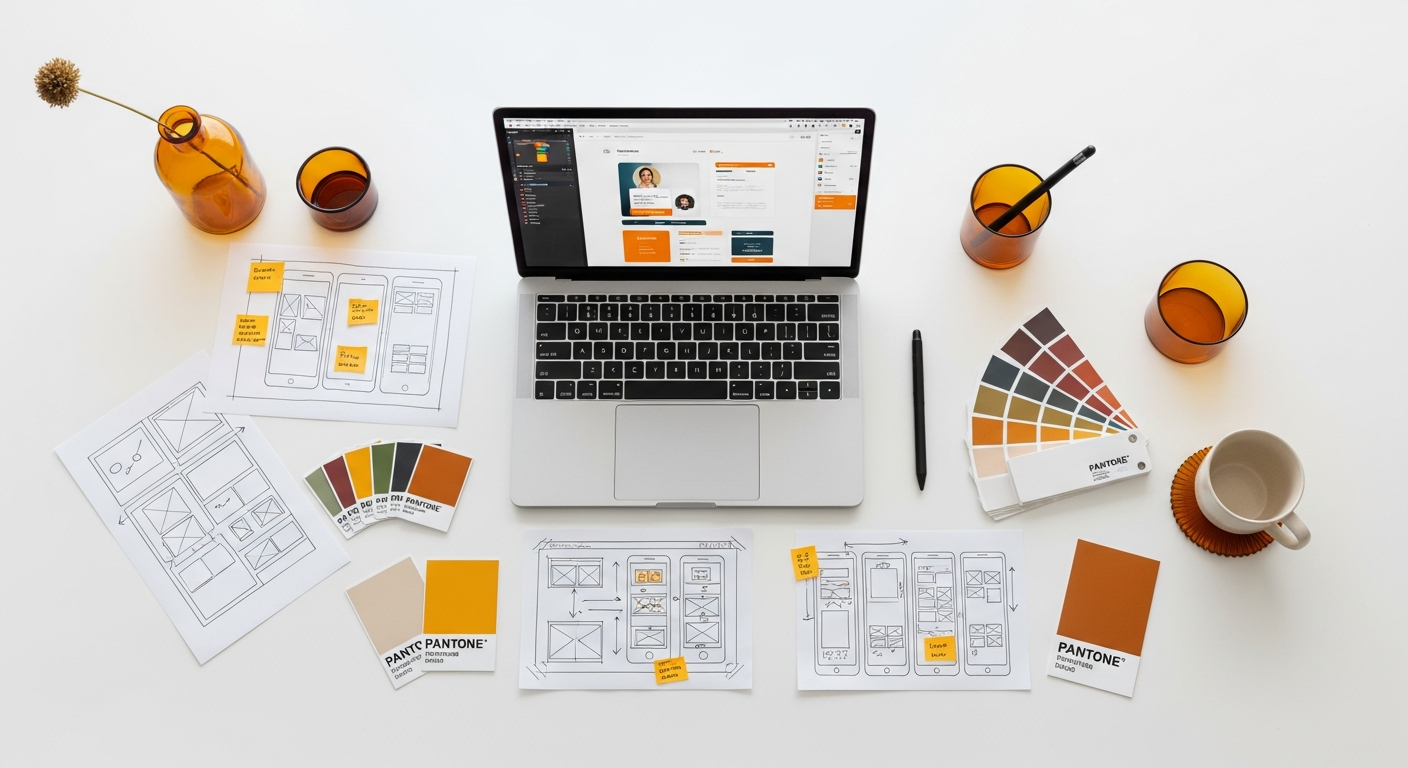
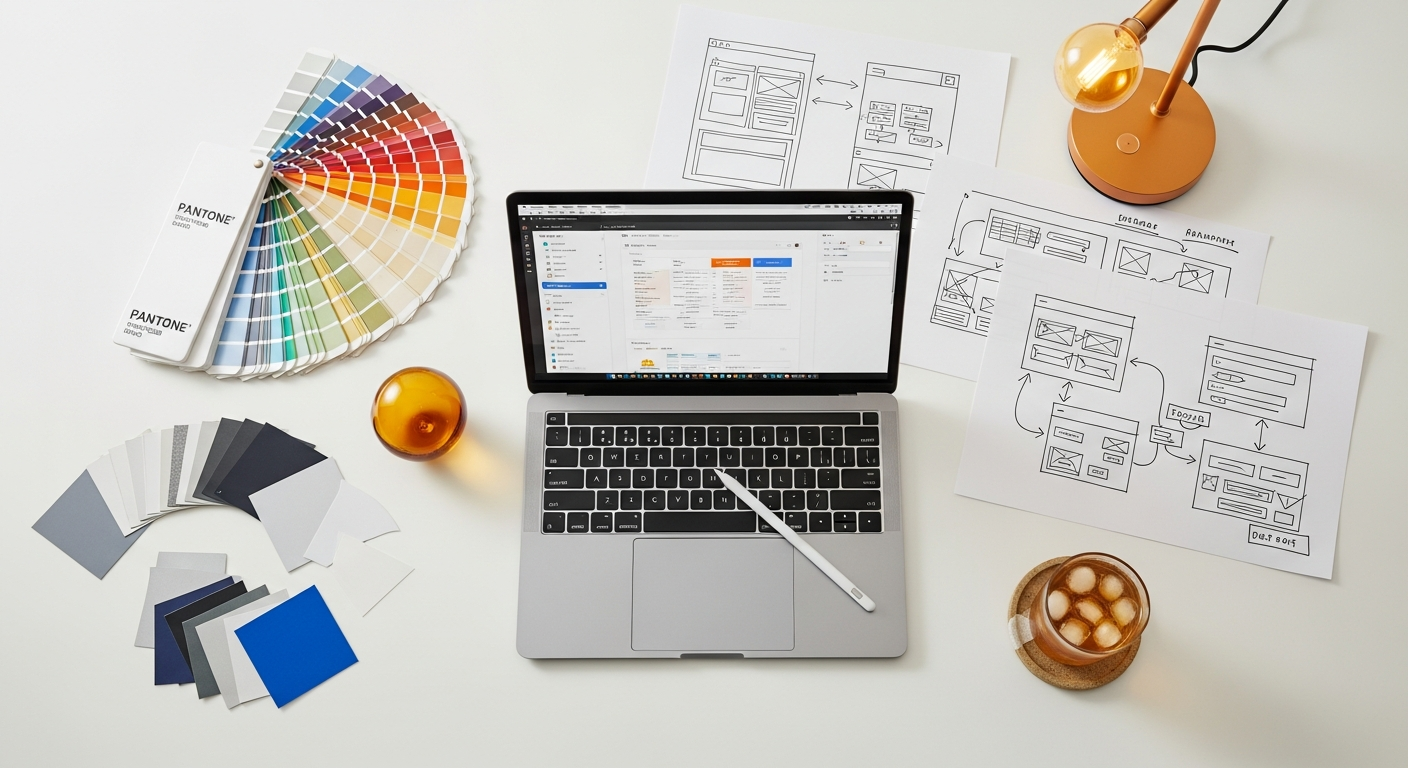
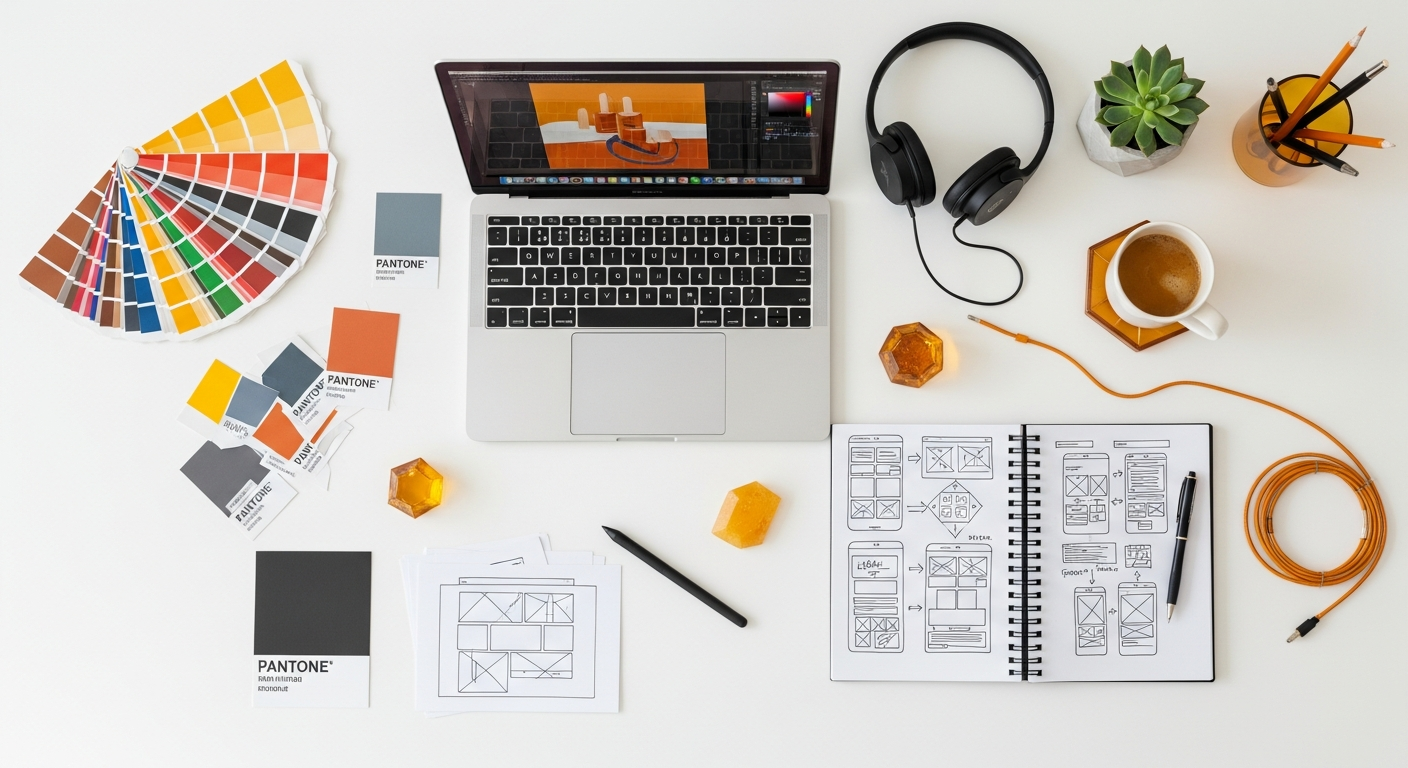
    Once you understand your users and goals, start brainstorming. Sketch out different interaction ideas on paper or a whiteboard. Think about the user’s journey and how gestures can streamline tasks. Create low-fidelity wireframes or storyboards that illustrate the sequence of actions and reactions. Don’t be afraid to explore unconventional ideas at this stage; refinement comes later.

  3. 3. Prototyping & Animation

    This is where gestures come to life.

    • Figma: Use interactive components, variants, and Smart Animate to create realistic tap, drag, and swipe interactions. Figma’s prototyping features are powerful for illustrating basic gesture flows and transitions.
    • Adobe XD: Similar to Figma, XD offers Component States and Auto-Animate for crafting smooth, responsive gesture-driven animations and micro-interactions.
    • ProtoPie: For highly realistic and device-specific interactions, ProtoPie is invaluable. It allows you to leverage device sensors, multi-touch gestures, and even connect to physical devices for accurate haptic feedback simulation. This is crucial for truly understanding how a gesture “feels” in a user’s hand.
    • Principle for Mac: Excellent for meticulously animating micro-interactions and complex gesture feedback, offering fine-grained control over timing, easing, and visual effects.

    Focus on the visual and haptic feedback: what happens when a gesture is initiated, in progress, and completed? How does the UI respond? The timing and easing of animations are critical for making gestures feel natural and responsive.

  4. 4. User Testing & Iteration

    No gesture design is complete without rigorous user testing. Observe users performing tasks with your prototypes. Ask open-ended questions: “What did you expect to happen when you did that?” “Was that intuitive?” Pay close attention to confusion, hesitation, or incorrect attempts. Tools like UserTesting.com or Maze can facilitate remote testing and gather both qualitative and quantitative data (task completion rates, error rates). Be prepared to iterate based on feedback; it’s rare to get a complex gesture right on the first try. A/B test different gesture implementations to see which performs best.

  5. 5. Documentation & Handoff

    Once your gestures are refined and validated, clear documentation is essential for developers. Specify:

    • The exact gesture (e.g., “swipe left 50px with velocity > X”).
    • The trigger point (e.g., “on long press of item A”).
    • The resulting action (e.g., “reveal delete button, animate item B out”).
    • Detailed animation specifications (duration, easing curve, visual states).
    • Haptic feedback requirements (e.g., “light impact haptic on completion”).
    • Accessibility alternatives.

    Tools like Zeplin or Figma’s developer mode can aid in this handoff, ensuring developers have all the necessary information to implement your vision accurately.

Tools of the Trade for Modern Gesture Designers

The right tools can significantly streamline your gesture design workflow and enable more sophisticated prototyping:

  • Figma

    The industry standard for UI design. Its interactive components, variants, and Smart Animate feature make it incredibly powerful for prototyping complex gesture flows, transitions, and micro-interactions. You can create reusable components that respond differently to various gestures (tap, drag, hover), accelerating your design process.

  • Adobe XD

    Another strong contender for UI/UX design and prototyping. XD excels at creating interactive prototypes with its Component States and Auto-Animate features, allowing designers to quickly demonstrate how elements respond to gestures with smooth transitions.

  • ProtoPie

    When you need to go beyond basic transitions, ProtoPie is unmatched. It allows designers to create highly realistic, device-specific interactions that respond to multi-touch gestures, device sensors (tilt, sound), and even connect to hardware. This is crucial for designing and testing gestures that leverage the full capabilities of modern mobile devices, including nuanced haptic feedback.

  • Principle for Mac

    Ideal for designers who want granular control over micro-interactions and animations. Principle allows you to craft intricate animations and transitions that respond to touch events, making it perfect for demonstrating the subtle, delightful feedback that makes a gesture feel truly intuitive.

  • UserTesting.com / Maze

    These platforms are indispensable for gathering user feedback on your gesture designs. They allow you to set up tests, record user sessions, and collect quantitative data on task completion and user sentiment. Observing real users interact with your prototypes is the fastest way to identify friction points and validate your design choices.

  • Lottie / After Effects

    For custom, expressive animations that accompany gestures (e.g., a celebratory animation after a successful drag-and-drop), After Effects combined with Lottie is a powerful duo. Lottie allows you to export animations as small, scalable JSON files that developers can easily integrate, ensuring your visual feedback is pixel-perfect and performant.

The Future of Gesture Design: Beyond the Touchscreen (2026 & Beyond)

As we head into 2026, the definition of “mobile interaction” is expanding. Designers must anticipate and prepare for these shifts:

  • Haptic Feedback Evolution

    Expect more sophisticated and localized haptic feedback. Beyond a simple buzz, devices will offer nuanced sensations that differentiate between types of interactions (e.g., a “thud” for dropping an item, a “click” for confirmation, a “stretch” for pulling content). This richer haptic vocabulary will add another layer of sensory feedback to gestures, making them even more immersive.

  • Spatial Computing & AR/VR Integration

    With the rise of spatial computing platforms, mobile apps will increasingly interact with augmented and virtual realities. This means hand tracking, mid-air gestures, and gaze interactions will become part of the mobile design lexicon. Designers will need to consider how traditional touch gestures translate or combine with these new interaction paradigms, perhaps using a mobile device as a controller for AR experiences.

  • AI-Powered Personalization

    AI will play a significant role in making gestures more intelligent and adaptive. Imagine an app that learns your preferred swipe direction for dismissing notifications or adjusts the sensitivity of a pinch-to-zoom based on your common usage patterns. Predictive AI could anticipate your next action and subtly guide you towards the most efficient gesture.

  • Multi-Modal Interactions

    The future isn’t just about touch. It’s about combining gestures with voice commands, gaze tracking, and even subtle biometrics for richer, more natural interactions. For example, a user might long-press an item, then speak a command, or glance at a menu option to select it, creating a seamless blend of input methods.

  • Accessibility Innovations

    New technologies will also bring new opportunities for accessibility. Advanced sensor input, improved voice control, and even brain-computer interfaces (BCI) in their nascent stages could offer novel ways for users with severe motor impairments to interact with mobile apps, going beyond simple gesture alternatives.

Frequently Asked Questions About Gesture Design

Q1: How do I balance discoverability with a clean, minimalist UI?
A1: It’s a classic design challenge. For critical actions, always prioritize discoverability with clear visual cues or explicit buttons. For secondary or power-user functions, subtle onboarding, progressive disclosure (revealing hints only when relevant), and consistent patterns can introduce gestures without cluttering the UI. Leverage established mental models from popular apps to make new gestures feel familiar.
Q2: What’s the biggest mistake designers make with gestures?
A2: The biggest mistake is designing “hidden” gestures without sufficient affordance, feedback, or discoverability. If users can’t find it, don’t understand it, or don’t get confirmation, the gesture is useless and frustrating. Another common error is using inconsistent gestures for similar actions within the same app, leading to confusion.
Q3: Should I use custom gestures or stick to native platform conventions?
A3: Always prioritize native platform conventions first. Users expect these and will find your app more intuitive. Custom gestures should only be introduced when they offer a significant advantage in efficiency, delight, or uniqueness that cannot be achieved with standard patterns, and only after thorough testing to ensure discoverability and usability.
Q4: How important is haptic feedback in gesture design?
A4: Haptic feedback is incredibly important. It provides a physical confirmation that an action has been registered, enhancing the sense of direct manipulation and improving user confidence. It can differentiate between states (e.g., a light tap vs. a long press) and make interactions feel more responsive and premium. Always include haptic feedback in your prototypes and testing.
Q5: What’s the role of AI in gesture design by 2026?
A5: By 2026, AI will move beyond simple personalization. It will enable more adaptive interfaces where gestures can dynamically adjust based on context (e.g., user’s location, time of day, current task), user proficiency, and even emotional state. AI will also power advanced gesture recognition for non-touch interactions like mid-air movements and gaze, making interactions more fluid and less reliant on explicit input.

Conclusion

Gesture design is an art and a science, constantly evolving with technology and user expectations. As we navigate towards 2026, the emphasis remains firmly on creating intuitive, accessible, and delightful experiences that empower users without overwhelming them. By adhering to core principles, embracing a rigorous design process, leveraging powerful prototyping tools, and keeping an eye on future trends, you can design mobile app gestures that feel like a natural extension of the user’s will—making your applications not just functional, but truly memorable. Start experimenting, test relentlessly, and push the boundaries of what’s possible. The future of mobile interaction is in your hands.