The Evolving Landscape of Free Design Tools for Beginners in 2026
The digital age has democratized design like never before. Gone are the days when high-end software licenses were the sole gateway to creating professional-grade visuals. In 2026, the market is brimming with innovative solutions that offer robust functionalities at no cost, making design accessible to everyone. This shift is particularly beneficial for beginners who need to learn the fundamentals, experiment with different design disciplines, and build a portfolio without investing heavily upfront. Free tools serve as an excellent training ground, allowing you to grasp core concepts, develop muscle memory for various interfaces, and understand the workflow of a designer.
These tools often come in several forms: entirely free open-source projects, freemium models with generous free tiers, or web-based applications that require no installation. The accessibility extends beyond just cost; many free tools prioritize user-friendliness, offering intuitive interfaces and extensive libraries of templates, assets, and tutorials specifically tailored for new users. This means you can jump straight into creating, rather than getting bogged down by complex software manuals. Furthermore, the vibrant online communities surrounding many free design tools provide invaluable support, tips, and inspiration, fostering an environment of collaborative learning.
For someone just starting out, understanding the basics of design principles – such as typography, color theory, composition, and visual hierarchy – is paramount. Free tools provide the perfect sandbox to apply these principles practically. You can experiment with different aesthetics, test out various layouts, and iterate on your designs without any pressure. This hands-on experience is crucial for developing a keen eye for design and building confidence in your abilities. As you progress, you’ll naturally gravitate towards specific areas, perhaps finding a passion for graphic design, UI/UX, or even 3D modeling for interior spaces. The free tools available today are versatile enough to support exploration across these diverse fields, proving that a zero-cost entry point doesn’t mean compromising on learning potential or creative output in 2026.
Essential Categories of Free Design Tools to Explore
Before diving into specific recommendations, it’s helpful to understand the different categories of design tools available. Each type serves a distinct purpose, and knowing what you need will guide you to the most appropriate software. For beginners in 2026, understanding these distinctions is key to building a versatile skill set.
- Raster Graphics Editors: These tools work with pixels to create and edit images. Think photographs, digital paintings, and complex visual effects. They are ideal for photo manipulation, creating realistic textures, and detailed artwork. While powerful, scaling raster images up can lead to pixelation.
- Vector Graphics Editors: Unlike raster tools, vector editors work with mathematical paths, points, and curves. This means vector graphics can be scaled infinitely without losing quality, making them perfect for logos, illustrations, icons, and typography. They are essential for branding and print design where crisp lines are paramount.
- UI/UX Design & Prototyping Tools: User Interface (UI) and User Experience (UX) design focuses on creating intuitive and aesthetically pleasing digital products like websites and mobile apps. UI tools help design the visual layout, while UX tools facilitate the entire user journey, from wireframing to interactive prototyping. Understanding What Is UX Design And Why It Matters becomes incredibly clear when using these tools, as they allow you to simulate user interactions and identify potential pain points early in the design process.
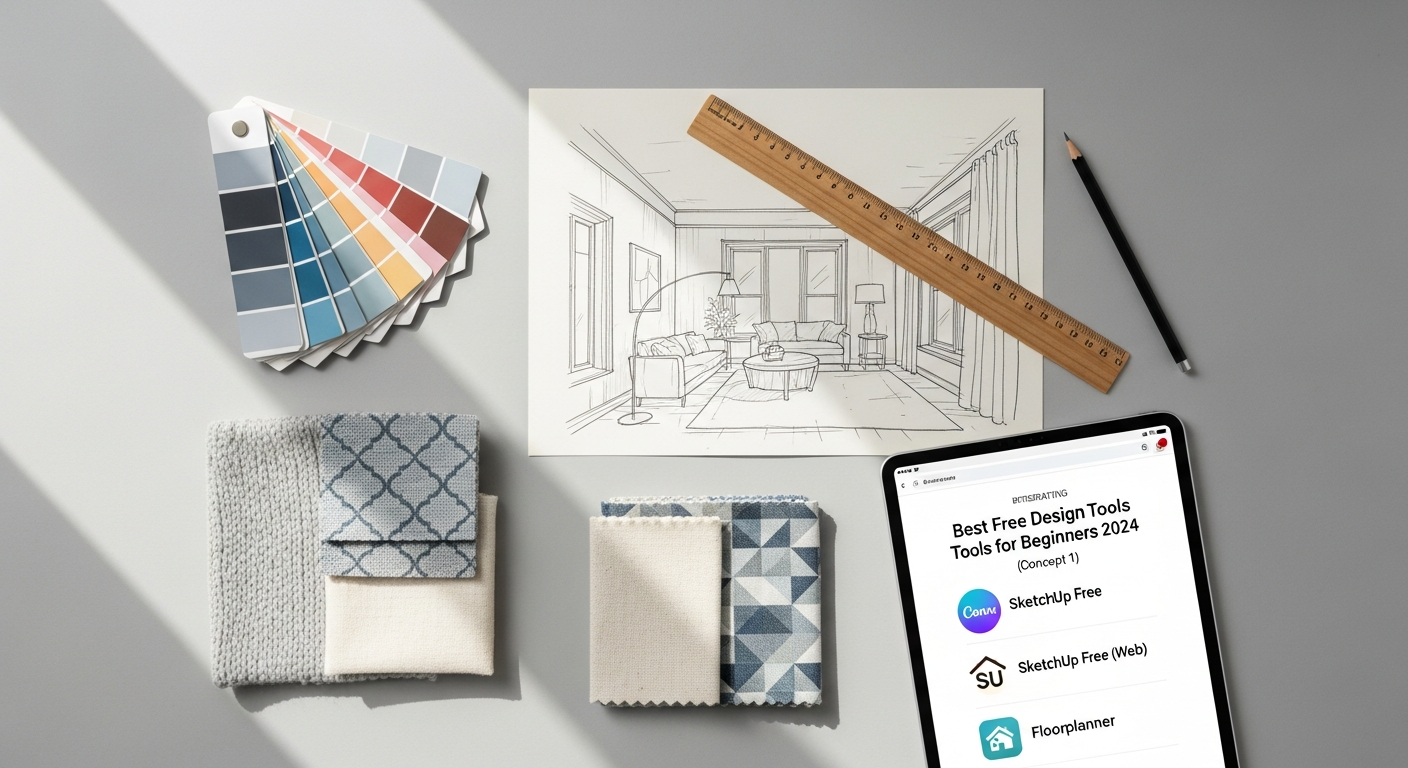
- 3D Design & Interior Layout Tools: These tools allow you to create three-dimensional models and scenes. For interior designers, this means visualizing room layouts, placing furniture, and experimenting with materials and lighting in a virtual space. They offer a powerful way to communicate design concepts to clients and explore spatial relationships.
- Infographic & Presentation Tools: Designed to help you present information clearly and engagingly, these tools often come with templates and easy-to-use interfaces for creating compelling infographics, charts, and slide decks. They are invaluable for anyone needing to distill complex data into digestible visual stories. This category directly relates to applying Infographic Design Tips And Best Practices.
By exploring tools across these categories, beginners can gain a well-rounded understanding of the design world and discover which areas resonate most with their creative aspirations. Many modern free tools even offer hybrid functionalities, blurring the lines between these traditional categories, providing even greater flexibility for the budding designer in 2026.
Top Free Graphic Design & Image Editing Tools for 2026
Canva: The Ultimate Beginner-Friendly Design Platform
Canva has revolutionized graphic design for non-designers and beginners alike. Its intuitive drag-and-drop interface, coupled with an enormous library of templates, stock photos, icons, and fonts, makes it incredibly easy to create professional-looking designs in minutes. While it offers a paid Pro version, its free tier is remarkably robust, providing access to thousands of templates, millions of free photos and graphics, and collaborative features.
- Pros: Extremely easy to learn, vast template library for various purposes (social media, presentations, posters, invitations), cloud-based (accessible anywhere), excellent for quick designs and visual communication.
- Cons: Lacks advanced image manipulation capabilities of dedicated photo editors, some premium features and assets are locked behind a paywall, not ideal for highly customized or complex vector illustrations.
- Best For: Social media managers, content creators, small business owners, students, and anyone needing quick, professional-looking graphics without a steep learning curve.
GIMP (GNU Image Manipulation Program): The Powerful Open-Source Alternative
Often hailed as the “free Photoshop,” GIMP is a powerful open-source raster graphics editor that provides a comprehensive suite of tools for photo retouching, image composition, and digital painting. It’s available for Windows, macOS, and Linux, and its capabilities rival many paid programs.
- Pros: Full-featured image editor, highly customizable, supports a wide range of file formats, extensive plugin support, active community development, completely free forever.
- Cons: Steeper learning curve than Canva, interface can feel less polished than commercial alternatives, not natively designed for vector graphics.
- Best For: Aspiring photographers, digital artists, and graphic designers who want to delve deep into image manipulation and are willing to invest time in learning a powerful, professional-grade tool.
Photopea: Browser-Based Photoshop Clone
Photopea is a free, web-based raster and vector graphics editor that runs entirely in your browser. Its interface is strikingly similar to Adobe Photoshop, making it incredibly accessible for anyone familiar with commercial photo editors or looking for a quick, no-install solution. It supports PSD, AI, XD, Sketch, PDF, XCF, and RAW files.
- Pros: Browser-based (no installation needed), highly compatible with various file formats, familiar interface for Photoshop users, powerful editing capabilities.
- Cons: Performance can depend on internet speed and browser capabilities, occasional ads (which can be removed with a premium subscription), not ideal for heavy, complex projects on older machines.
- Best For: Quick photo edits, opening and editing PSDs on the go, web designers, and anyone needing a robust image editor without downloading software.
Krita: For Digital Painting and Illustration
Krita is a free and open-source raster graphics editor primarily designed for digital painting and 2D animation. It boasts an intuitive interface, a vast array of brushes, and features specifically tailored for artists, including brush stabilizers, vector tools for comics, and robust layer management.
- Pros: Excellent for digital painting, drawing, and comic creation; wide range of customizable brushes; supports pressure-sensitive tablets; active community and frequent updates.
- Cons: Not primarily designed for photo manipulation or complex graphic design layouts, can be resource-intensive for animation.
- Best For: Illustrators, comic artists, concept artists, and anyone looking to explore digital art with a dedicated, professional-grade tool.
Leading Free UI/UX & Prototyping Tools for 2026
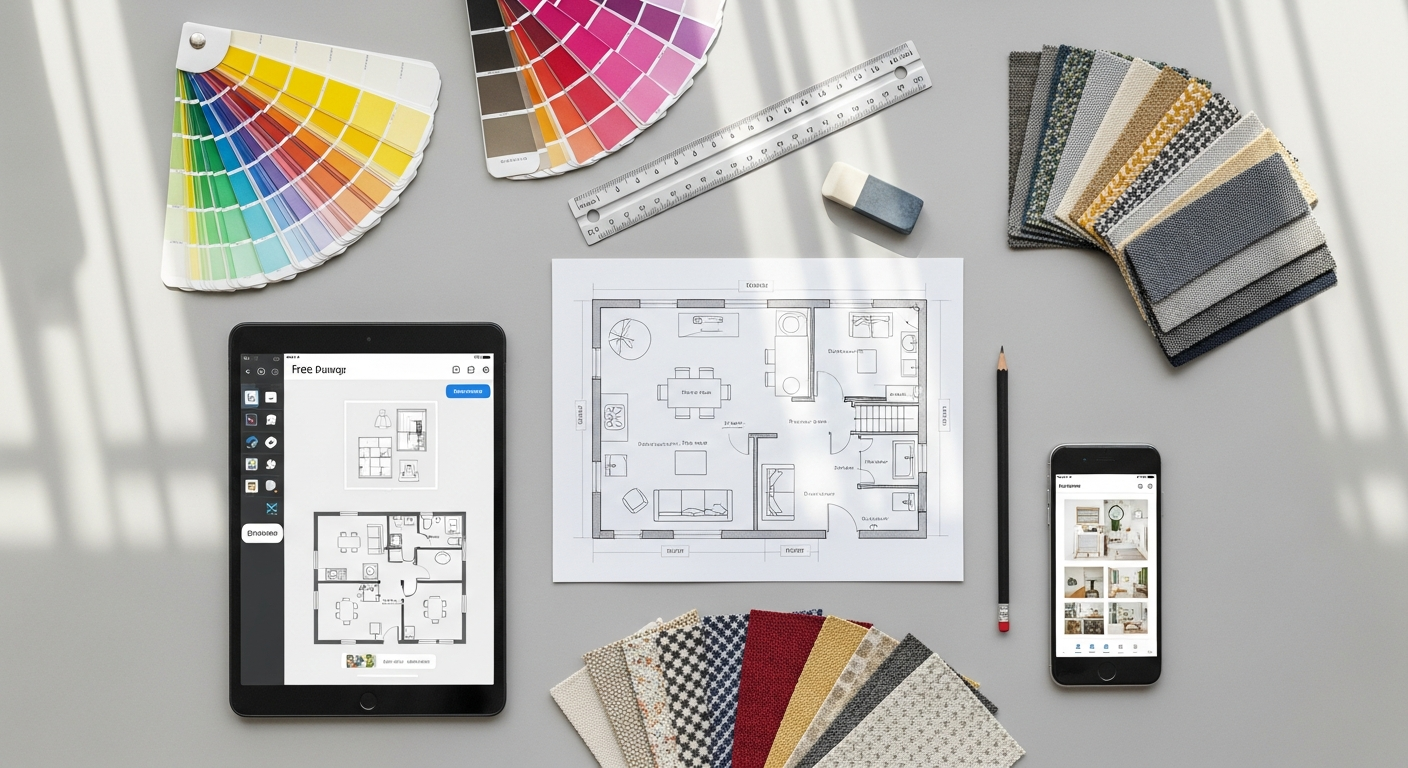
User Interface (UI) and User Experience (UX) design are critical fields in the digital age, focused on creating intuitive and enjoyable interactions with digital products. For beginners exploring careers in web or app design, these free tools in 2026 offer a fantastic starting point to learn the ropes of wireframing, designing interfaces, and building interactive prototypes. This is where you truly start to understand What Is UX Design And Why It Matters, by actively shaping user journeys and visual layouts.
Figma (Free Plan): Collaborative Powerhouse for UI/UX
Figma has become an industry standard for UI/UX design, and its free plan is incredibly generous, making it an indispensable tool for beginners. It’s a browser-based application, allowing for real-time collaboration, which is a huge advantage for team projects or getting feedback. Figma excels at designing user interfaces, creating interactive prototypes, and building design systems.
- Pros: Real-time collaboration, browser-based (no installation), excellent for UI design and interactive prototyping, vast community resources and plugins, strong version control.
- Cons: Free plan has limitations on the number of projects and collaborators, can be resource-intensive for very large files in the browser, not ideal for complex graphic design or image editing.
- Best For: Aspiring UI/UX designers, web designers, app designers, and teams who need a collaborative platform for interface design and rapid prototyping. It’s perfect for learning the entire UI/UX workflow from concept to interactive demo.
Adobe XD (Starter Plan): A Taste of the Adobe Ecosystem
Adobe XD offers a free Starter plan that provides essential features for UI/UX design, prototyping, and sharing. While it’s part of the larger Adobe Creative Cloud ecosystem, the free version is a good way for beginners to get acquainted with a professional-grade tool and understand the workflow of designing for digital experiences.
- Pros: Seamless integration with other Adobe products (if you later subscribe), intuitive interface, robust prototyping features, easy sharing and feedback collection.
- Cons: The free plan has significant limitations compared to the paid version (e.g., fewer shared prototypes, no Creative Cloud fonts), not as collaborative as Figma for free users.
- Best For: Beginners who want to learn a tool from the Adobe suite, those looking to design simple websites or mobile app interfaces, and users who might eventually upgrade to a full Creative Cloud subscription.
Penpot: Open-Source Design & Prototyping
Penpot is an open-source, web-based design and prototyping platform. It’s built for cross-domain teams, allowing designers and developers to work together seamlessly. As an open-source alternative, it offers a refreshing option for those who prefer community-driven software and full control over their tools.
- Pros: Fully open-source and free, web-based, strong focus on collaboration, vector design capabilities, supports SVG as its native format.
- Cons: Smaller community and fewer third-party integrations compared to Figma, still maturing in terms of features and polish.
- Best For: Teams and individuals who prioritize open-source solutions, those looking for a free, collaborative vector design and prototyping tool, and users who appreciate a platform built on open standards.
Framer (Free Plan): Interactive Prototyping with Code Components
Framer bridges the gap between design and code, allowing designers to create highly interactive prototypes using real code components. Its free plan offers a solid foundation for building impressive, high-fidelity prototypes. While it has a steeper learning curve than some purely visual tools, its capabilities for creating realistic user experiences are unmatched.
- Pros: Exceptionally powerful for interactive prototyping, allows for the use of real code components, excellent for demonstrating complex user flows and animations.
- Cons: Steeper learning curve, more geared towards designers with some understanding of code or those willing to learn, free plan has limitations on projects and features.
- Best For: Aspiring product designers, UI/UX designers who want to create advanced interactive prototypes, and those interested in understanding how design translates into code.
Free 3D Design & Interior Layout Tools for 2026
For those interested in spatial design, architecture, or interior decorating, 3D design tools are invaluable. They allow you to visualize spaces, experiment with layouts, and present ideas in a highly immersive way. In 2026, several free options make 3D design accessible to beginners, particularly those focused on home design and architectural visualization.
SketchUp Free (Web): Intuitive 3D Modeling for Beginners
SketchUp Free is the web-based version of the popular 3D modeling software, offering a surprisingly robust set of tools for creating simple to moderately complex 3D models. It’s renowned for its user-friendly interface and intuitive “push-pull” method of shaping surfaces, making it an excellent starting point for architects, interior designers, and hobbyists.
- Pros: Easy to learn, excellent for architectural modeling, interior design layouts, and conceptualizing spaces, vast 3D Warehouse library of free models (furniture, fixtures, etc.), runs in a web browser.
- Cons: Limited features compared to the paid Pro version, relies on internet connection, not ideal for organic modeling or highly detailed rendering (though extensions can help in paid versions).
- Best For: Aspiring interior designers, architects, DIY enthusiasts, and anyone needing to quickly sketch out 3D ideas for rooms, furniture, or small buildings. It’s perfect for visualizing floor plans and space planning.
Sweet Home 3D: Dedicated Interior Design Software
Sweet Home 3D is a free interior design application that helps you draw the plan of your house, arrange furniture on it, and visit the results in 3D. It’s specifically tailored for interior design, making it incredibly straightforward for beginners to design and decorate homes.
- Pros: Highly specialized for interior design, easy drag-and-drop interface for furniture and objects, large library of customizable 3D models, allows for virtual walk-throughs, available as a desktop application.
- Cons: Limited capabilities outside of interior design, 3D models can sometimes look basic, not suitable for complex architectural modeling or advanced rendering.
- Best For: Homeowners, interior design students, and anyone wanting to easily plan and visualize room layouts, furniture placement, and decor options.
Blender: The Professional-Grade Open-Source 3D Suite
Blender is a powerhouse in the 3D world, offering a complete suite of tools for 3D modeling, sculpting, animation, rendering, video editing, and more. While it has a significantly steeper learning curve than SketchUp or Sweet Home 3D, it is completely free and open-source, providing professional-level capabilities once mastered. For a beginner with a strong interest in 3D and a commitment to learning, Blender is an unparalleled resource in 2026.
- Pros: Extremely powerful and versatile, professional-grade features across all 3D disciplines, active and supportive community, constant development and updates, completely free forever.
- Cons: Very steep learning curve for beginners, can be overwhelming initially, requires a good understanding of 3D concepts.
- Best For: Ambitious beginners interested in character modeling, animation, advanced architectural visualization, game development, or visual effects, who are prepared to dedicate significant time to learning.
Free Tools for Infographics, Data Visualization & Presentation in 2026
Communicating information clearly and engagingly is a crucial design skill. Whether you’re a student, a marketer, or an analyst, the ability to transform complex data into compelling visuals is invaluable. In 2026, several free tools empower beginners to create stunning infographics, data visualizations, and presentations that captivate audiences. This is where applying Infographic Design Tips And Best Practices truly shines, as these tools simplify the creation process.
Canva: Versatile for Infographics and Presentations
Once again, Canva proves its versatility. Beyond general graphic design, its extensive collection of infographic templates, presentation themes, and data visualization elements makes it an excellent choice for beginners. You can easily plug in your data, customize colors and fonts, and create professional-looking charts and graphs without any prior design experience.
- Pros: User-friendly interface, vast library of infographic and presentation templates, easy drag-and-drop functionality, collaborative features, good for quick creation of visually appealing content.
- Cons: Limited customization options compared to specialized tools, some premium templates and features are locked, not suitable for highly complex or interactive data visualizations.
- Best For: Students, marketers, small business owners, and anyone needing to quickly create attractive infographics, reports, or presentations without a steep learning curve.
Google Slides: Collaborative Presentations Made Easy
As part of Google Workspace, Google Slides is a free, web-based presentation tool that offers robust collaboration features. While it might seem basic, its simplicity and ease of sharing make it perfect for team projects, quick presentations, and integrating with other Google services. It also includes basic charting capabilities and a variety of themes.
- Pros: Excellent real-time collaboration, cloud-based and accessible from anywhere, easy to use, integrates well with Google Drive, good for standard presentations.
- Cons: Less design flexibility and fewer advanced features than dedicated design software, template options are more limited than Canva, basic data visualization.
- Best For: Students, educators, teams needing collaborative presentation creation, and anyone looking for a straightforward, accessible tool for slide-based presentations.
Piktochart (Free Plan): Specialized for Infographics and Reports
Piktochart is a web-based infographic maker that specializes in transforming complex data into easy-to-understand visuals. Its free plan offers a good selection of templates, icons, and images, allowing beginners to create professional-looking infographics, presentations, and reports. It focuses specifically on visual storytelling with data.
- Pros: Specialized templates for infographics and reports, easy to add and visualize data, good selection of icons and visual assets, user-friendly interface.
- Cons: Free plan has limitations on the number of projects, storage, and export options (e.g., watermark), less versatile for general graphic design tasks.
- Best For: Marketers, educators, non-profits, and anyone whose primary need is to create compelling data-driven infographics and visual reports efficiently.
Maximizing Your Learning with Free Design Tools
Having access to the best free design tools in 2026 is just the first step. To truly excel as a designer, you need a strategy for learning and growth. Here are some key tips to help beginners maximize their potential with these powerful, no-cost resources:
- Start with a Project: Instead of aimlessly clicking buttons, pick a small, achievable project. Design a social media post, create a simple logo, lay out a mood board for an interior space, or sketch a basic app screen. Project-based learning provides context and motivation, helping you apply what you learn immediately.
- Utilize Tutorials Extensively: Almost every popular free design tool has a wealth of free tutorials available online. YouTube, the tools’ official websites, and design blogs are goldmines. Follow step-by-step guides, replicate designs, and don’t be afraid to pause and rewind. This helps build foundational skills and familiarizes you with the software’s interface.
- Join Online Communities: Engage with other users. Forums, Facebook groups, Discord servers, and Reddit communities dedicated to tools like GIMP, Krita, Figma, or Blender are fantastic resources. You can ask questions, share your work for feedback, and learn from experienced users. This sense of community can be incredibly supportive.
- Understand Design Principles: Software is just a tool; a strong understanding of design principles is what makes a great designer. Learn about color theory, typography, composition, hierarchy, balance, and contrast. Apply these principles consciously as you use your free tools. For example, when using Figma, think about What Is UX Design And Why It Matters beyond just aesthetics – consider user flow and accessibility.
- Practice Consistently: Like any skill, design improves with practice. Dedicate regular time to working on your projects, experimenting with new features, and refining your techniques. Even short, consistent sessions are more effective than infrequent, long ones.
- Analyze and Deconstruct Designs: Look at designs you admire and try to understand why they work. What colors are used? How is the typography structured? What’s the layout? Try to recreate elements of these designs using your free tools. This is an excellent way to learn by reverse-engineering.
- Iterate and Seek Feedback: Don’t expect perfection on your first try. Design is an iterative process. Create multiple versions of your designs and be open to constructive criticism. While you might not be ready to How To Conduct A Heuristic Evaluation on your own work as a beginner, simply getting fresh eyes on your creations is invaluable for improvement.
- Explore Different Tool Categories: Don’t limit yourself to just one type of tool. Experiment with a raster editor, a vector tool, and a UI/UX platform. This broadens your understanding of design possibilities and helps you discover your niche.
By adopting a proactive and curious mindset, beginners can leverage these free design tools to not only learn the software but also to develop a strong understanding of design methodologies and principles. The journey of a designer is continuous learning, and 2026 offers an unprecedented opportunity to embark on that journey without financial barriers.
Frequently Asked Questions
Recommended Resources
You might also enjoy Ai Tools For Small Business 2026 from Bookmark Sharer.
Explore Best Project Management Software For Startups for additional insights.