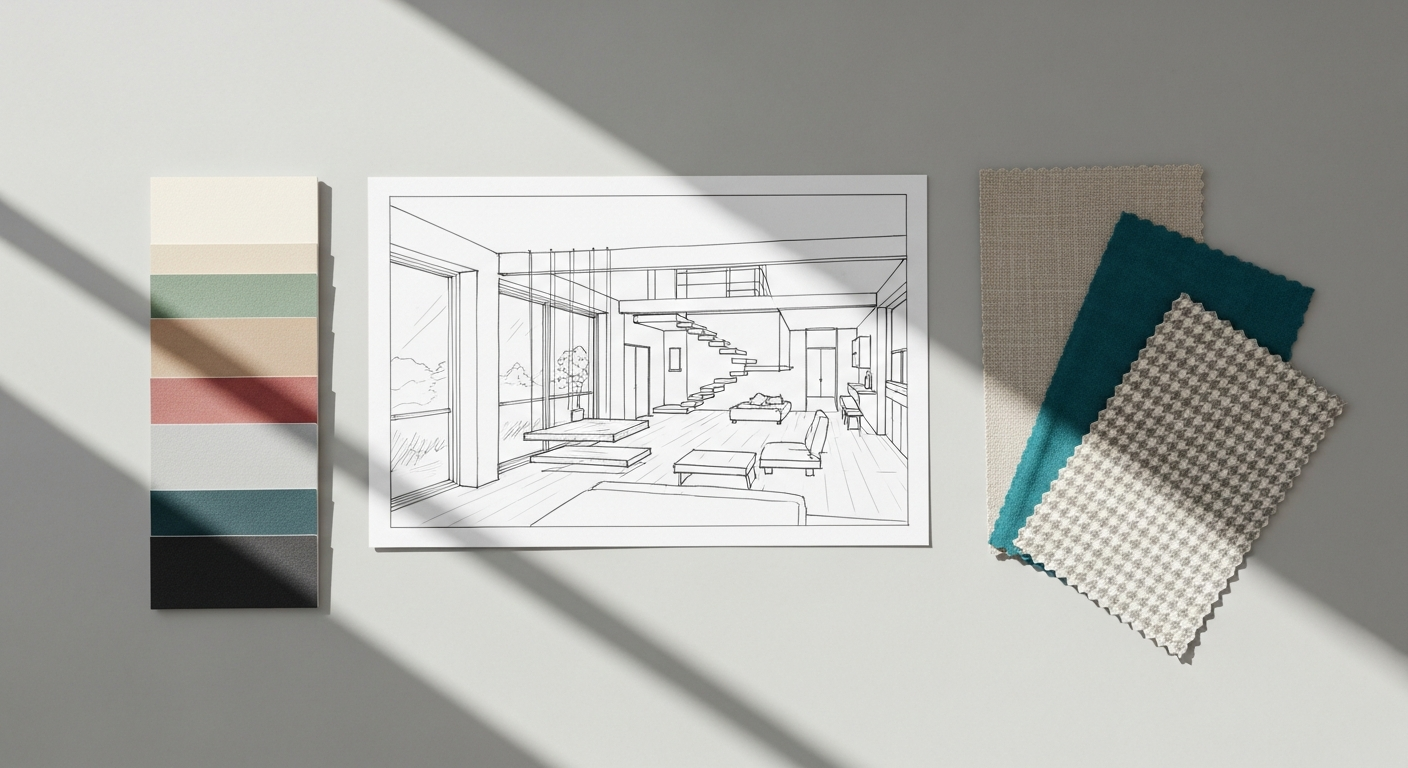
Photoshop’s Enduring Legacy and Pixel-Perfect Precision in Web Design
For decades, Adobe Photoshop has been the undisputed king of raster graphics, and its influence on web design is undeniable. Initially conceived for photo manipulation, its robust set of tools quickly made it indispensable for creating intricate web layouts, detailed visual assets, and pixel-perfect mockups. Even as specialized UI/UX tools emerge, Photoshop continues to hold a significant place in the web designer’s toolkit, particularly for tasks demanding its unique strengths.
One of Photoshop’s primary advantages lies in its unparalleled ability to work with raster graphics – images composed of pixels. This makes it the go-to software for tasks involving photography, realistic textures, gradients with subtle transitions, and complex photo compositions that form the backbone of many modern websites. Think of those stunning hero images that greet visitors, the intricate background patterns, or the visually rich product showcases; these are areas where Photoshop truly shines. Its extensive array of filters, blending modes, and adjustment layers allows designers to craft visuals that evoke specific moods, enhance branding, and create a highly immersive user experience.
Furthermore, Photoshop excels at creating highly detailed, pixel-perfect mockups. Before the advent of dedicated prototyping tools, designers would meticulously craft every element of a webpage in Photoshop, ensuring precise alignment, consistent typography, and accurate color reproduction. While this approach has evolved, Photoshop remains invaluable for the initial visual conceptualization and for refining specific graphical elements that require intricate detailing. For instance, designing a bespoke button with a subtle inner shadow, a unique hover effect, or a complex icon that requires raster-based textures often begins and ends in Photoshop. Its layer-based system and non-destructive editing capabilities provide immense flexibility, allowing designers to experiment freely without permanently altering the original artwork.
The ability to work at a pixel level also makes Photoshop critical for tasks like image optimization for the web. Designers can precisely crop, resize, and compress images to ensure fast loading times without sacrificing visual quality – a crucial factor for both user satisfaction and SEO. With features like ‘Save for Web (Legacy)’ or ‘Export As’, designers can fine-tune image formats (JPEG, PNG, GIF) and compression settings to strike the perfect balance between file size and visual fidelity. This meticulous attention to detail in image preparation directly contributes to a smoother, faster web experience, which is paramount in today’s performance-driven digital landscape. For designers tasked with creating visually rich web experiences that rely heavily on photographic content and intricate raster graphics, Photoshop remains an indispensable tool, offering a level of control and precision that few other applications can match.
Illustrator’s Ascendancy and Scalable Vector Graphics for Modern Web Design
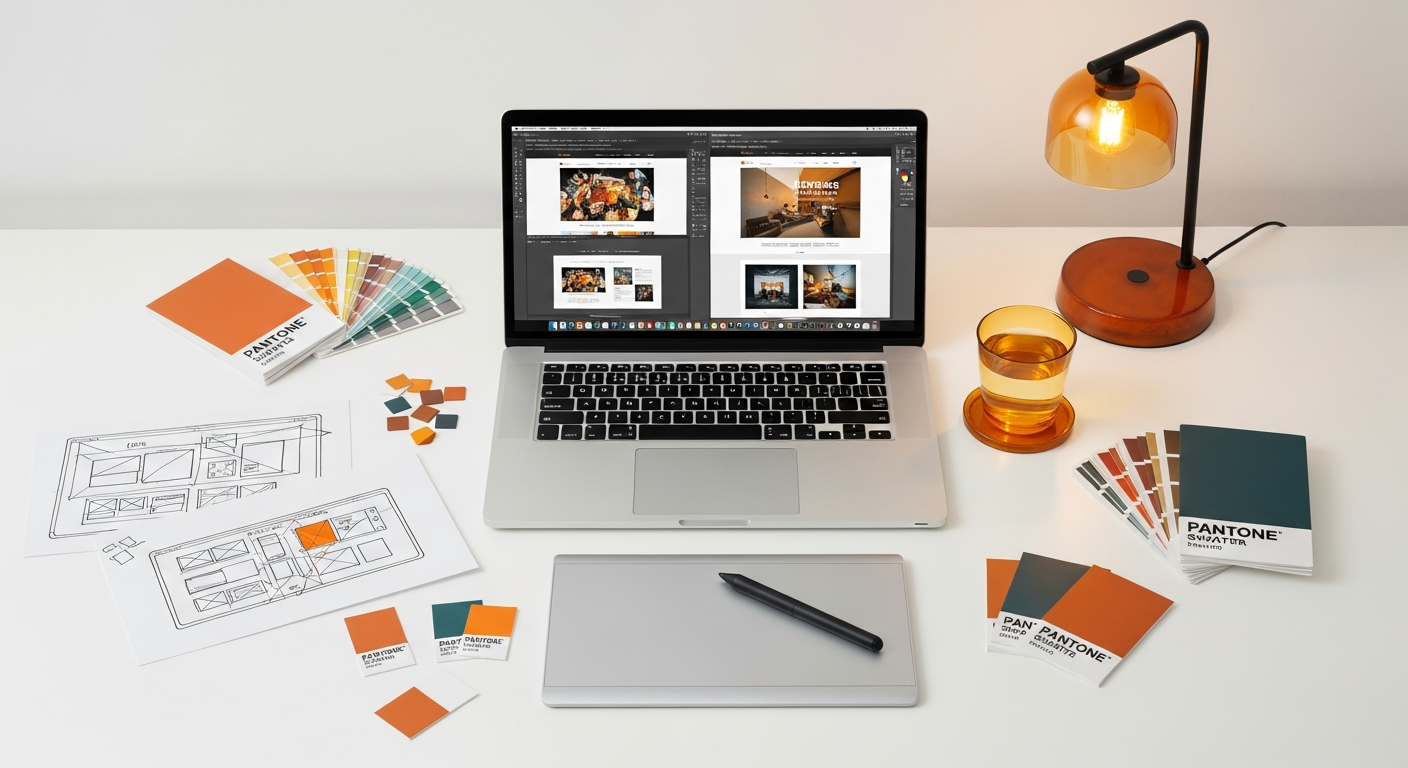
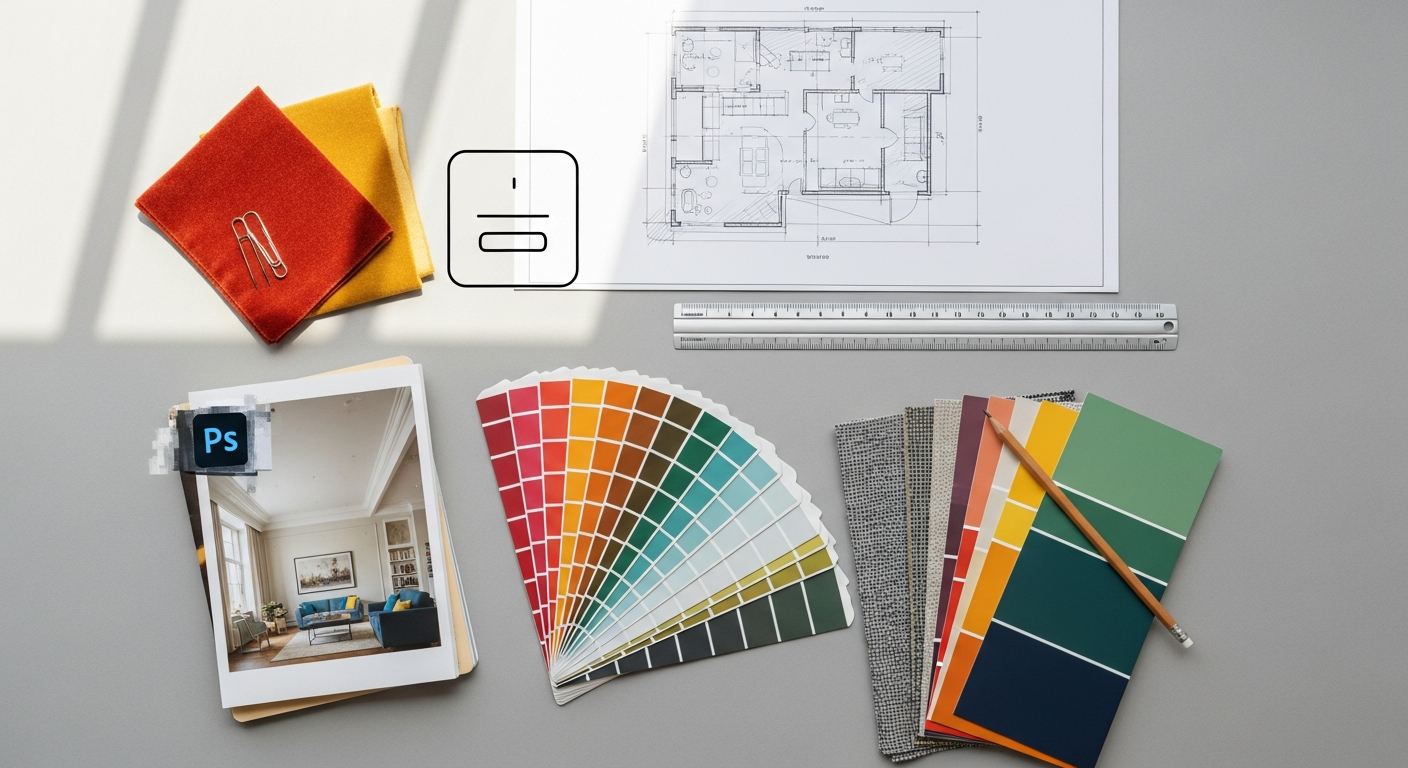
While Photoshop dominates the realm of raster, Adobe Illustrator stands as the undisputed champion of vector graphics. Its mathematical approach to creating shapes, lines, and curves has made it increasingly vital for modern web design, especially in an era defined by responsive layouts, high-resolution screens, and the need for scalable assets. As we move towards 2026, Illustrator’s strengths are becoming even more pronounced in the web design workflow.
The core advantage of Illustrator lies in its vector nature. Unlike raster images, which are composed of a fixed grid of pixels, vector graphics are defined by mathematical equations. This means they can be scaled up or down to any size without any loss of quality or pixelation. For web design, this capability is revolutionary. Consider the proliferation of devices with varying screen resolutions, from standard desktops to retina displays on smartphones and tablets. An icon or a logo designed in Illustrator will look crisp and sharp on every single screen, regardless of its pixel density. This ensures a consistent, professional, and high-quality visual experience across all platforms, which is a cornerstone of effective What Is Ux Design And Why It Matters.
Illustrator is the ultimate tool for creating virtually every UI element that demands crispness and scalability. This includes:
- Icons: From simple navigation icons to complex illustrative pictograms, Illustrator ensures they remain sharp at any size.
- Logos: The foundation of any brand identity, logos designed in Illustrator are endlessly scalable for web, print, and beyond.
- Typography: While Photoshop handles text, Illustrator offers superior control over typographic elements, allowing for precise kerning, tracking, and custom font creation or modification. This is crucial for maintaining consistent brand voice and readability across diverse web environments.
- UI Components: Buttons, input fields, toggles, sliders – any interactive element that needs to be clean, consistent, and scalable across responsive breakpoints.
- Illustrations and Infographics: For designers looking to communicate complex data or concepts visually, Illustrator is the ideal environment. Its precision tools allow for the creation of intricate diagrams, charts, and custom illustrations. This directly ties into Infographic Design Tips And Best Practices, as Illustrator provides the control needed for clean, readable, and scalable visual data representations, ensuring they look great on any device and contribute positively to understanding without being blurry or pixelated.
The rise of SVG (Scalable Vector Graphics) as a web standard has further solidified Illustrator’s position. SVGs are lightweight, resolution-independent, and can be animated with CSS and JavaScript, offering immense flexibility for interactive web elements. Designing these assets in Illustrator ensures they are optimized for web use, contributing to faster loading times and a more dynamic user experience. In a world where responsiveness and visual fidelity are paramount, Illustrator provides the essential tools for crafting a future-proof web presence.
Core Differences: Raster vs. Vector in a Web Context
Understanding Raster Graphics (Photoshop)
Raster graphics, as handled by Photoshop, are essentially grid-based images made up of individual pixels. Each pixel contains color information, and together, these pixels form the complete image. Think of a photograph: it’s a raster image.
- Strengths for Web: Unmatched for realism, photo manipulation, complex shading, and blending. If your web design relies heavily on photography, detailed textures, or realistic visual effects, Photoshop is indispensable. It allows for pixel-perfect control over every minute detail, which is crucial for high-quality hero images, product photography, and visually rich backgrounds.
- Limitations for Web: The primary drawback is scalability. When you enlarge a raster image beyond its original resolution, the pixels become visible, leading to a blurry or “pixelated” appearance. This poses a significant challenge for responsive web design, where elements need to adapt seamlessly to various screen sizes and resolutions without quality degradation. Larger raster images also contribute to larger file sizes, impacting website loading performance – a critical factor for user experience and SEO.
- File Formats: Common raster formats for web include JPEG (Joint Photographic Experts Group) for photographs, PNG (Portable Network Graphics) for images requiring transparency or higher quality, and GIF (Graphics Interchange Format) for simple animations or images with limited color palettes.
Understanding Vector Graphics (Illustrator)
Vector graphics, the domain of Illustrator, are built using mathematical equations that define points, lines, curves, and shapes. Instead of storing pixel information, they store instructions on how to draw the image.
- Strengths for Web: Unrivaled scalability. Because vector graphics are mathematically defined, they can be scaled infinitely up or down without any loss of quality. This makes them perfect for logos, icons, illustrations, typography, and any UI element that needs to maintain crispness and clarity across diverse screen resolutions, including high-DPI (Retina) displays. Vector files are also typically smaller in size than comparable raster images, contributing to faster page load times. Their clean, sharp edges lend themselves perfectly to modern, minimalist web design aesthetics.
- Limitations for Web: Vector graphics are not suitable for complex photographic images or realistic paintings with subtle color gradients and textures. While Illustrator can simulate some raster effects, it’s not its native strength, and attempting to create photo-realistic imagery in Illustrator would be incredibly cumbersome and inefficient.
- File Formats: The most important vector format for web is SVG (Scalable Vector Graphics). SVGs are XML-based, meaning they can be manipulated with CSS and JavaScript, allowing for dynamic interactions and animations directly within the browser. Other vector formats like AI (Adobe Illustrator) or EPS (Encapsulated PostScript) are primarily for design and print, but SVGs are specifically optimized for web.
Implications for Web Design
The choice between raster and vector directly influences the visual integrity and performance of a website. For a modern web design approach in 2026, a synergistic understanding is key:
- UI Elements (Buttons, Icons, Logos): Always lean towards Illustrator and SVG. Their scalability ensures consistency and crispness on all devices.
- Photography & Complex Imagery: Photoshop remains the master. Optimize images meticulously for web to balance quality and file size.
- Infographics & Illustrations: Illustrator is generally preferred for its precision and scalability, making complex visual data easy to consume on any screen.
- Performance: Vectors generally offer smaller file sizes, contributing to faster loading websites, which is critical for user retention and search engine rankings.
Ultimately, the decision isn’t about one being “better” than the other; it’s about choosing the right tool for the right job, leveraging their respective strengths to create a compelling, high-performing, and visually stunning web experience.
Workflow, Collaboration, and the Adobe Ecosystem for Web Designers
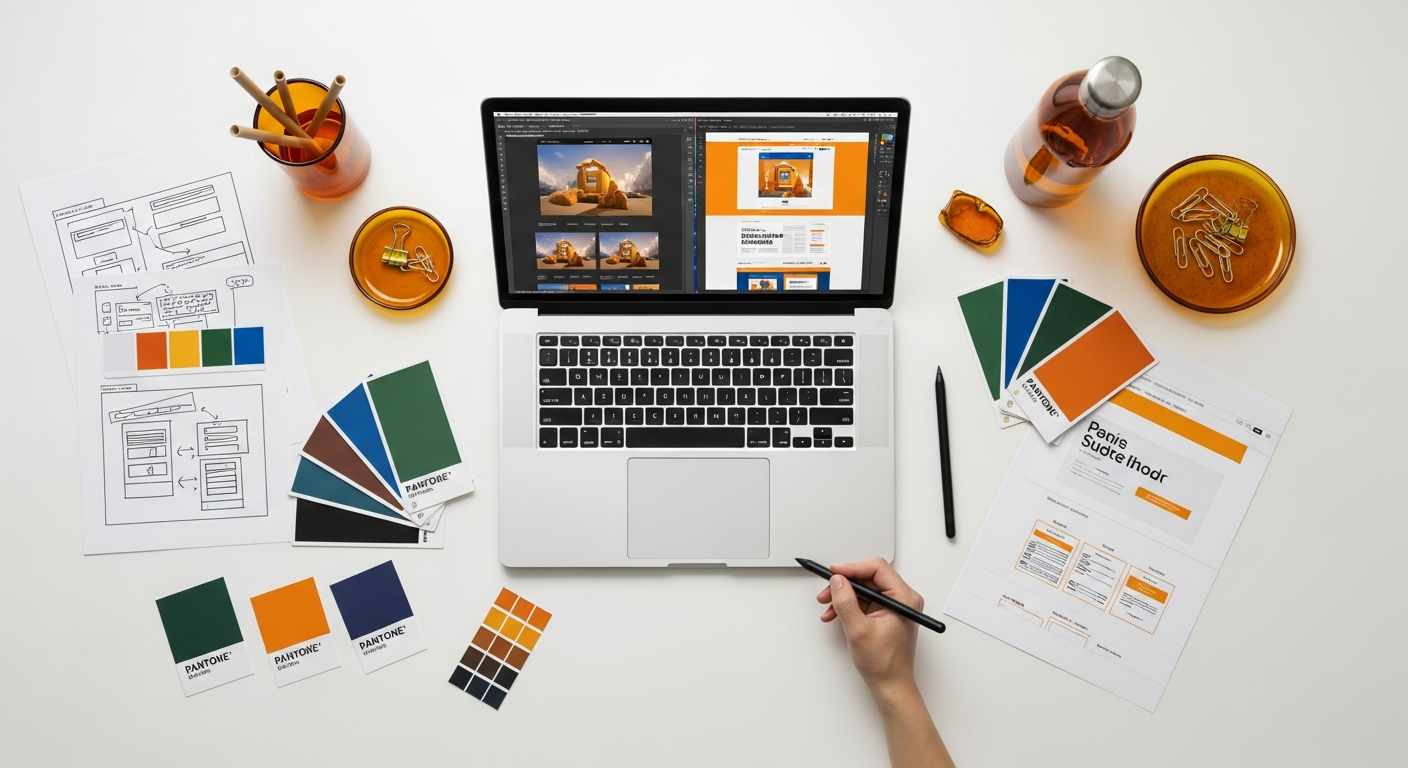
In the fast-paced world of web design, efficiency, seamless workflow, and effective collaboration are paramount. Adobe’s creative suite, encompassing Photoshop and Illustrator, is designed to work as an integrated ecosystem, offering designers a powerful framework for their projects. Understanding how these tools complement each other and fit into a broader design process is crucial for maximizing productivity and achieving superior results.
The Integrated Adobe Workflow
One of the significant advantages of using both Photoshop and Illustrator is their deep integration within the Adobe Creative Cloud. This allows for fluid transitions and asset sharing between applications. For instance:
- Smart Objects: You can place an Illustrator file (AI) into a Photoshop document as a Smart Object. This means the vector graphic remains editable in Illustrator; any changes made in Illustrator are automatically updated in Photoshop, maintaining its vector scalability within the raster environment. This is incredibly powerful for incorporating logos, icons, or complex illustrations into a Photoshop mockup while preserving their crispness.
- Copy-Paste Functionality: Simple elements like paths, shapes, or text can often be copied directly from Illustrator and pasted into Photoshop, or vice versa, maintaining their properties to a good degree.
- Shared Libraries: Creative Cloud Libraries allow designers to store frequently used assets – colors, character styles, logos, icons – and access them across Photoshop, Illustrator, Adobe XD, and other Adobe applications. This ensures brand consistency and streamlines the design process, especially in team environments.
This interoperability means designers rarely have to choose just one tool for an entire project. Instead, they can leverage the specific strengths of each application at different stages of the design process, creating a robust and flexible workflow.
Collaboration in a Multi-Tool Environment
Modern web design often involves teams, with different members specializing in various aspects, from UI design to UX research and front-end development. The Adobe ecosystem facilitates this collaboration:
- Version Control: While not native to Photoshop or Illustrator in the same way as code repositories, Creative Cloud’s file syncing and version history help manage design iterations.
- Hand-off to Developers: Designs created in Photoshop or Illustrator are often handed off to developers. While specialized tools like Adobe XD or Figma offer more streamlined developer hand-off, the assets themselves (SVGs from Illustrator, optimized JPEGs/PNGs from Photoshop) are fundamental outputs. A clear understanding of how to export assets efficiently from both tools is vital.
- Design System Integration: For larger projects, design systems are built to ensure consistency. Illustrator is invaluable for creating the vector components (icons, logos, UI elements) of a design system, while Photoshop might be used to define specific photographic styles or texture guidelines. Both contribute to the visual language of the system.
The Broader Picture: Beyond Photoshop and Illustrator
It’s also important to acknowledge that the web design landscape is constantly evolving. While Photoshop and Illustrator remain foundational, specialized UI/UX tools like Adobe XD, Figma, and Sketch have gained significant traction for their dedicated prototyping and collaboration features. However, these tools often rely on the foundational skills and assets produced in Photoshop and Illustrator. For instance, a complex icon set designed in Illustrator might be imported into Figma for prototyping, or a hero image retouched in Photoshop might be placed into an Adobe XD artboard. Therefore, mastering Photoshop and Illustrator isn’t about ignoring newer tools; it’s about building a strong foundation in visual design that enhances your capability to use any design tool effectively. The versatility gained from proficiency in both these Adobe giants makes a designer highly adaptable and valuable in the dynamic digital design industry of 2026.
UI/UX Considerations and Prototyping in 2026
The realms of User Interface (UI) and User Experience (UX) design are at the heart of successful web development. As we look towards 2026, the emphasis on intuitive, engaging, and accessible digital experiences will only intensify. While dedicated UI/UX tools have emerged, Photoshop and Illustrator remain incredibly relevant, contributing distinctively to the visual and interactive aspects of web design. Understanding how they fit into the broader UI/UX strategy is key for any designer.
What Is UX Design And Why It Matters
First, let’s briefly revisit the core. What Is Ux Design And Why It Matters encompasses the entire journey a user takes when interacting with a product or service. It’s about ensuring that interaction is meaningful, relevant, and enjoyable. UX design involves research, information architecture, interaction design, and usability testing. UI design, on the other hand, is the visual and interactive part of UX – the look and feel, the buttons, typography, colors, and overall aesthetic. Both Photoshop and Illustrator are fundamental to crafting the visual UI, which directly impacts the user’s experience.
Photoshop’s Role in UI/UX Visuals
Photoshop’s strength in raster graphics makes it ideal for elements that convey mood, brand personality, and visual richness.
- Mood Boards & Visual Direction: Early in the UX process, Photoshop is excellent for creating mood boards that establish the aesthetic direction of a website. Designers can quickly combine images, textures, and color palettes to visualize the overall feel.
- High-Fidelity Mockups (Visual Design): While not typically used for full interactive prototypes anymore, Photoshop still excels at creating high-fidelity visual mockups of key screens. This is where designers can focus on pixel-perfect details, lighting, shadows, and textures that bring a UI to life. It’s invaluable for showcasing a realistic representation of the final look before development.
- Asset Creation for Immersive Experiences: For websites that rely heavily on unique photographic elements, complex background textures, or detailed graphic treatments (e.g., e-commerce sites, portfolios, editorial layouts), Photoshop is indispensable for preparing and optimizing these assets to enhance visual UX.
Illustrator’s Contribution to UI/UX Consistency and Scalability
Illustrator’s vector capabilities are crucial for maintaining consistency, scalability, and performance – all vital UX considerations.
- Design Systems & Component Libraries: Illustrator is the perfect tool for creating the foundational vector assets of a design system. This includes icons, logos, typography styles, and scalable UI components (buttons, toggles, form elements). A well-defined design system ensures consistency across all touchpoints, making the user experience predictable and intuitive.
- Iconography & Micro-interactions: Crisp, scalable icons are essential for clear navigation and visual communication. Illustrator allows for precise icon design that looks good on any device. These icons can then be exported as SVGs and animated, contributing to delightful micro-interactions that enhance UX.
- Wireframing (Visual Representation): While not its primary role, Illustrator can be used for more visually refined wireframes, especially when designers want to quickly block out layouts with clean, scalable shapes and text before moving to a dedicated prototyping tool.
Prototyping and Evaluation in 2026
By 2026, dedicated prototyping tools like Adobe XD, Figma, and Sketch will likely remain the go-to for interactive prototypes. However, the assets that populate these prototypes often originate in Photoshop or Illustrator.
- Asset Integration: Designers will continue to create custom icons and illustrations in Illustrator, and optimize photographic elements in Photoshop, then import them into their chosen prototyping tool. This hybrid approach leverages the strengths of each application.
- User Testing: Once a prototype is built (potentially with assets from Photoshop and Illustrator), it undergoes user testing. The visual clarity and consistency achieved through careful design in Photoshop and Illustrator directly impact the test results.
- Heuristic Evaluation: After the design is developed, even without an interactive prototype, designers might use a static mockup created in Photoshop or Illustrator to conduct a How To Conduct A Heuristic Evaluation. This systematic inspection of the UI against a set of usability principles helps identify potential usability problems early. For example, evaluating consistency of icons (from Illustrator), visual hierarchy (from Photoshop), or clarity of text (from both) can be done effectively even on static representations.
In essence, Photoshop and Illustrator lay the visual groundwork for compelling UI/UX. They provide the pixel-perfect control for rich imagery and the scalable precision for consistent UI elements, forming the essential building blocks that dedicated prototyping tools then bring to life interactively. Mastering both ensures a designer is equipped to tackle all facets of modern web design, from initial visual concept to polished, user-centric interface.
Making the Informed Choice: A Synergistic Approach for 2026 Web Design
The debate of “Photoshop vs Illustrator for web design” is less about choosing a single victor and more about understanding how these two powerful tools, when used synergistically, can elevate your design workflow and the quality of your web projects. As we navigate the complexities of web design in 2026, marked by diverse devices, evolving user expectations, and a relentless pursuit of performance, a designer’s ability to leverage the unique strengths of both applications becomes a significant competitive advantage.
When to Prioritize Photoshop:
- Photo-Centric Designs: If your website relies heavily on high-quality photography, intricate image manipulation, or realistic visual effects, Photoshop is your primary tool. Think about e-commerce sites showcasing products, portfolios for photographers, or editorial websites with rich imagery.
- Complex Raster Textures & Backgrounds: For unique background patterns, subtle gradients, or distressed textures that require pixel-level detail, Photoshop offers unparalleled control.
- Initial Visual Concepts: For quickly assembling mood boards or exploring visual styles with photographic elements, Photoshop’s flexibility with raster imagery is often faster.
- Optimizing Exported Assets: Even if you design UI elements in Illustrator, you might use Photoshop to further optimize raster images for web, ensuring the perfect balance between quality and file size.
When to Prioritize Illustrator:
- UI Elements & Design Systems: For creating scalable UI components such as buttons, form fields, and particularly icons and logos that need to maintain crispness across all screen resolutions, Illustrator is essential. This is critical for building robust Infographic Design Tips And Best Practices and ensuring visual consistency.
- Illustrations & Infographics: If your website incorporates custom illustrations, charts, or detailed infographics to convey information, Illustrator provides the precision and scalability needed for these assets to shine.
- Responsive Design: Vector graphics are inherently responsive. Designing UI elements in Illustrator ensures they adapt seamlessly to different screen sizes without degradation, which is a cornerstone of modern web design.
- SVG Export: For lightweight, scalable, and animatable graphics that improve web performance and interactivity, Illustrator’s SVG export capabilities are invaluable.
The Best Practice: A Hybrid Approach for 2026
The most effective strategy for web design in 2026 is a hybrid one, where Photoshop and Illustrator are used in conjunction. A typical workflow might look like this:
- Conceptualization & Wireframing: Start with low-fidelity wireframes in a tool like Adobe XD or even Illustrator for quick layouts.
- Visual Asset Creation:
- Create all logos, icons, and custom illustrations in Illustrator, ensuring they are scalable vector graphics.
- Process and optimize all photographic elements, hero images, and complex raster textures in Photoshop.
- UI Design & Prototyping: Bring these optimized assets into a dedicated UI/UX tool (e.g., Adobe XD, Figma) to design the full interface, create interactive prototypes, and conduct user testing. The high-quality visual assets from Photoshop and Illustrator elevate the realism and effectiveness of the prototype, making it easier to How To Conduct A Heuristic Evaluation on the visual integrity and usability.
- Developer Hand-off: Export optimized assets from both Photoshop (raster) and Illustrator (SVG) for implementation by developers.
Ultimately, a designer proficient in both Photoshop and Illustrator is equipped with a versatile skillset, capable of tackling any visual challenge in web design. In 2026, the ability to discern when to use a pixel-based approach versus a vector-based one, and how to effectively integrate both into a cohesive workflow, is what defines a truly competent and adaptable web designer. It’s not about choosing one over the other, but rather understanding their individual strengths to orchestrate a harmonious design process that yields exceptional digital experiences.
Frequently Asked Questions
Recommended Resources
For more on photoshop vs illustrator, see Best Task Manager Apps 2026 on Bookmark Sharer.
Explore What Is Devops And Why Does It Matter For Startups for additional insights.