What is Procreate and Why It’s Perfect for Digital Illustration Beginners?
Procreate is a raster graphics editor app exclusively designed for Apple’s iPad, developed by Savage Interactive. Since its launch, it has revolutionized digital art, making it accessible, powerful, and incredibly enjoyable for artists of all levels, especially those just starting out. Far from being a simplified drawing app, Procreate offers a robust suite of tools that rival desktop software, all packed into an elegant, user-friendly interface.
What Makes Procreate Stand Out?
- Intuitive User Interface (UI): Procreate is renowned for its clean, uncluttered interface. Tools are logically organized, and many functions are accessible through simple, discoverable gestures. This focus on ease of use is a prime example of excellent What Is UX Design And Why It Matters in action, making the learning curve remarkably gentle for newcomers.
- Powerful Brush Engine: With thousands of customizable brushes ranging from pencils and inks to paints and textures, Procreate offers an unparalleled tactile experience. You can even create your own brushes, opening up endless creative possibilities.
- Layer System: Like professional desktop software, Procreate utilizes layers, allowing you to work on different elements of your illustration independently. This non-destructive workflow is crucial for editing and experimenting without permanently altering your work.
- Portability and Performance: Being an iPad app, Procreate lets you create art anywhere inspiration strikes. The app is highly optimized, ensuring smooth performance even with large canvases and complex illustrations.
- One-Time Purchase: Unlike many subscription-based creative tools, Procreate is a one-time purchase, offering incredible value for its feature set.
Why iPad + Apple Pencil is the Dream Team
While Procreate runs on any compatible iPad, its full potential truly shines when paired with an Apple Pencil. The Apple Pencil offers:
- Pressure Sensitivity: Mimics traditional drawing tools, allowing you to vary line thickness and opacity based on how hard you press.
- Tilt Recognition: Enables shading and broad strokes, just like tilting a real pencil or brush.
- Palm Rejection: Lets you rest your hand on the screen naturally without making unwanted marks.
- Precision: Offers pixel-perfect accuracy for detailed work.
This combination creates a natural, responsive, and deeply satisfying drawing experience that makes the transition from traditional art to digital art feel seamless for beginners.
Getting Started with Procreate: Your First Steps
Embarking on your Procreate journey is exciting! Before you dive into creating masterpieces, let’s cover the essentials to get you set up and ready to draw.
The Bare Essentials
- Compatible iPad: Ensure your iPad model supports Procreate and ideally, the Apple Pencil. Most modern iPads (iPad Air, iPad Pro, iPad Mini, and even the standard iPad) are compatible.
- Apple Pencil (Recommended): While you can use your finger or a third-party stylus, the Apple Pencil (1st or 2nd generation, depending on your iPad model) is highly recommended for the best experience.
- Procreate App: Purchase and download Procreate from the Apple App Store.
Setting Up Your First Canvas
Once you’ve launched Procreate, you’ll be greeted by the Gallery, where all your artwork is stored. To start a new illustration:
- Tap the ‘+’ icon: In the top right corner of the Gallery, tap the plus sign to create a new canvas.
- Choose a Canvas Size: Procreate offers several default canvas sizes (e.g., Screen Size, Square, 4K). For beginners, ‘Screen Size’ is a great starting point as it matches your iPad’s display resolution. You can also create a ‘New Canvas’ with custom dimensions by tapping the icon next to the list of presets.
- Understanding Canvas Settings: When creating a custom canvas, you’ll see options for width, height, DPI (dots per inch), and color profile.
- Width & Height: Measured in pixels, inches, millimeters, or centimeters. For digital art shared online, 1920×1080 pixels (a common screen resolution) or square canvases are popular.
- DPI: For digital display, 72-150 DPI is usually sufficient. If you plan to print your artwork, aim for 300 DPI for high-quality results. Higher DPI and larger dimensions increase file size and layer limits.
- Color Profile: RGB is standard for digital screens (sRGB is a common choice). CMYK is used for print. For beginners, sticking with sRGB is perfectly fine.
- Create: Once your settings are chosen, tap ‘Create’ in the top right, and your blank canvas will appear, ready for your artistic touch!
Mastering the Procreate Interface: Tools and Gestures
Navigating the Gallery
The Gallery is your central hub for managing all your artwork. Here you can:
- View Thumbnails: See all your creations at a glance.
- Stack Artworks: Drag one artwork onto another to create a stack, useful for organizing related projects or iterations.
- Select: Tap ‘Select’ in the top right to choose multiple artworks for deleting, duplicating, or sharing.
- Import/Export: Use the import button to bring in images or the export button to share your work.
Understanding the Canvas Interface
Once you open a canvas, you’ll see a clean workspace with toolbars along the top and side. Let’s break them down:
Top Left Toolbar: Actions, Adjustments, Selection, Transform
- Wrench Icon (Actions): This is your main menu for canvas settings, sharing, video recording (timelapse!), preferences, and help.
- Add: Insert files, photos, text, or cut/copy/paste.
- Canvas: Access canvas information, crop and resize, flip canvas, or enable drawing guide.
- Share: Export your artwork in various file formats (JPG, PNG, TIFF, PDF, MP4 for timelapse, GIF, Animated PNG).
- Video: Play or export your timelapse replay.
- Prefs: Customize interface settings, gesture controls, and pressure curve.
- Magic Wand Icon (Adjustments): Apply non-destructive adjustments to your layers, such as Hue/Saturation/Brightness, Color Balance, Curves, Gaussian Blur, Sharpen, Noise, Liquify, Clone, and more.
- ‘S’ Icon (Selection): Select specific areas of your canvas using Freehand, Automatic, Rectangle, or Ellipse tools. This is essential for isolated editing.
- Arrow Icon (Transform): Move, scale, rotate, or distort selected layers or parts of your artwork. You can use Uniform, Freeform, Distort, or Warp modes.
Top Right Toolbar: Brushes, Smudge, Eraser, Layers, Colors
- Brush Icon: Tapping this opens the Brush Library, where you select your drawing tools. Tapping it again opens the brush settings for the currently selected brush.
- Finger Icon (Smudge): Blends colors on your canvas, similar to smudging charcoal or paint. It uses the same brush library as the paint brush.
- Eraser Icon: Removes pixels from your layer. Like the brush and smudge tools, it uses the same brush library, allowing for textured erasing.
- Two Squares Icon (Layers): This is your Layer Panel, where you manage all your layers. You can add, delete, duplicate, group, change blending modes, and adjust opacity here.
- Color Circle Icon: Opens the Color Panel, where you select your colors using various modes (Disc, Classic, Harmony, Value, Palettes).
Sidebars: Slider and Undo/Redo
- Brush Size Slider (Top): Adjusts the size of your selected brush, smudge, or eraser.
- Brush Opacity Slider (Bottom): Adjusts the transparency of your selected brush, smudge, or eraser.
- Square Icon (Modify Button): A highly versatile button that, when held down, modifies the behavior of other tools or gestures (e.g., holding it while drawing a shape snaps it to a perfect circle/square).
- Left Arrow (Undo): Reverts your last action.
- Right Arrow (Redo): Re-applies an undone action.
Essential Gestures to Know
Procreate relies heavily on intuitive multi-touch gestures. Mastering these will significantly speed up your workflow:
- Two-Finger Tap: Undo your last action.
- Three-Finger Tap: Redo your last action.
- Three-Finger Swipe Down: Brings up the Copy/Paste menu (Cut, Copy, Copy All, Paste).
- Pinch to Zoom: Use two fingers to pinch in/out to zoom, or rotate to rotate your canvas.
- Pinch to Fit: Pinch quickly with two fingers to fit the canvas to the screen.
- Four-Finger Tap: Toggles full-screen mode, hiding the interface for an immersive drawing experience.
- Hold Modify Button + Tap: Quick access to Eyedropper tool (to pick a color from your canvas).
- Hold Modify Button + Draw: Draw a shape (e.g., circle, square, straight line) and hold the Apple Pencil at the end of the stroke to snap it into a perfect shape. Tap with another finger to make it perfectly uniform.
- Tap and Hold Layer: Selects the contents of that layer.
Essential Procreate Features for Aspiring Artists
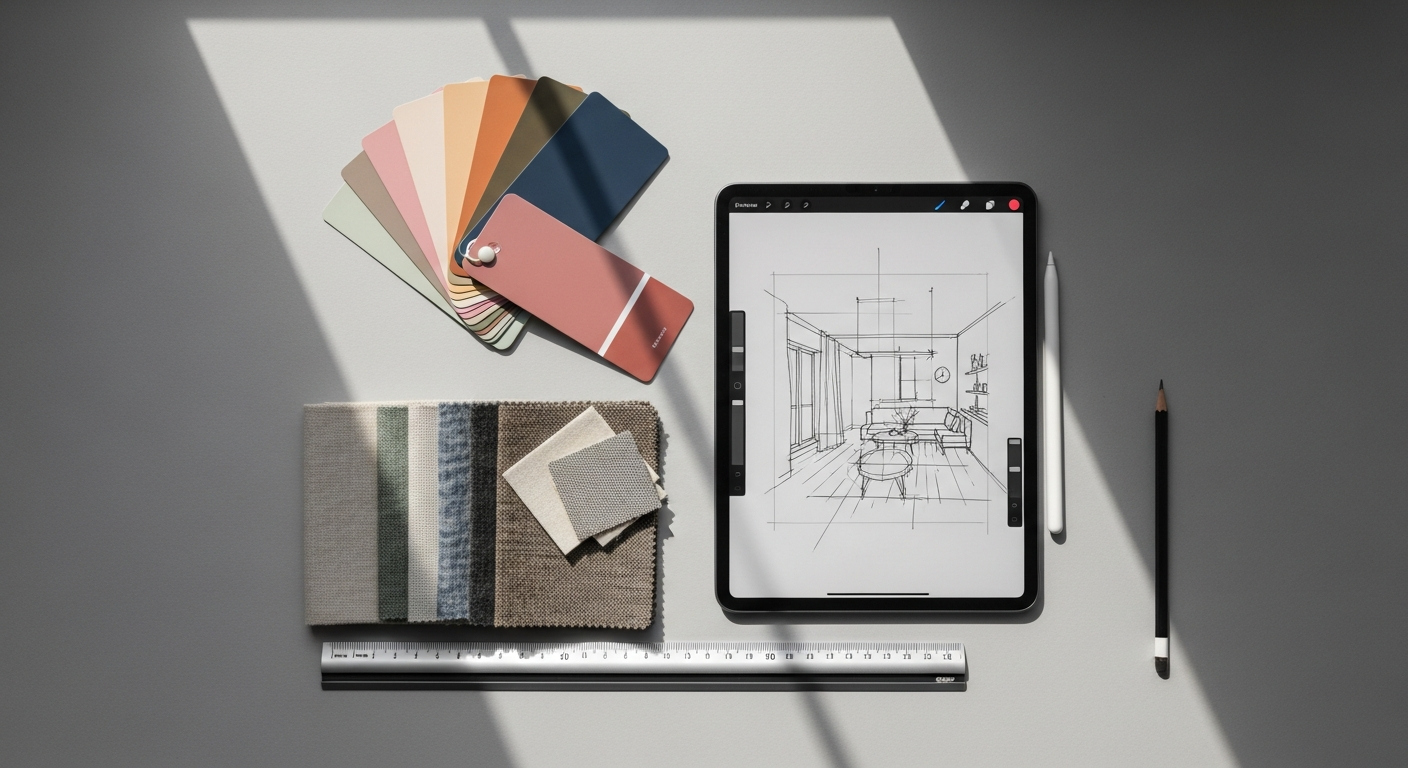
Now that you’re familiar with the interface, let’s dive into the core features that will form the backbone of your digital illustration skills.
Diving into Brushes
The Brush Library is where the magic happens. Procreate comes with hundreds of built-in brushes, organized into categories like Sketching, Inking, Painting, Artistic, Calligraphy, Textures, and more.
- Selecting a Brush: Tap the Brush icon to open the library, then tap on a category and select a brush.
- Adjusting Brush Settings: Tap the Brush icon again after selecting a brush to open its settings panel. Here you can tweak everything from stroke properties (spacing, jitter), shape, grain, dynamics, to Apple Pencil pressure curves. Don’t be afraid to experiment!
- Brush Studio: At the top of the Brush Library, you’ll find ‘Brush Studio’. This is where you can create new custom brushes from scratch or duplicate and modify existing ones. For beginners, duplicating an existing brush and making small tweaks is a great way to start understanding brush mechanics.
The Power of Layers
Layers are fundamental to digital art. Think of them as transparent sheets stacked on top of each other. You can draw on one layer without affecting the others.
- Accessing Layers: Tap the Layers icon (two squares) in the top right.
- Adding/Deleting Layers: Tap the ‘+’ icon in the Layers panel to add a new layer. Swipe left on a layer to reveal options to Delete, Duplicate, or Lock it.
- Adjusting Opacity: Tap the ‘N’ (Normal) next to a layer thumbnail to open its blend mode and opacity slider. ‘N’ stands for Normal blending mode.
- Rearranging Layers: Tap and hold a layer thumbnail, then drag it up or down to change its order in the stack.
- Grouping Layers: Pinch two or more layers together to group them. This helps organize complex illustrations.
Exploring the Color Palette
Choosing and managing colors is crucial for your artwork.
- Color Panel: Tap the Color Circle icon to open the Color Panel.
- Color Modes:
- Disc: A classic color wheel with a saturation/brightness square.
- Classic: RGB/HSB sliders for precise color selection.
- Harmony: Shows complementary, analogous, triadic colors based on your selected hue.
- Value: Numerical input for HSB (Hue, Saturation, Brightness) or RGB (Red, Green, Blue) values.
- Palettes: Create, import, or use preset color palettes. This is incredibly useful for maintaining color consistency in your work.
- ColorDrop: Drag the color circle from the top right of the interface directly onto an area of your canvas to fill it with color. Hold your Pencil/finger down after dropping to adjust the fill threshold.
- Eyedropper: Hold the Modify button (square icon on the sidebar) and tap on any color on your canvas to quickly select it.
Selection and Transformation Tools
These tools allow you to isolate and manipulate specific parts of your artwork.
- Selection Tool (‘S’ icon):
- Freehand: Draw an irregular shape to select an area. Tap ‘Add’ or ‘Remove’ to refine your selection.
- Automatic: Tap an area to select it based on color similarity. Drag your finger left/right to adjust the threshold.
- Rectangle/Ellipse: Draw perfect rectangular or elliptical selections.
Once an area is selected, you can fill it, clear it, or apply adjustments/transforms only to that area.
- Transform Tool (Arrow icon):
- Uniform: Scale, rotate, and move uniformly.
- Freeform: Scale and move non-uniformly.
- Distort: Drag corners independently to distort the selection.
- Warp: Distort with a mesh grid for more organic transformations.
Make sure ‘Snapping’ and ‘Magnetics’ are enabled in the Transform toolbar for precise alignment.
Blending Modes and Adjustments
These features add depth and effects to your illustrations.
- Blending Modes: In the Layers panel, tap the ‘N’ (or current blend mode name) next to a layer. This opens a menu of blend modes (e.g., Multiply, Screen, Overlay, Add, Difference). Each mode changes how the layer interacts with the layers below it, creating various visual effects. Experiment to see how they work!
- Adjustments (Magic Wand icon): Apply filters and effects to layers.
- Hue, Saturation, Brightness: Fundamental for color correction and stylistic changes.
- Color Balance: Adjust color tones in shadows, midtones, and highlights.
- Gaussian Blur: Softens and blurs areas, great for backgrounds or depth of field.
- Liquify: Push, pull, twist, and pinch pixels like wet paint, useful for refining shapes or creating stylized effects.
Building Your Digital Art Skills: Practice and Workflow
Learning Procreate is just the first step; consistent practice and developing a workflow are crucial for growth.
Daily Practice is Key
Like any skill, digital illustration improves with practice. Dedicate a small amount of time each day, even 15-30 minutes, to drawing in Procreate.
- Warm-up Sketches: Start with quick gestures, lines, or shape exercises.
- Copy What You See: Recreate photos, other artists’ work (for study, not plagiarism!), or real-world objects. This builds observation skills.
- Follow Tutorials: Work through step-by-step guides to learn new techniques.
- Experiment: Play with different brushes, colors, and features without a specific goal. Discover what works for you.
Remember, every artist starts somewhere. Don’t be afraid to make “bad” art; it’s all part of the learning process.
Leveraging Online Resources
The Procreate community is vast and incredibly supportive.
- YouTube: Search for “Procreate tutorials for beginners” or specific techniques you want to learn. Artists like
- Skillshare/Domestika/Udemy: Paid platforms offer structured courses that can guide you from beginner to advanced levels.
- Procreate Forums & Social Media: Engage with other artists, ask questions, and share your work.
You might even find inspiration from articles on visual communication, such as Infographic Design Tips And Best Practices, to help you think about how to convey your message clearly and effectively through your illustrations.
Developing a Workflow
As you gain experience, you’ll naturally develop a personal workflow. Here’s a general approach:
- Sketch: Start with a rough sketch on a separate layer, focusing on composition and basic shapes.
- Line Art (Optional): Create cleaner line art on a new layer, often above the sketch layer.
- Flat Colors: Lay down base colors on separate layers for different elements.
- Shading & Highlights: Add depth and dimension using darker and lighter tones, often on new layers with clipping masks (more on this later) or alpha lock.
- Details & Textures: Refine your illustration with finer details, textures, and subtle effects.
- Adjustments: Use the Adjustments panel for final color grading, sharpening, or adding atmospheric effects.
Don’t be afraid to iterate and critique your own work. Thinking about how a viewer might interpret your composition, much like conducting a Heuristic Evaluation for a user interface, can help you identify areas for improvement in clarity and visual impact.
Exporting Your Masterpieces
Once your artwork is complete, you’ll want to share it!
- Share Menu (Wrench icon > Share):
- Image Files: Export as JPG (smaller file size, good for web), PNG (supports transparency, higher quality), TIFF (lossless, large file size).
- Layered Files: Export as .procreate (native file), PSD (Photoshop document, retains layers for other software).
- Animated Files: Export your timelapse replay as MP4, or animated GIFs/PNGs if you’ve used Animation Assist.
- Timelapse Replay: Procreate automatically records a timelapse of your entire drawing process. Access it via Wrench icon > Video > Timelapse Replay. This is fantastic for sharing your process on social media.
Beyond the Basics: Expanding Your Procreate Horizon
Once you’re comfortable with the fundamentals, Procreate offers advanced features that can elevate your art to the next level. The learning never truly stops, and Procreate continues to evolve, promising even more exciting tools in 2026 and beyond.
Advanced Layering Techniques
- Alpha Lock: Swipe right with two fingers on a layer in the Layers panel. This locks the transparency of the layer, meaning you can only paint on existing pixels, not outside them. Perfect for adding shading or textures without going over your lines.
- Clipping Mask: On a new layer, tap its thumbnail and select ‘Clipping Mask’. This layer will then only be visible where the layer directly below it has pixels. It’s incredibly powerful for non-destructive shading, highlights, and textures, as it keeps your base colors pristine.
- Reference Companion: In the Actions menu (wrench icon) under Canvas, enable ‘Reference’. This opens a floating window where you can load an image or use your canvas as a reference. It’s invaluable for color picking, staying on model, or keeping an eye on your overall composition.
Animation Assist for Motion
Procreate isn’t just for still images; it also has a powerful frame-by-frame animation feature:
- Enable Animation Assist: Go to Wrench icon > Canvas > toggle ‘Animation Assist’ on.
- Timeline: A timeline will appear at the bottom of your canvas, showing each frame as a layer.
- Onion Skinning: See transparent versions of previous and next frames to help you draw smooth transitions.
- Export Animation: Export your animations as animated GIFs, PNGs, or MP4s.
This feature makes basic animation surprisingly accessible for beginners and can add a dynamic dimension to your illustrations.
Custom Brushes and Textures
While Procreate’s default brush library is extensive, creating or importing custom brushes truly unlocks personalized artistic expression:
- Brush Studio: As mentioned, you can dive deep into the Brush Studio to design brushes from scratch. This involves choosing a ‘Shape Source’ (the individual mark the brush makes) and a ‘Grain Source’ (a repeating texture pattern).
- Importing Brushes: Many artists and designers create and sell Procreate brush packs online. You can easily import these .brushset files directly into Procreate.
Experimenting with custom brushes allows you to achieve unique artistic styles and replicate traditional media effects digitally.
Integrating with Other Tools
While Procreate is a standalone powerhouse, it also plays well with other software:
- Photoshop (PSD): Exporting your Procreate files as PSDs allows you to open them in Adobe Photoshop on a desktop, retaining all your layers for further editing or integration into larger projects.
- Cloud Storage: Use services like iCloud Drive, Dropbox, or Google Drive to back up your artwork and easily transfer files between devices.
- Affinity Photo/Designer: Other iPad apps like Affinity Photo and Designer also offer robust creative tools that can complement Procreate’s strengths, particularly for graphic design or photo manipulation tasks.
Understanding how to integrate your Procreate work into a broader creative ecosystem expands your capabilities and prepares you for more advanced digital art projects.
FAQ: Your Procreate Beginner Questions Answered
Is Procreate a one-time purchase, or is it a subscription?
Procreate is a one-time purchase from the Apple App Store. There are no monthly or annual subscription fees, which makes it an incredibly cost-effective and attractive option for digital artists, especially beginners, compared to many other professional creative software options.
Do I need an Apple Pencil to use Procreate effectively?
While you can use Procreate with your finger or a compatible third-party stylus, the Apple Pencil is highly recommended for the best experience. Its pressure sensitivity, tilt recognition, and palm rejection capabilities are crucial for a natural and precise drawing experience, making a significant difference in the quality and ease of your digital illustrations.
Can I use Procreate on an iPhone or Android device?
No, Procreate is exclusively designed for Apple iPads. It is not available for iPhones (though there is a separate app called Procreate Pocket for iPhone, which is a different, more streamlined version) or any Android tablets or phones. It leverages the specific hardware and software capabilities of the iPad to deliver its powerful performance.
How do I transfer my Procreate art to my computer or other devices?
You can transfer your Procreate artwork in several ways:
- Share Menu: From within a canvas (Wrench icon > Share) or the Gallery (Select > Share), choose your desired file format (JPG, PNG, PSD, etc.) and then select a sharing destination like AirDrop, email, cloud storage (iCloud Drive, Dropbox), or other apps.
- Drag and Drop: If you have an iPad and a Mac, you can often drag and drop files directly between Procreate and Finder or other applications.
- iTunes File Sharing: Connect your iPad to a computer, open iTunes (or Finder on macOS Catalina and later), and you can access Procreate’s documents folder to transfer files.
What are some good resources for Procreate tutorials for beginners?
There’s a wealth of resources available!
- YouTube: Channels like Art with Flo, Genevieve’s Design Studio, and Sybilline offer excellent free tutorials covering everything from basics to specific techniques.
- Procreate Handbook: The official Procreate website offers a comprehensive free handbook that details every feature of the app.
- Online Learning Platforms: Websites like Skillshare, Domestika, and Udemy have numerous paid courses tailored for Procreate beginners, often taught by professional artists.
- Procreate Community Forums: The official Procreate forums are a great place to ask questions and learn from other users.
Is Procreate suitable for professional illustration work?
Absolutely! Procreate is widely used by professional illustrators, concept artists, graphic designers, and animators. Its robust feature set, high-resolution canvas capabilities, and ability to export to industry-standard formats like PSD make it perfectly suitable for professional-grade work. Many artists even use Procreate as their primary tool for client projects and personal portfolios.
Recommended Resources
Related reading: Cloud Computing Explained Simply (Bookmark Sharer).
Learn more about this topic in Best Email Marketing Platforms For Small Businesses at Eamped.