Mastering Typographic Hierarchy for Web Design in 2026: Your Definitive Guide
The Enduring Power of Hierarchy: Why It Still Reigns in 2026
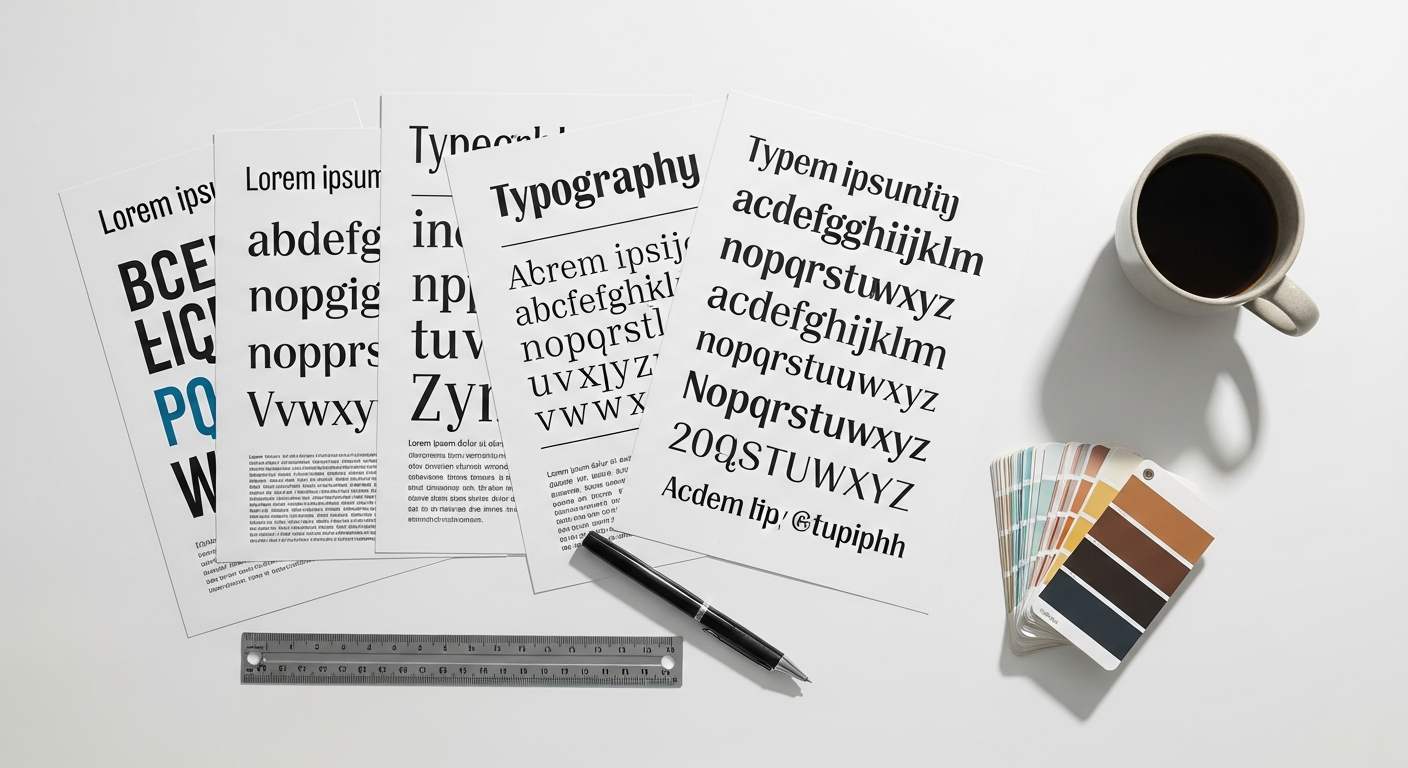
Think of typographic hierarchy as the invisible hand guiding your users through your content. It’s the visual system that tells the eye what to read first, what’s most important, and how different pieces of information relate to each other. Without it, a webpage becomes a chaotic wall of text, overwhelming and frustrating. In 2026, with the proliferation of content across various platforms and devices – from smartwatches to ultra-wide monitors – this guidance is more vital than ever.
The web of today and tomorrow demands clarity and efficiency. Users scan before they read, making split-second decisions about whether your content is worth their time. A well-established hierarchy facilitates this scanning, allowing users to quickly grasp the page’s structure, identify key takeaways, and locate specific information without effort. This isn’t just about aesthetics; it’s about usability, accessibility, and ultimately, conversion. A clear hierarchy reduces cognitive load, improves readability, and enhances overall user satisfaction. From a business perspective, this translates directly into longer engagement times, lower bounce rates, and more effective communication of your message. Trust me, investing time in mastering this fundamental principle pays dividends across every project.
Deconstructing the Visual Language: Core Components of Typographic Hierarchy
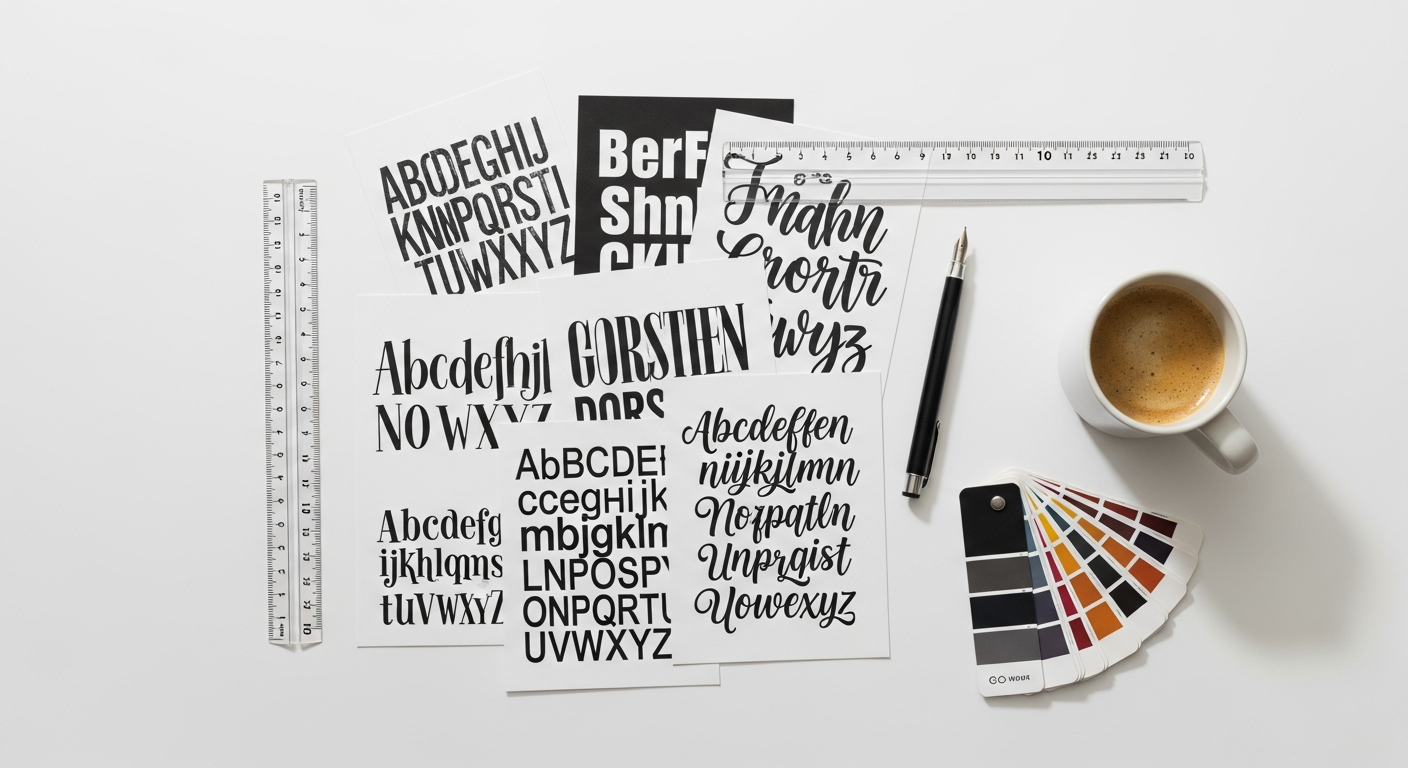
Understanding typographic hierarchy means understanding its building blocks. It’s a symphony of visual cues, each playing a role in establishing order and emphasis. As a designer, your job is to orchestrate these elements harmoniously.
*
Font Size: The Most Obvious Indicator
This is your primary tool for establishing hierarchy. Larger text naturally draws more attention than smaller text. Headings (H1, H2, H3) are typically larger than body text, which in turn is larger than captions or footnotes. The key is to create noticeable, yet not jarring, distinctions between sizes. A common pitfall is too many sizes or too subtle differences, which can confuse rather than clarify. Aim for a clear visual jump between each level.
*
Font Weight: Boldness for Emphasis
Weight refers to the thickness of a typeface’s strokes. Using bold or semi-bold weights for titles, subheadings, or key phrases instantly adds emphasis. It creates contrast and guides the eye, making certain words or phrases stand out from the surrounding text. Be mindful not to overuse bolding; if everything is bold, nothing is.
*
Color and Contrast: Drawing the Eye
Color is a powerful but often misused hierarchical tool. A distinct color can highlight important information, but it must maintain sufficient contrast with its background to ensure readability and accessibility. Darker text on a lighter background (or vice-versa) provides the best contrast for body copy. Using a secondary, less dominant color for less critical information (like metadata or subtle links) can also contribute to hierarchy without screaming for attention. Always check your contrast ratios using tools like Stark or the WebAIM Contrast Checker.
*
Whitespace and Spacing: Giving Text Room to Breathe
Whitespace, or negative space, is often overlooked but incredibly effective. More space around an element naturally makes it stand out. Increasing the line-height (leading) within a paragraph improves readability, while greater margins and padding around headings or sections visually separates them, creating distinct content blocks. This visual separation helps the user parse information more easily. Pay attention to `margin-top` and `margin-bottom` for headings, and `padding` around content blocks.
*
Capitalization and Casing: Strategic Distinction
Using ALL CAPS for headlines or short, impactful phrases can create a strong visual punch. However, excessive use can hinder readability, as uppercase letters lack the distinct ascenders and descenders that aid in word recognition. Title Case (capitalizing the first letter of each major word) and Sentence case (capitalizing only the first word) are generally preferred for readability, with ALL CAPS reserved for specific, high-impact instances.
*
Position and Alignment: Directing the Flow
The placement of text on the page inherently creates hierarchy. Centered headings often feel more formal, while left-aligned text is generally easier to read in Western cultures. Placing crucial information higher up on the page (above the fold) naturally gives it more prominence. Consistency in alignment across different content types also reinforces the hierarchy.
Crafting Your Typographic Scale: A Step-by-Step Approach
Building a robust typographic hierarchy isn’t random; it’s a systematic process. Here’s a practical, step-by-step guide to developing a scalable and consistent type system for your web projects.
*
Step 1: Define Your Base Font Size and Line Height
Start with the bedrock: your base font size for body text. For most web content, 16px to 18px (or 1rem to 1.125rem) is a good starting point for optimal readability on desktop screens. This size is comfortably legible and provides a good foundation for scaling. Next, establish your base line height. A good rule of thumb is 1.5 times your font size (e.g., 16px font size * 1.5 = 24px line height). This gives text enough breathing room to prevent dense, hard-to-read blocks.
*
Step 2: Choose a Modular Scale
A modular scale is a series of font sizes that relate to each other harmoniously, often based on classic typographic ratios. Instead of picking arbitrary sizes, a modular scale provides a mathematical system for consistency and visual appeal. Popular ratios include:
* Golden Ratio (1.618): Creates a very balanced, aesthetically pleasing scale.
* Perfect Fifth (1.5): A strong, classic ratio.
* Major Second (1.125): Subtle and understated.
* Minor Third (1.2): Gentle and versatile.
You can use online tools like type-scale.com or integrate plugins directly into your design software to generate a scale. For instance, if your base is 16px and you choose a perfect fifth (1.5) ratio, your scale might look like: 16px (base), 24px (16 1.5), 36px (24 1.5), 54px (36 * 1.5), etc., for your headings, and sizes below 16px for captions or utility text.
*
Step 3: Apply the Scale and Define Text Styles in Figma/Adobe XD
Once you have your scale, translate it directly into your design tool.
* In Figma: Create specific Text Styles for each level of your hierarchy (H1, H2, H3, H4, H5, H6, Body Large, Body Medium, Body Small, Caption, Button Text, etc.). Assign the font size, line height, font weight, and even letter spacing (tracking) from your modular scale. Use auto layout and components to ensure consistency. You can even use variables to manage font sizes and spacing for more robust design systems.
* In Adobe XD: Utilize Character Styles and Paragraph Styles. Define each style with its specific font family, size, weight, line height, and color. These styles can then be easily applied and updated across your entire design.
*
Step 4: Consider Responsive Adjustments
Your typographic scale cannot be static. What looks great on a desktop might be too large or too small on a mobile device.
* Fluid Typography: Explore CSS techniques like `clamp()` or `vw` units combined with `rem` to create fluid typography that scales gracefully with viewport changes.
* Breakpoints: At specific breakpoints (e.g., tablet, mobile), you might need to adjust your heading sizes downwards to prevent them from dominating small screens. Your H1 on desktop might become your H2 equivalent on mobile, or simply be scaled down proportionally. Always test your hierarchy on various screen sizes during the design phase.
*
Step 5: Document and Iterate
Document your type scale and styles clearly in your design system. This ensures consistency across team members and future projects. Then, iterate! Apply your hierarchy to actual content, test it with users, and don’t be afraid to fine-tune sizes, weights, or spacing based on real-world feedback.
Beyond the Basics: Advanced Techniques for Nuanced Hierarchy
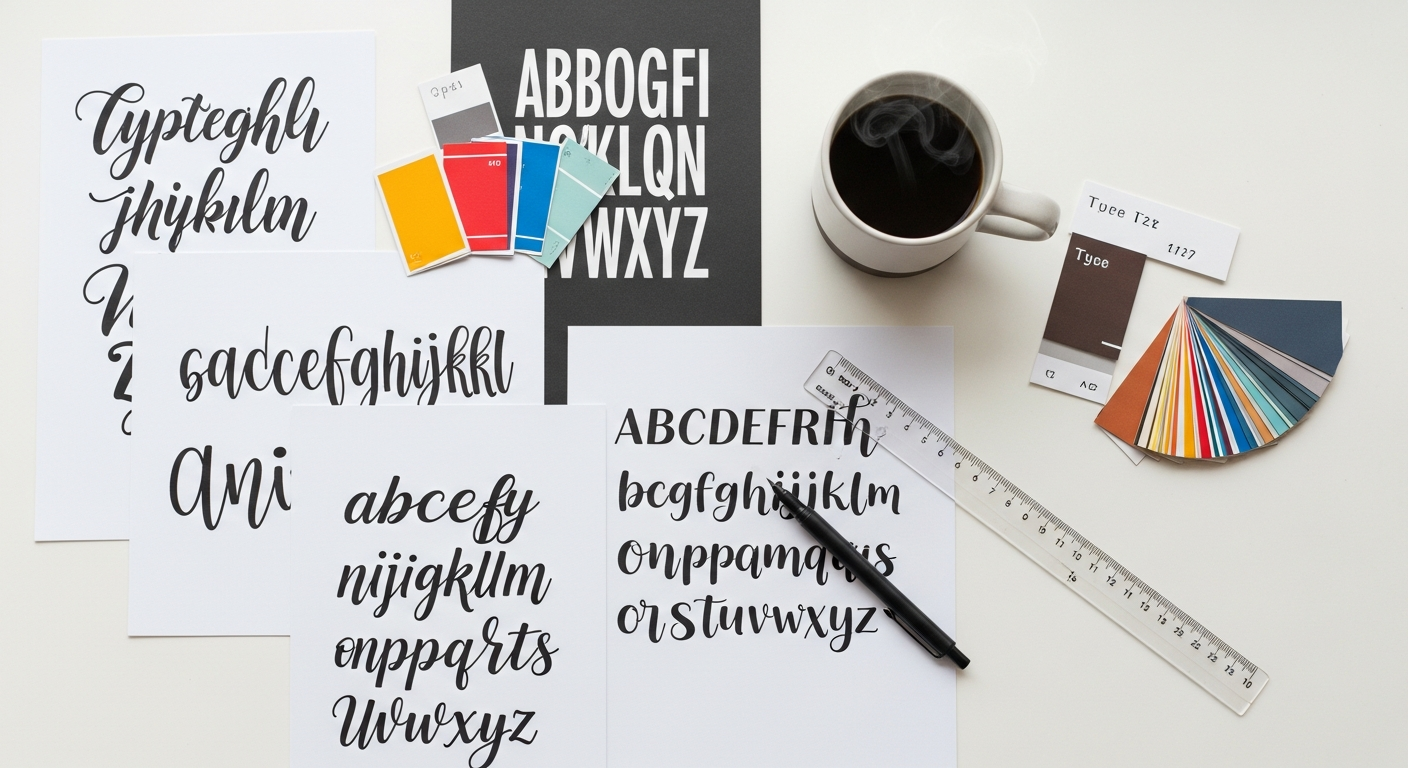
While the core components lay the groundwork, true mastery of typographic hierarchy involves more nuanced considerations that elevate a good design to a great one.
*
Visual Hierarchy vs. Semantic Hierarchy
It’s crucial to understand the difference. Semantic hierarchy refers to the HTML structure (`
` through `
`, `
`, `
- `, etc.), which is essential for accessibility and SEO. Visual hierarchy is how those elements look on the page. Ideally, these two should align perfectly. An `
- Line-height (leading): The vertical space between lines of text within a paragraph. Good line-height (typically 1.5 times font size) improves readability.
- Letter-spacing (tracking): The horizontal space between individual characters. Generally, decrease for larger text, increase for smaller text or all caps.
- Word-spacing: The horizontal space between entire words. Rarely adjusted manually, as default browser settings are usually optimal.
` should visually be the most prominent element, and a `
` should clearly look like body text. Sometimes, however, you might have an `
` that looks like an `
` for a specific design aesthetic, but this must be handled with extreme care to not confuse screen readers or search engines. Always prioritize semantic correctness for accessibility.
*
Strategic Typeface Pairing
The choice of typefaces themselves can contribute significantly to hierarchy. Pairing a strong, distinct display font for headlines with a highly readable sans-serif or serif for body text creates an immediate visual distinction. For example, a bold, confident sans-serif like Montserrat for titles alongside a classic, neutral serif like Merriweather for body copy establishes clear roles. The key is contrast in personality, not just style, and ensuring they complement each other without clashing. Limit yourself to 2-3 font families to maintain cohesion.
*
Micro-typography: The Devil in the Details
Once you’ve established your macro-level hierarchy, dive into the micro-details that polish your text.
* Tracking (Letter Spacing): Adjusting the space between letters can improve readability, especially for all-caps headlines or smaller text. Generally, decrease tracking slightly for larger text and increase it for smaller text.
* Kerning: The specific spacing between individual letter pairs. While modern fonts have good default kerning, manually adjusting it for large headlines can refine their appearance.
* Leading (Line Height): We discussed this as a core component, but fine-tuning it for specific text blocks can dramatically impact readability. Longer line lengths often require more leading.
* Paragraph Spacing: The space between paragraphs. This is often achieved with `margin-bottom` on paragraph elements, providing clear breaks without indenting.
*
Dynamic Type and User Preferences
In 2026, personalized experiences are expected. Consider how your hierarchy adapts to user settings:
* Accessibility Settings: Users may increase their default font size. Your hierarchy should gracefully scale without breaking layouts or becoming illegible. Using `rem` units based on the user’s root font size is crucial here.
* Dark Mode/Light Mode: Ensure your color choices for hierarchy maintain sufficient contrast and visual distinction in both modes.
* Readability Features: Some browsers offer reader modes; a well-structured HTML and clear hierarchy will translate better into these optimized reading environments.
Tools of the Trade: Implementing and Testing Your Hierarchy
A great typographic hierarchy isn’t just designed; it’s implemented and rigorously tested. Leverage your design tools and browser capabilities to ensure your vision translates perfectly to the web.
*
Figma & Adobe XD: Design System Powerhouses
* Text Styles & Variables: As mentioned, define every text style meticulously. In Figma, use variables to manage your font sizes, spacing, and colors. This allows for global changes with minimal effort and ensures consistency. Link your text styles to these variables.
* Components & Auto Layout: Encapsulate common text patterns (e.g., card titles, article intros) into components with specific text styles. Use Auto Layout in Figma to manage spacing and alignment dynamically, ensuring your hierarchy holds up as content changes.
* Plugins: Explore plugins like “Type Scale” or “Font Picker” in Figma to aid in generating scales and selecting fonts. “Contrast” is great for checking accessibility.
*
Browser Developer Tools: The Inspector’s Eye
Your browser’s developer tools (available in Chrome, Firefox, Safari, Edge) are indispensable for inspecting and debugging your typography.
* Inspect Element: Right-click any text on a live page and select “Inspect.” This shows you the computed CSS styles (font-size, line-height, font-weight, color, margin, padding) directly.
* Emulate Devices: Test your responsive typography by using the device emulation mode to view your site at various screen sizes and orientations.
* Accessibility Tab: Modern developer tools often include an accessibility tab that can highlight contrast issues or semantic errors related to your text.
*
User Testing and Analytics: Real-World Validation
Don’t just rely on your eye. Get real users to interact with your designs.
* A/B Testing: For critical elements like headlines or calls-to-action, A/B test different font sizes, weights, or colors to see which performs better in terms of engagement or conversion.
* Heatmaps & Eye-Tracking: Tools like Hotjar or Crazy Egg can show you where users are looking, clicking, or getting stuck. If users are consistently missing key information, your hierarchy might need adjustments.
* Usability Testing: Observe users as they navigate your site. Ask them to find specific information. Their struggles will often reveal weaknesses in your typographic hierarchy.
*
Accessibility Checkers: Non-Negotiable Compliance
Beyond contrast, ensure your hierarchy supports assistive technologies. Tools like Axe DevTools, Lighthouse (built into Chrome DevTools), or the WAVE Web Accessibility Tool can identify issues with heading order, semantic markup, and insufficient contrast, ensuring your design is inclusive for all users.
Common Pitfalls and How to Avoid Them
Even experienced designers can fall into common traps when it comes to typography. Being aware of these can save you headaches down the line.
*
Too Many Font Sizes or Styles
A common mistake is using a dizzying array of font sizes, weights, and families. This creates visual clutter and makes it hard for users to distinguish what’s important. Solution: Stick to a well-defined modular scale and limit your font families to 2-3 at most. Every size and weight should have a clear purpose.
*
Insufficient Contrast
Beautiful typography is useless if it’s unreadable. Low contrast between text and background is a major accessibility barrier and frustrates users. Solution: Always check your color combinations with contrast checkers (WCAG AA is the minimum, AAA is ideal). Don’t rely solely on your own perception.
*
Ignoring Mobile Responsiveness
Designing for desktop first and then simply shrinking everything for mobile rarely works. Headlines become gigantic, and body text becomes minuscule. Solution: Design mobile-first or at least consider mobile breakpoints from the outset. Your type scale should adapt gracefully, possibly with smaller heading sizes and adjusted line heights for smaller screens.
*
Inconsistent Application
Using H2 for one type of subheading on one page and H3 for the same type on another page breaks the hierarchy and creates a disjointed user experience. Solution: Develop a comprehensive design system with clear guidelines for every text style. Use your design tool’s text styles religiously and ensure your development team adheres to them. Conduct regular design audits to catch inconsistencies early.
*
Over-reliance on Visuals, Neglecting Semantics
Making text look like a heading without marking it as an actual heading (`
`, `
`, etc.) is a critical accessibility and SEO mistake. Screen readers rely on semantic HTML to navigate content. Solution: Always ensure your visual hierarchy is backed by correct semantic HTML. If it looks like a heading, it should be a heading tag.
FAQ: Your Typographic Hierarchy Questions Answered
Q: What’s the ideal number of font sizes I should use on a website?
FAQ: Your Typographic Hierarchy Questions Answered
Q: What’s the ideal number of font sizes I should use on a website?
A: While there’s no magic number, aim for efficiency and clarity. A good starting point is 5-7 distinct sizes, encompassing your H1-H6 headings, body text, and perhaps a smaller caption/utility text. The key is to have clear visual differentiation between each size, guided by a modular scale, rather than having too many subtle variations that confuse users.
Q: How do I ensure my typography is accessible for users with visual impairments?
A: Accessibility starts with sufficient color contrast (WCAG AA minimum). Use `rem` units for font sizes to allow users to scale text via browser settings. Ensure proper semantic HTML (`
` for main titles, etc.) so screen readers can navigate. Provide clear visual hierarchy to aid navigation, and test with accessibility tools like Lighthouse or Axe DevTools.
Q: Should I use different fonts for headlines and body text?
A: Often, yes! Pairing a distinct display font for headlines with a highly readable, neutral font for body text can enhance hierarchy and add personality. The goal is contrast and complementarity – they should look good together but serve different functional purposes. Limit yourself to 2-3 font families to avoid visual clutter.
Q: What’s the difference between line-height, letter-spacing, and word-spacing?
A:
All three impact readability and visual flow, contributing to micro-typography.
Q: How often should I review and update my typographic hierarchy?
A: Your typographic hierarchy is part of your design system, which should evolve. Review it during major redesigns, when introducing new content types, or if user feedback indicates readability or navigation issues. A good practice is an annual or bi-annual audit, especially if your brand evolves or new accessibility standards emerge. Small, iterative refinements are better than drastic, infrequent overhauls.
Conclusion: The Art of Guiding the Eye
Typographic hierarchy is far more than a design trend; it’s a foundational principle that underpins effective communication on the web. As we look towards 2026, where digital experiences are increasingly diverse and user expectations higher, mastering this skill is non-negotiable for any serious UI/UX designer or web professional. By consciously manipulating size, weight, color, space, and semantic structure, you’re not just arranging text – you’re crafting an intuitive journey for your users, guiding their eyes and minds through your content with effortless grace. Embrace the systematic approach, leverage your design tools, test relentlessly, and remember that every pixel and every character contributes to the larger story you’re telling. Go forth, design with purpose, and let your typography speak volumes.