Dragging is common in interface design. People drag cards between columns, move a slider thumb, reorder a playlist, or pull a carousel sideways. For many users this feels direct. For others it is hard or impossible. WCAG 2.2 added Success Criterion 2.5.7, Dragging Movements, at Level AA to cover this. This guide explains what the criterion asks for, where it stops, and how a design team can review and test drag interactions. It is general information for designers and developers, not an accessibility audit or legal advice.
What the criterion says
The W3C wording is: "All functionality that uses a dragging movement for operation can be achieved by a single pointer without dragging, unless dragging is essential or the functionality is determined by the user agent and not modified by the author."
The W3C summary in the Understanding document is shorter: do not rely on dragging for user actions, and for any action that involves dragging, provide a simple pointer alternative. The criterion does not ban drag and drop. It asks for a second way to reach the same result with a single pointer (a mouse, pen, or touch contact) without the press-hold-move-release sequence. The requirement applies to content that interprets pointer actions; it does not apply to actions required to operate the user agent or assistive technology.
Why dragging is a barrier
The Understanding document breaks a drag into four steps. The user taps or clicks to set a start point, presses and holds that contact, moves the pointer to a new position, and then releases it at the end point. Holding the contact while also moving the pointer accurately is the hard part.
W3C notes that some people cannot perform dragging movements precisely. Others use a specialized or adapted input device, such as a trackball, head pointer, eye-gaze system, or speech-controlled mouse emulator, which can make dragging cumbersome and error-prone. A single click or tap on a clearly labeled control asks for much less fine motor control.
Keyboard support is not enough on its own
The Understanding document makes a distinction that teams often miss. Success Criteria 2.1.1 Keyboard and 2.1.3 Keyboard (No Exception) already require dragging features to be keyboard accessible. But a keyboard equivalent does not automatically meet 2.5.7. W3C explains that people using a touchscreen device may not have a physical keyboard, so tabbing and arrow keys may not be available to them.
So an interface can work with both dragging and keyboard controls and still fail 2.5.7 if nothing can be done with just clicks or taps. The two requirements are evaluated separately. In practice, one design can often meet both, for example with visible buttons that can be clicked, tapped, or reached with the keyboard.
Dragging movements versus path-based gestures
Success Criterion 2.5.1 Pointer Gestures is a separate rule. According to W3C, 2.5.1 is concerned with path-based and multipoint gestures, where the direction of pointer movement matters. 2.5.7 covers dragging in general: the user grabs an element and moves it to another position, and the direction of the movement does not matter once the element is picked up.
This affects which alternatives are acceptable. W3C notes that the single-pointer alternative cannot rely only on a path-based gesture such as swiping or flicking, because that would fail 2.5.1. If a slider makes the user follow its track exactly or lose their grip on the thumb, the control may fail both criteria.
Examples of single-pointer alternatives
The Understanding document gives concrete patterns:
- Range slider. As well as dragging the thumb, the user can click or tap anywhere on the slider track to move the thumb to that position.
- Text input next to a slider. W3C notes that a text input can be an acceptable single-pointer alternative. A field beside the slider lets any user type an exact value, and touch users get an on-screen keyboard to enter it.
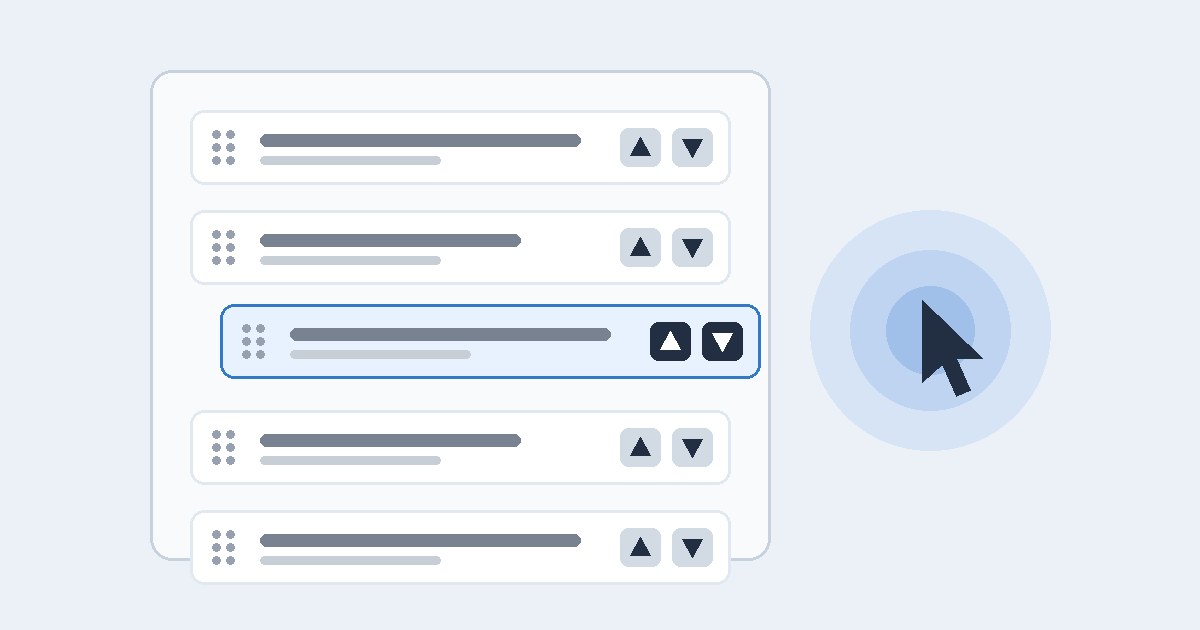
The same approach works for other patterns. A sortable list can include "Move up" and "Move down" buttons on each item. A kanban board can give each card a menu that lets the user pick a destination column. A resizable panel can offer preset size buttons. In each case the alternative must complete the same task. A tooltip telling someone to "drag to reorder" does not count.
What is out of scope
The criterion excludes functionality that is determined by the user agent and not modified by the author. The Understanding document gives examples: scrolling by dragging a browser scrollbar, scrolling a touchscreen page by dragging it, and the "drag to refresh" gesture many touchscreen browsers provide. The browser provides these, so the criterion does not apply. It also does not apply to sections made scrollable with CSS overflow, because the browser still supplies the scrolling.
There is a caveat. W3C states that the criterion does apply if content suppresses the user agent's own scrolling or builds its own scrolling mechanism. A custom carousel that intercepts drag events is the author's responsibility.
The other exception covers cases where dragging is essential. Apply it narrowly, to one specific operation, and write down the reason. The question to ask is whether the dragging itself is the purpose of the task, or only a convenient way to reach a result that could be reached another way.
A review workflow for design teams
- Inventory drag interactions. List every component where the user presses, moves, and releases: sortable lists, sliders, carousels, file drop zones, resizable panes, map panning, and custom scrollers.
- Note the outcome of each. Write down what the drag achieves, for example "moves card to another column" or "sets volume". The alternative must achieve the same outcome.
- Design the single-pointer path. Pick a pattern such as buttons, a menu, a destination picker, a text field, or tap-to-position. Make it visible or easy to find, and give it an accessible name.
- Check for path dependence. Make sure the alternative does not need a swipe or flick.
- Test with real input methods. Use a mouse with only clicks, a touchscreen with only taps, and a keyboard separately. Each method should complete the task.
- Record the result. Note the component, state, input method, expected result, observed result, and the criterion. One test passing does not show a whole product conforms.
Design notes
Alternatives are easier to add early. If a team designs a drag-only kanban board and then adds a menu at the end of a sprint, the menu tends to be hard to find and inconsistent. When the click or tap path is part of the original design, it can share visual language with the drag affordance and feel like a first-class option rather than a fallback.
The alternative also helps people without disabilities: someone on a small phone, someone using a trackpad on a train, or someone moving many items at once.
Limits of this guide
WCAG requirements depend on version, conformance level, and context. Read the normative W3C Recommendation together with the Understanding document (which is informative) before making a release decision. This article is general information, not an audit or legal opinion.
Sources
- W3C, Web Content Accessibility Guidelines (WCAG) 2.2, Success Criterion 2.5.7 Dragging Movements: https://www.w3.org/TR/WCAG22/#dragging-movements
- W3C WAI, Understanding Success Criterion 2.5.7: Dragging Movements (intent, slider examples, user-agent exception, relationship to keyboard and pointer-gesture criteria): https://www.w3.org/WAI/WCAG22/Understanding/dragging-movements.html
- W3C WAI, Understanding Success Criterion 2.5.1: Pointer Gestures: https://www.w3.org/WAI/WCAG22/Understanding/pointer-gestures.html