For design teams looking to elevate their workflow, boost productivity, and foster innovation, leveraging the right technology is non-negotiable. This comprehensive guide will deep dive into the best design collaboration tools available today, offering insights into how they can revolutionize your team’s efficiency, creativity, and overall project outcomes. We’ll explore platforms that not only streamline communication but also integrate design, prototyping, feedback, and project management into one cohesive experience, helping you choose the perfect stack to empower your creative vision. These platforms are crucial for enhancing the design knowledge domain and ensuring seamless creative team platforms.
Streamlining Teamwork: The Best Collaboration Tools for Design Teams
The Indispensable Role of Collaboration in Modern Design Workflows
The landscape of design has undergone a profound transformation. What was once a largely solitary pursuit has evolved into a highly collaborative ecosystem. From UX/UI designers working alongside product managers and developers to graphic designers coordinating with marketing specialists and copywriters, every successful project is a symphony of diverse talents.
Consider the impact of inadequate collaboration:
- Version Control Nightmares: Who has the latest file? Was that feedback incorporated? These questions plague teams without centralized version control, leading to wasted time and rework.
- Communication Gaps: Misunderstandings arise when feedback is fragmented across emails, chat messages, and verbal discussions, resulting in costly errors and missed requirements.
- Siloed Information: Design decisions, user research findings, and project specifications can get lost in individual drives or separate tools, hindering knowledge transfer and onboarding.
- Slow Iteration Cycles: The iterative nature of design, especially in Agile environments, demands rapid feedback and quick adjustments. Without streamlined collaboration, these cycles grind to a halt.
- Burnout and Frustration: Constantly battling inefficient processes leads to team dissatisfaction, reducing morale and increasing the risk of turnover.
Conversely, robust collaboration tools foster an environment where ideas flow freely, feedback is actionable, and every team member feels connected and empowered. They enable designers to focus on what they do best – creating – rather than wrestling with logistical challenges. The right tools ensure that everyone is working from the same page, literally and figuratively, leading to superior design outcomes, happier clients, and a more engaged team. Investing in the best design collaboration tools is an investment in your team’s future success.
Actionable Tip: Before evaluating any tools, conduct an internal audit of your current collaboration pain points. Interview designers, developers, and project managers to understand where bottlenecks occur. This will provide a clear set of requirements for your tool search. (Source: Internal Team Audit Best Practices, LayoutScene Research)
Core Criteria: What Makes the Best Design Collaboration Tools Stand Out?
Navigating the crowded market of collaboration tools can be daunting. To help you make an informed decision, here are the essential features and considerations that distinguish the truly effective platforms for design teams:
- Real-time Co-editing and Co-design: The ability for multiple users to work on the same design file simultaneously, seeing each other’s changes in real-time, is a game-changer. This eliminates version conflicts and dramatically speeds up the design process.
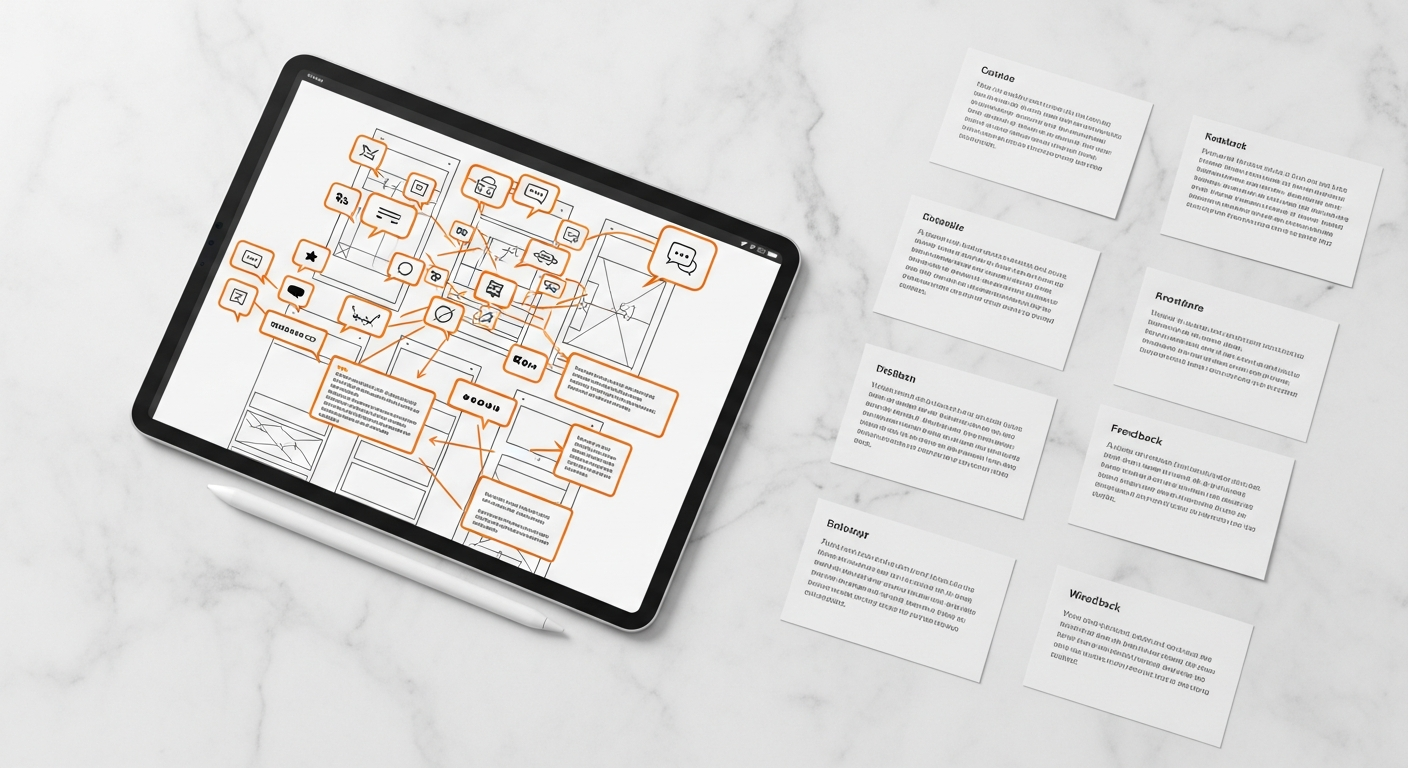
- Seamless Feedback and Annotation: Designers need intuitive ways to receive precise, contextual feedback directly on designs. Look for features like pin-point comments, drawing tools, and the ability to resolve feedback threads.
- Version History and Control: A robust version history allows teams to track changes, revert to previous iterations, and understand the evolution of a design. This is crucial for accountability and error correction.
- Prototyping and User Testing Integration: The best tools bridge the gap between static design and interactive prototypes. Integration with user testing platforms further streamlines the validation process, allowing designers to gather insights directly.
- Asset Management and Libraries: Centralized design systems, component libraries, and asset management ensure consistency, reduce redundant work, and maintain brand integrity across projects.
- Developer Handoff Capabilities: Streamlining the design-to-development pipeline is critical. Tools should offer inspect modes, CSS/SVG export, and clear specifications to minimize friction with engineers.
- Integrations with Existing Ecosystems: No tool lives in a vacuum. Look for platforms that integrate with your existing project management, communication, and development tools (e.g., Slack, Jira, Asana, Google Drive).
- Usability and Learning Curve: The tool should be intuitive for designers and non-designers alike. A steep learning curve can hinder adoption and negate the benefits of advanced features.
- Scalability and Pricing: Consider how the tool will grow with your team. Evaluate pricing models (per user, per project) and ensure it aligns with your budget and anticipated team size.
- Security and Compliance: Especially for sensitive projects, ensure the platform meets industry security standards and compliance requirements.
By carefully evaluating these criteria, you can identify the best design collaboration tools that genuinely meet your team’s specific needs and contribute to a more efficient, creative, and successful workflow.
Practical Step: Create a scorecard based on these criteria. Assign weights to each feature based on your team’s priorities and rate potential tools to objectively compare them.
Leading All-in-One Platforms for End-to-End Design Collaboration
For many teams, an all-in-one platform offers the most cohesive and efficient approach to collaboration. These tools often integrate design creation, prototyping, feedback, and even aspects of project management into a single environment.
Figma: The Real-time Collaboration Powerhouse
What it is: Figma is a cloud-based design and prototyping tool that has become the gold standard for real-time collaborative design. Its browser-based nature means accessibility from anywhere, on any operating system, without needing powerful local hardware. Figma falls primarily into the ‘Software’ and ‘Design’ knowledge domains.
Key Features for Collaboration:
- Real-time Multiplayer: This is Figma’s killer feature. Multiple designers, stakeholders, and developers can simultaneously view and edit the same design file. You see everyone’s cursors and selections, making co-creation and design reviews incredibly fluid.
- FigJam: An integrated online whiteboard for brainstorming, workshops, and team planning, directly linked to your design files. It’s perfect for ideation sessions.
- Comments and Annotations: Contextual commenting allows precise feedback directly on specific elements, with threading and resolution capabilities.
- Prototyping: Build interactive prototypes directly within Figma, enabling easy sharing for feedback and user testing.
- Developer Handoff: ‘Inspect’ mode allows developers to easily access CSS, SVG, and code snippets, as well as export assets.
- Design Systems: Centralized component libraries ensure consistency and scalability across projects.
Pros: Unparalleled real-time collaboration, accessible from any browser, robust prototyping, excellent for design systems, strong community and plugin ecosystem. Widely considered one of the best design collaboration tools for UI/UX.
Cons: Can be performance-intensive with very large files or complex interactions, limited offline capabilities, proprietary file format.
Ideal For: UI/UX teams, product design teams, agencies, and any team prioritizing real-time co-creation and rapid iteration. Often seen as a benchmark among the best design collaboration tools.
Practical Tip: Leverage FigJam for initial brainstorming sessions before moving to Figma for detailed design. Encourage all stakeholders, including non-designers, to actively participate in design reviews using Figma’s comment features.
Adobe XD (as part of the Creative Cloud Ecosystem)
What it is: Adobe XD is a vector-based user experience design tool for designing and prototyping websites, mobile apps, and other interactive experiences. It’s tightly integrated with the broader Adobe Creative Cloud suite.
Key Features for Collaboration:
- Coediting (Beta): Similar to Figma, XD offers real-time coediting, allowing multiple designers to work on the same document simultaneously.
- Share for Review: Generate shareable links for prototypes and design specs, allowing stakeholders to view and comment directly on designs.
- Creative Cloud Libraries: Seamlessly share assets (colors, character styles, components) across all Creative Cloud applications, ensuring brand consistency.
- Developer Handoff (Design Specs): Automatically generate detailed design specs for developers, including measurements, colors, and downloadable assets.
- Third-party Plugins: Extend functionality with integrations for project management, animation, and user testing.
Pros: Strong integration with other Adobe products (Photoshop, Illustrator), robust prototyping features, good for existing Adobe users, regular feature updates.
Cons: Can be resource-intensive, collaboration features are robust but arguably still catching up to Figma’s maturity in some areas, Creative Cloud subscription can be pricey.
Ideal For: Teams already deeply embedded in the Adobe Creative Cloud ecosystem, designers needing seamless transitions between Photoshop/Illustrator and XD, and those designing complex interactive experiences.
Practical Tip: Utilize Creative Cloud Libraries extensively to maintain design system consistency across your team, especially if you use multiple Adobe applications for a single project.
Sketch (with Abstract & Plugins): Mac-Native Power
What it is: Sketch is a macOS-only vector graphics editor primarily used for UI/UX design. While not browser-based like Figma or XD, its strength lies in its powerful native performance and extensive plugin ecosystem, which compensates for its desktop-only nature regarding collaboration.
Key Features for Collaboration (often via integrations):
- Abstract / PlantApp: These are vital for Sketch collaboration. Abstract provides Git-like version control, branching, merging, and commenting for Sketch files, essentially turning a desktop app into a collaborative hub. PlantApp offers similar functionality.
- Sketch Cloud: Share designs and prototypes via the web for review and commenting.
- Integrations: Extensive plugins for handoff (Zeplin, Anima), prototyping (InVision, ProtoPie), and asset management.
- Libraries: Centralized Symbol Libraries and Shared Styles ensure design consistency across multiple Sketch files and designers.
Pros: Fast and performant on macOS, powerful vector editing, massive plugin ecosystem tailored for specific needs, excellent for creating and managing design systems.
Cons: macOS only (excluding collaborators without Macs), core collaboration features rely heavily on third-party tools, not real-time co-editing in the same way Figma is.
Ideal For: Mac-centric design teams who prioritize native app performance, have complex design system needs, and are comfortable integrating multiple specialized tools to build their optimal collaboration stack.
Practical Tip: If using Sketch, invest in a robust version control system like Abstract from day one. This will prevent version conflicts and establish a clear workflow for branching and merging design work.
Specialized Solutions: Elevating Feedback, Handoff, and User Testing
While all-in-one tools offer comprehensive solutions, specialized platforms excel in specific aspects of the design workflow, providing deeper functionality where it’s most needed. These can be crucial additions to your toolkit, complementing your primary design software.
InVision: Prototyping and Feedback Hub
What it is: InVision is a digital product design platform primarily known for its prototyping and feedback capabilities. It allows designers to upload static screens and transform them into interactive prototypes, then gather contextual feedback.
Key Features for Collaboration:
- Interactive Prototyping: Easily link screens to create clickable prototypes, simulating user flows for review and testing.
- Comments and Workflow: Stakeholders can comment directly on prototypes, mark feedback as resolved, and track progress. Freehand is a digital whiteboard for ideation.
- Specs for Developers: Automatically generates design specifications, assets, and code snippets for efficient handoff.
- Integrations: Connects with popular design tools like Sketch, Photoshop, and Adobe XD, as well as project management platforms.
Pros: Excellent for converting static designs into interactive prototypes quickly, strong feedback mechanisms, useful for design reviews with non-designers.
Cons: Less focused on design creation itself (it’s primarily a “viewer” and “annotator”), faces stiff competition from all-in-one tools that now include robust prototyping and feedback (e.g., Figma, Adobe XD).
Ideal For: Teams needing a dedicated platform for sharing interactive prototypes and gathering structured feedback, especially if their primary design tool has weaker prototyping features. It can act as a central hub for reviews, making it one of the useful best design collaboration tools for external sharing.
Actionable Tip: Use InVision for client presentations and user testing. The ability to click through a prototype provides a much richer experience than static mockups and can lead to more insightful feedback.
Zeplin / Avocode / Inspect by InVision: Precision Handoff
What they are: These tools bridge the gap between design and development by providing a centralized platform for design specs, assets, and code snippets. They essentially translate design files into developer-friendly resources.
Key Features for Collaboration:
- Automated Design Specs: Converts designs into detailed specifications (dimensions, colors, fonts, spacing, CSS/Swift/Android code) with a click.
- Asset Export: Developers can easily download assets (icons, images) in various formats and resolutions.
- Contextual Comments: Allows designers and developers to communicate directly on specific elements within the design specs.
- Version Control: Tracks changes to design specs as new versions of designs are uploaded.
- Integrations: Connects with Figma, Sketch, Adobe XD, Photoshop, and various project management tools.
Pros: Dramatically reduces developer guesswork, speeds up the implementation phase, minimizes back-and-forth communication, ensures design fidelity in development.
Cons: Adds another tool to the stack (though a highly specialized and beneficial one), some design tools now have strong native handoff features (e.g., Figma Inspect, Adobe XD Design Specs).
Ideal For: Teams with a clear separation between design and development, especially those working with complex UIs or large component libraries, where precise handoff is critical.
Practical Step: Integrate your chosen handoff tool into your development sprints. Ensure developers know how to access specs and assets, and conduct brief training sessions if necessary to maximize its value.
Maze / UserTesting: Validating Designs with Real Users
What they are: These platforms specialize in user research and testing, allowing design teams to gather quantitative and qualitative data on their designs by putting prototypes in front of real users.
Key Features for Collaboration:
- Usability Testing: Create tests for prototypes (from Figma, Sketch, XD, InVision) to measure user behavior, task completion, and identify pain points.
- User Feedback: Collect written, verbal, or video feedback from testers directly within the platform.
- Analytics: Generate heatmaps, flow diagrams, and other data visualizations to understand user interactions.
- Shareable Reports: Easily share test results and insights with the entire design and product team, fostering data-driven decision-making.
Pros: Provides objective data to validate design decisions, identifies usability issues early, democratizes user research, improves product quality.
Cons: Requires careful test design to yield meaningful results, can be an additional cost, doesn’t directly facilitate design creation.
Ideal For: Product teams, UX teams, and agencies committed to user-centered design, looking to integrate continuous user feedback into their iterative design process. These are the best design collaboration tools for validating assumptions.
Actionable Tip: Integrate user testing early and often. Even simple, unmoderated tests can provide invaluable insights that prevent costly redesigns down the line. Share highlight reels of user struggles with the entire team to build empathy.
Beyond Design: Project Management & Communication Hubs for Creative Teams
True collaboration extends beyond just the design files themselves. Effective project management and seamless communication are crucial for keeping design projects on track, within scope, and aligned with broader business objectives.
Asana / Monday.com / ClickUp: Visual Project Management for Creatives
What they are: These are robust project management platforms that offer visual task management, workflow automation, and reporting, adaptable to creative workflows.
Key Features for Collaboration:
- Task Management: Assign tasks, set deadlines, track progress, and organize work into boards, lists, or timelines.
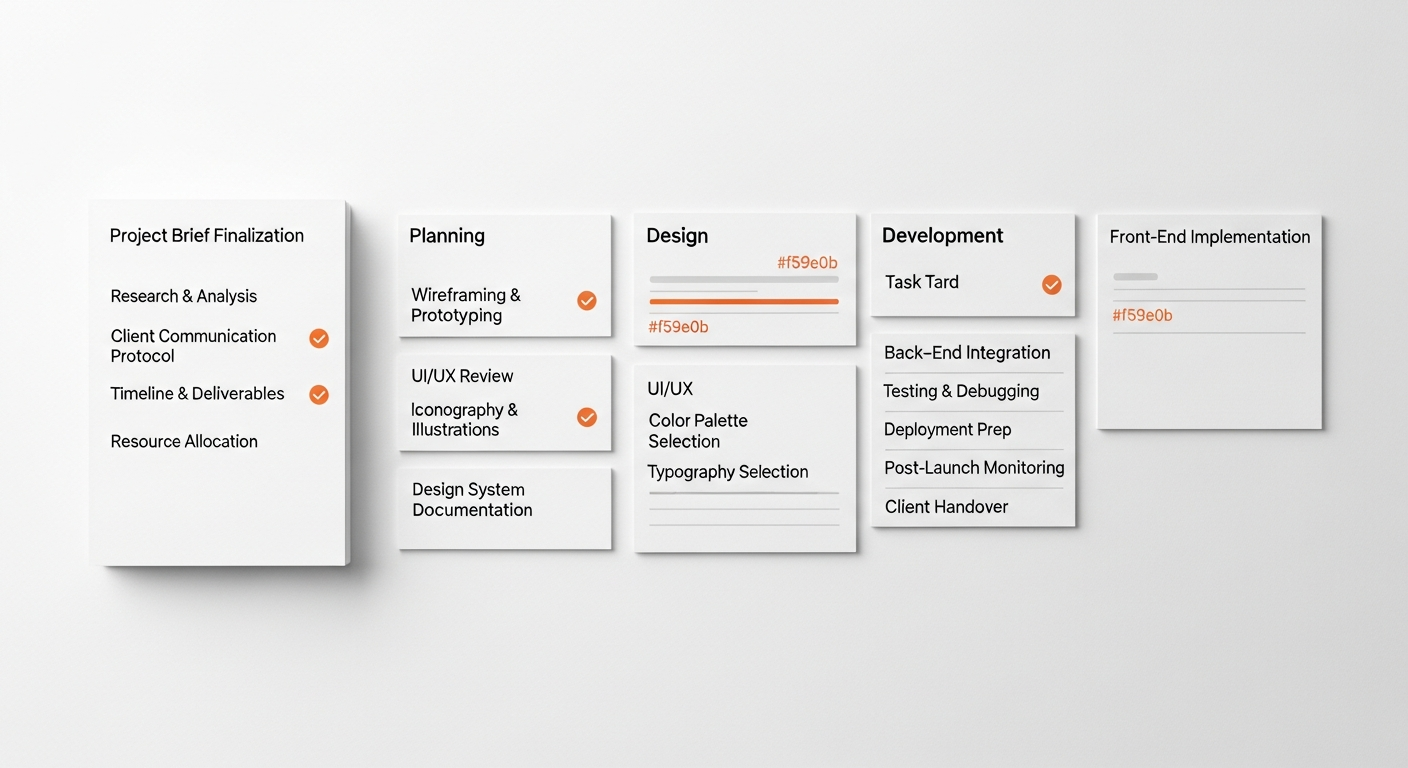
- Workflow Customization: Tailor workflows to fit your design process (e.g., “Ideation” > “Wireframing” > “Prototyping” > “Feedback” > “Handoff”).
- File Sharing: Attach design files, assets, and documents directly to tasks for easy access.
- Communication: In-task comments, status updates, and team discussions keep everyone informed.
- Integrations: Connect with design tools (Figma, Adobe XD), communication apps (Slack), and cloud storage.
- Resource Management: Some offer features to track team workload and allocate resources effectively.
Pros: Provides structure and accountability, improves transparency, helps manage project scope and deadlines, reduces email clutter.
Cons: Can have a learning curve for extensive features, requires consistent team adoption to be effective, can feel overly complex for very small teams.
Ideal For: Any design team managing multiple projects, sprints, or complex workflows, especially those coordinating with non-design stakeholders (marketing, development, product). These are essential best design collaboration tools for overall project orchestration.
Practical Step: Set up a design-specific template in your chosen PM tool. Define clear stages for each design task and integrate checkpoints for feedback and approval. This provides a transparent overview of project status.
Slack / Microsoft Teams: Real-time Communication Hubs
What they are: These are chat-based communication platforms designed for team messaging, file sharing, and integrated video conferencing.
Key Features for Collaboration:
- Channel-based Communication: Organize conversations by project, topic, or team, ensuring relevant discussions stay together.
- Direct and Group Messaging: Instant communication for quick questions or urgent updates.
- File Sharing: Easily share design assets, screenshots, and links, often with integrated previews.
- Video and Voice Calls: Built-in conferencing for quick syncs or virtual stand-ups.
- Extensive Integrations: Connect with nearly every other design, project management, and development tool, centralizing notifications and actions.
Pros: Facilitates rapid communication, reduces email volume, centralizes team discussions, makes information easily searchable.
Cons: Can lead to information overload and distraction if not managed well, can create silos if important decisions aren’t documented elsewhere, potential for “chat fatigue.”
Ideal For: All design teams, as a primary communication channel for daily interactions, quick feedback, and informal discussions.
Actionable Tip: Establish clear guidelines for channel usage. Create specific channels for different projects, feedback on certain designs, or even “design inspiration” to keep discussions organized and productive.
Building Your Optimal Collaboration Stack: Practical Steps for Implementation
Choosing a tool is only half the battle; integrating it effectively into your team’s workflow is where the real challenge lies. Here’s how to build and implement your ideal stack of the best design collaboration tools:
- Assess Your Team’s Specific Needs & Pain Points: Start with a comprehensive audit. What are your current bottlenecks? Is it version control, feedback loops, developer handoff, or general communication? Prioritize these issues to guide your tool selection. For example, if real-time co-creation is paramount, Figma might be your top pick.
- Pilot Program & User Feedback: Don’t roll out a new tool company-wide immediately. Select a small, enthusiastic team or a specific project for a pilot program. Gather feedback on usability, features, and how well it solves the identified pain points. This helps identify unforeseen challenges and builds internal champions.
- Define Clear Workflows & Best Practices: Tools are only as good as the processes built around them. Document how each tool will be used:
- Where does initial ideation happen?
- How is design feedback collected and processed?
- What is the standard for versioning design files?
- How do designers hand off assets to developers?
Clear guidelines prevent confusion and ensure consistent adoption.
- Invest in Training & Onboarding: Even the most intuitive tools require some initial training. Provide workshops, create internal documentation, or leverage vendor tutorials. Ensure all team members, including non-designers who will interact with designs, are comfortable using the chosen platforms.
- Integrate Your Stack Thoughtfully: Look for tools that integrate seamlessly. For example, connecting Figma with Asana allows designers to update task status directly from their design tool. Integrate Slack with your project management and design tools to receive notifications in a centralized place.
- Regularly Review and Optimize: The design landscape and your team’s needs evolve. Schedule regular check-ins (e.g., quarterly) to assess if your current tools are still serving your needs. Are there new features that could be leveraged? Are there any tools that are underutilized or causing new bottlenecks? Be prepared to adapt and refine your stack.
By following these steps, you can ensure that your investment in the best design collaboration tools translates into tangible improvements in efficiency, creativity, and overall team satisfaction.
Conclusion: Empowering Your Creative Journey with the Right Tools
In the dynamic world of design, effective collaboration is no longer a luxury but a fundamental necessity for success. The right collaboration tools empower design teams to transcend geographical boundaries, streamline complex workflows, and foster an environment where creativity thrives. From real-time co-creation in Figma to precise developer handoffs via Zeplin, and from structured project management in Asana to instant communication on Slack, the options available today are robust and varied.
The journey to finding the best design collaboration tools for your team is unique. It requires a thoughtful assessment of your specific needs, a willingness to experiment, and a commitment to integrating these tools with clear processes and ongoing training. By investing in the platforms that best support your team’s workflow, you’re not just buying software; you’re investing in enhanced productivity, reduced friction, elevated design quality, and ultimately, a more joyful and impactful creative journey for everyone involved.
Ready to transform your team’s collaboration? Start by evaluating your current pain points and exploring the tools discussed in this guide. The future of design teamwork is collaborative, efficient, and exceptionally creative—make sure your team is equipped to lead the way.
Frequently Asked Questions