Dark Mode Design Patterns Beyond Color Inversion: Crafting Superior User Experiences
Many initial attempts at dark mode design fell short, often relying on a simplistic color inversion that inadvertently introduced new usability issues. Text became difficult to read, visual hierarchies collapsed, and brand identities were lost in a sea of muted tones. This article will guide you through the sophisticated design patterns and strategic considerations necessary to move beyond mere color inversion. We will explore how to build dark mode experiences that are not only visually appealing but also uphold the highest standards of accessibility, readability, and user satisfaction, ensuring your designs truly shine in the dark.
Beyond Inversion: Understanding the Core Principles of Effective Dark Mode
At its heart, effective dark mode design is about more than just swapping white for black. It’s a complete re-evaluation of how visual elements interact within a low-luminance environment. The default approach of simply inverting colors often leads to an unappealing and inaccessible interface. Bright white text on pure black, for instance, can cause “halation” – a visual effect where the bright text appears to bleed into the dark background, making it harder to read, especially for users with astigmatism or other visual impairments. This is a critical point emphasized by accessibility experts like the Nielsen Norman Group, who advocate for nuanced color choices.
The core principles guiding a successful dark mode strategy revolve around contrast, luminance, and thoughtful color application. Instead of pure black (#000000), which can make elements feel flat and lifeless, consider using dark grays (e.g., #121212 or #1E1E1E as suggested by Material Design guidelines). These subtle dark grays provide enough contrast for lighter foreground elements while offering a canvas where shadows and elevation can still be perceived, adding crucial depth to your interface. The goal is to achieve sufficient contrast between text and background without overdoing it, which can cause eye fatigue. WCAG 2.1 guidelines recommend a minimum contrast ratio of 4.5:1 for regular text and 3:1 for large text, a standard that must be meticulously maintained in dark themes. Remember, dark mode isn’t about eliminating light; it’s about carefully managing it to enhance the user experience.
Semantic Color Systems: The Backbone of Adaptable Interfaces
Creating a robust dark mode experience starts with a well-defined semantic color system. This is a system where colors are named and used based on their purpose or meaning within the UI, rather than their absolute hue or value. For example, instead of defining “blue-500,” you might define “primary-action-color” or “background-surface.” This abstraction is incredibly powerful because it allows you to change the underlying hexadecimal value of a color without altering its intended use across your application.
Consider the approach taken by major design systems like Google’s Material Design or Apple’s Human Interface Guidelines. They don’t just provide a light theme and a dark theme; they provide a comprehensive set of semantic color roles. For instance, Material Design defines roles like `colorSurface`, `colorOnSurface`, `colorPrimary`, `colorOnPrimary`, `colorError`, and so on. When you switch to dark mode, the values assigned to these roles change, but their semantic meaning remains constant. `colorSurface` might be a light gray in light mode and a dark gray in dark mode, but it always represents the background of a component or container.
To implement this, you’ll need to:
- Identify Key UI Elements: List all distinct UI elements that require color: backgrounds, text, icons, primary buttons, secondary buttons, error messages, links, disabled states, etc.
- Assign Semantic Roles: Give each element a descriptive, role-based name (e.g., `background-default`, `text-primary`, `interactive-link`, `status-error`).
- Define Light Mode Values: Assign specific hex codes for each semantic role in your light theme.
- Define Dark Mode Values: Crucially, assign *different* hex codes for each semantic role in your dark theme. These values should be carefully chosen to maintain contrast, hierarchy, and brand identity in the darker context.
- Implement Theming Logic: Use CSS variables, design tokens (in tools like Figma, Sketch, or Adobe XD), or platform-specific APIs to switch between these sets of values based on the user’s theme preference.
This systematic approach ensures consistency, reduces design debt, and makes your interface significantly more adaptable to future changes and new themes.
Elevation and Depth: Crafting Visual Hierarchy in Darkness
In light mode, shadows are a primary mechanism for conveying elevation and separating layers of an interface. A common shadow effect involves a dark, translucent overlay beneath an elevated element, indicating its distance from the background. However, in dark mode, applying a dark shadow to an already dark background makes it virtually invisible, stripping your UI of a crucial depth cue.
To maintain visual hierarchy and a sense of depth in dark mode, designers must employ alternative strategies:
- Varying Surface Luminance: Instead of relying on shadows, you can use progressively lighter shades of your base dark background color to indicate elevation. Material Design’s dark theme, for example, assigns different levels of “elevation” to surfaces by making them slightly lighter as they rise. A base background might be
#121212, while a card on top could be#1E1E1E, and a floating action button even lighter, perhaps#272727. This subtle increase in luminance creates a visual lift. - Subtle Borders and Separators: Thin, light-colored borders (e.g., a 1px border with a very light gray or even a subtle brand accent color) can effectively delineate elements that might otherwise blend into the dark background. These act as visual separators without being overly prominent.
- Highlighting Active States: For interactive elements, ensure active, hover, and focus states are clearly distinguishable. This might involve a slight increase in luminance for the element itself, a subtle glow, or a distinct fill color that pops against the dark background.
- Strategic Use of Color: Reserve your most saturated brand colors for highlighting key actions, statuses, or interactive elements. In a predominantly dark interface, even a small splash of vibrant color can draw attention and guide the user’s eye effectively.
By carefully manipulating luminance, borders, and accent colors, you can recreate a rich sense of depth and hierarchy that prevents your dark mode interface from appearing flat or confusing.
Typography and Readability: Ensuring Clarity in Low-Light Environments
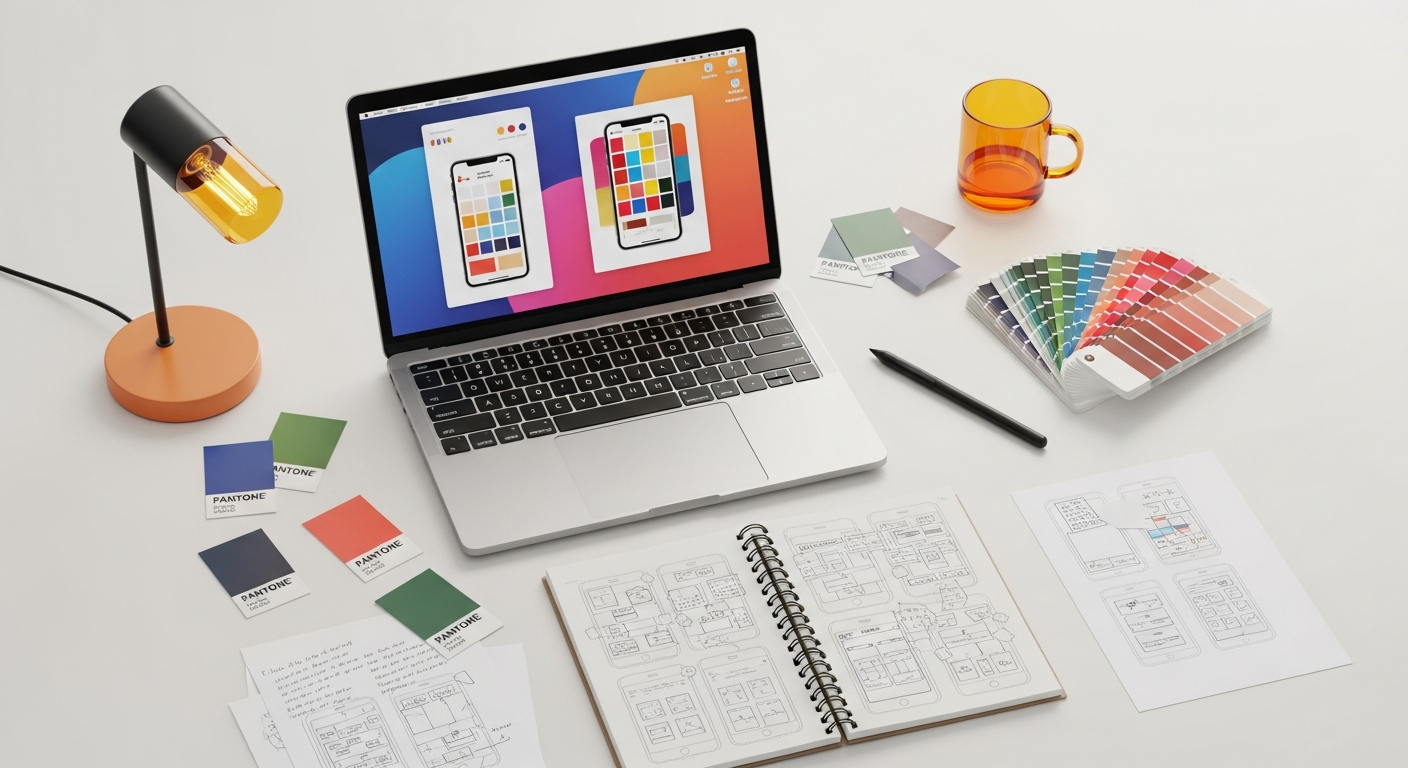
Typography is paramount to readability, and its treatment in dark mode requires careful adjustments. What works well on a light background may become illegible or cause eye strain on a dark one. The primary challenge is to find the sweet spot for text color and weight that provides sufficient contrast without causing “halation” or appearing overly stark.
Here are key considerations for typography in dark mode:
- Avoid Pure White Text: Just as pure black backgrounds are problematic, pure white text (
#FFFFFF) on a dark background can be too intense, leading to halation and visual discomfort. Instead, opt for slightly off-white grays (e.g.,#E0E0E0,#F5F5F5, or even a very light gray with a hint of your brand’s primary color) for primary text. This reduces the intensity and makes text feel softer and more comfortable to read. - Adjust Font Weights: Lighter font weights (e.g., Light, Thin) that look elegant on light backgrounds can appear too faint and difficult to read on dark backgrounds. Consider using slightly bolder weights (e.g., Regular, Medium) for body text and even more so for headings, to ensure legibility. Text that is too thin can look broken or pixelated against a dark canvas.
- Mind Contrast Ratios: Adhere strictly to WCAG 2.1 guidelines for contrast. For normal text, a contrast ratio of at least 4.5:1 is required. For large text (18pt or 14pt bold and larger), a ratio of 3:1 is acceptable. Use accessibility tools (like Stark, Contrast, or built-in browser developer tools) to test your color combinations rigorously.
- Line Height and Letter Spacing: Slightly increasing line height (leading) and letter spacing (tracking) can sometimes improve readability on dark backgrounds, as it provides more “breathing room” around characters and lines of text, reducing visual density.
- Hierarchical Text Colors: Use different shades of your chosen light gray for different levels of text importance. For instance, the brightest off-white for primary headings, a slightly darker gray for body text, and an even darker gray for secondary or disabled text. This helps establish visual hierarchy without relying on color saturation, which can be distracting in dark mode.
By meticulously adjusting these typographic elements, you ensure that your dark mode interface remains as readable and accessible as its light mode counterpart, if not more so, for users sensitive to bright light.
Iconography and Imagery: Adapting Visual Assets for Dark Themes
Icons and imagery are critical visual components that often require specific adjustments for dark mode. A direct color inversion or simply placing a light mode asset on a dark background can lead to loss of clarity, impact, or even meaning.
Iconography Best Practices:
- Stroke vs. Fill: Icons designed with thin strokes in light mode may become too faint or disappear on a dark background. Consider adapting them to use a more solid fill or thicker strokes in dark mode. Alternatively, if your light mode icons are primarily filled, you might need to adjust their color to be a lighter shade of gray or white to stand out.
- Semantic Icon Colors: Just like text, icon colors should be part of your semantic color system. Define roles like `icon-primary`, `icon-secondary`, `icon-interactive`, and assign appropriate light and dark mode values. Interactive icons, for example, might use an accent color to clearly indicate their clickable nature.
- State Changes: Ensure hover, active, and disabled states for icons are distinct in dark mode. A subtle glow, a change in fill, or a slight increase in luminance can effectively communicate these states.
Imagery and Illustrations:
Photographs and complex illustrations require a more nuanced approach. Simply darkening them can make them look dull or lose detail.
- Overlay or Tinting: For photographs, consider applying a subtle dark overlay (e.g., a semi-transparent dark gray or a brand-specific color) to reduce their overall brightness and help them blend more harmoniously with the dark theme. This also makes overlaid text more legible.
- Desaturation: Slightly desaturating images can prevent them from appearing too vibrant or distracting in a low-luminance environment. This helps maintain a cohesive visual tone.
- Dark Mode Specific Assets: For critical illustrations or brand imagery, you might need to create entirely separate dark mode versions. This allows you to adjust colors, contrasts, and even details to ensure they retain their intended mood and message. For example, an illustration depicting a sunny day might be re-imagined as a starry night scene.
- SVG and Vector Graphics: Leverage the power of SVG for illustrations and icons. SVGs allow for easy color manipulation via CSS, making it straightforward to adapt them for different themes without losing quality.
Thoughtful adaptation of visual assets ensures that your dark mode interface remains rich, engaging, and brand-consistent, rather than appearing as an afterthought.
Motion and Interaction: Enhancing User Experience with Subtle Cues
Motion and micro-interactions play a crucial role in user experience, providing feedback, guiding attention, and adding delight. In dark mode, these animations need to be re-evaluated to ensure they remain effective and non-distracting in a low-light context. The goal is to maintain clarity and responsiveness without introducing jarring or overly bright visual effects.
Key considerations for motion and interaction in dark mode:
- Subtlety is Key: In a dark environment, bright or fast-paced animations can feel more intense and potentially overwhelming. Opt for softer, more subtle transitions and movements. For instance, instead of a stark flash, a gentle fade or a smooth slide might be more appropriate for state changes.
- Reduced Luminance for Animated Elements: If an animated element, like a loading spinner or a progress bar, uses a bright color, consider slightly reducing its luminance in dark mode. It should still be noticeable but not glaring.
- Contextual Feedback: Ensure interactive feedback (e.g., hover states, button presses, form validation errors) is clear and immediate. This might involve:
- Glow Effects: Instead of a shadow, a subtle, light-colored glow around an interactive element can effectively indicate focus or hover in dark mode.
- Fill Changes: For buttons, a slight increase in the background fill’s luminance or a change to an accent color can signal interaction.
- Ripple Effects: Material Design’s ripple effect, which spreads from the point of interaction, works well in dark mode, often using a lighter overlay color to show the press.
- Accessibility for Reduced Motion: Always provide options for users who prefer reduced motion. This is an accessibility best practice (WCAG 2.1 Success Criterion 2.3.3 Animation from Interactions) and is particularly relevant in dark mode where some users might find any motion more distracting. Respect the `prefers-reduced-motion` media query.
- Brand Consistency: While adapting animations for dark mode, ensure they still align with your brand’s personality and overall design language. The interaction patterns should feel familiar and consistent, regardless of the theme.
By carefully calibrating motion and interaction, you can ensure that your dark mode interface remains fluid, responsive, and a pleasure to use, enhancing usability without visual fatigue.
Testing and Iteration: Ensuring Accessibility and User Satisfaction
Implementing a dark mode is not a “set it and forget it” task. Rigorous testing and continuous iteration are essential to ensure the design is truly effective, accessible, and meets user expectations. This phase is where you validate all your design decisions against real-world usage scenarios and diverse user needs.
Key Testing Areas and Tools:
Here’s a comparison of different dark mode testing approaches:
| Testing Method | Description | Tools/Resources | Benefits | Considerations |
|---|---|---|---|---|
| Automated Accessibility Checks | Using software to scan for common accessibility issues, especially contrast ratios. | WebAIM WAVE, Axe DevTools, Lighthouse (Chrome), Stark (Figma/Sketch/XD plugin), Contrast (macOS app) | Fast, catches obvious errors, good for initial checks. | Cannot catch all issues (e.g., semantic meaning, visual hierarchy). |
| Manual Visual Inspection | Carefully reviewing every screen and component in dark mode for visual inconsistencies, hierarchy, and readability. | Your own eyes, peer reviews, screenshots. | Catches subtle visual nuances, ensures aesthetic consistency. | Subjective, time-consuming, prone to human error. |
| User Testing (Qualitative) | Observing real users interacting with your dark mode interface, gathering feedback on comfort, ease of use, and preferences. | Usability testing platforms (UserTesting, Lookback), in-person sessions. | Reveals real-world usability issues, identifies pain points, gathers preference data. | Requires participants, can be time-consuming to analyze. |
| A/B Testing (Quantitative) | Comparing the performance of light vs. dark mode (or different dark mode variations) using metrics like engagement, task completion, session duration. | Optimizely, Google Optimize, VWO. | Provides data-driven insights into user behavior and impact on KPIs. | Requires significant traffic, may not capture subjective comfort. |
| Device & Environment Testing | Testing dark mode across various devices (mobile, tablet, desktop) and in different lighting conditions (bright room, dim room, no light). | Physical devices, device emulators (browser dev tools). | Ensures consistent experience across diverse hardware and usage contexts. | Can be resource-intensive to acquire and test on many devices. |
Iteration and Feedback Loops:
- Gather Feedback: Actively solicit feedback from users, stakeholders, and accessibility experts. Create clear channels for reporting issues or expressing preferences regarding the dark theme.
- Prioritize and Implement: Based on testing results and feedback, prioritize the identified issues. Not all issues will have the same impact; focus on critical accessibility blockers and significant usability pain points first.
- Release and Monitor: Once you’re confident in your dark mode implementation, roll it out and continue to monitor its performance. Keep an eye on user reviews, support tickets, and analytics to catch any unforeseen issues.
- Continuous Improvement: Design is an ongoing process. Be prepared to refine your dark mode as user preferences evolve, new technologies emerge, and your product grows.
By embracing a robust testing and iteration process, you ensure that your dark mode not only looks good but also performs exceptionally, providing a truly enhanced experience for your users.
Key Takeaways
- Go Beyond Inversion: Pure color inversion often leads to poor readability and lost visual hierarchy; instead, treat dark mode as a distinct design challenge requiring specific aesthetic and functional considerations.
- Build a Semantic Color System: Define color roles (e.g., `background-surface`, `text-primary`) rather than absolute values. This allows for easy, consistent adaptation between light and dark themes.
- Rethink Hierarchy with Luminance: In dark mode, use varying shades of dark gray to convey elevation and depth, as traditional shadows are ineffective. Slightly lighter surfaces indicate higher elevation.
- Optimize Typography for Readability: Avoid pure white text (opt for off-white grays), adjust font weights (often slightly bolder), and rigorously check contrast ratios (WCAG 2.1 AA minimum) to prevent halation and eye strain.
- Adapt All Visual Assets: Icons may need thicker strokes or fills, and images might require desaturation, overlays, or even dark-mode-specific versions to maintain clarity and mood.
- Test Extensively and Iterate: Use automated tools, manual inspections, and qualitative/quantitative user testing across devices and environments to ensure accessibility, usability, and user satisfaction, then refine based on feedback.
Frequently Asked Questions
Q: Why is pure black (#000000) often discouraged for dark mode backgrounds?
A: Pure black can create too stark a contrast with light text, leading to a phenomenon called “halation,” where bright elements appear to bleed into the dark background, making text harder to read and causing eye strain. It also eliminates the ability to use subtle shadows for depth. Slightly lighter dark grays (e.g., #121212 or #1E1E1E) provide a more comfortable viewing experience and allow for visual hierarchy through varying luminance.
Q: What are the key accessibility considerations for dark mode?
A: The primary accessibility concern is ensuring sufficient contrast between text and its background. WCAG 2.1 AA guidelines recommend a minimum contrast ratio of 4.5:1 for normal text and 3:1 for large text. Beyond contrast, ensure that interactive elements are clearly distinguishable, focus states are visible, and animations are not overly distracting or disorienting, especially for users sensitive to motion.
Q: How do I handle brand colors in dark mode without losing brand identity?
A: Brand colors should be carefully adapted. For vibrant brand colors, consider slightly desaturating or darkening them in dark mode to prevent them from appearing too luminous or jarring. Use them strategically for accents, interactive elements, or key information rather than large background areas. If your brand has a complementary palette, you might use a darker version of your primary color or a lighter accent color that maintains brand recognition.
Q: Should I offer a toggle for dark mode, or rely on system settings?
A: The best practice is to respect the user’s system-level preference first (using the `prefers-color-scheme` media query). However, also offering an in-app toggle allows users to override their system settings if they prefer a different theme for your specific application. This provides maximum flexibility and control to the user, enhancing their experience.
Q: What are some common mistakes to avoid when designing dark mode?
A: Common mistakes include:
- Simple color inversion without adjustment.
- Using pure black backgrounds and pure white text.
- Ignoring contrast ratios for accessibility.
- Not adapting images or icons, making them appear dull or lost.
- Losing visual hierarchy due to ineffective use of shadows or elevation.
- Failing to test across various devices and lighting conditions.
Addressing these points proactively will significantly improve your dark mode implementation.
Conclusion
Dark mode is far more than a stylistic choice; it’s a critical component of modern UI/UX design that significantly impacts user comfort, accessibility, and overall satisfaction. By moving beyond a simplistic color inversion and embracing a strategic approach to semantic color systems, thoughtful elevation, optimized typography, and adapted visual assets, you can create dark mode experiences that are genuinely superior.
Remember that the principles of good design—clarity, hierarchy, consistency, and accessibility—remain paramount, regardless of the theme. Rigorous testing, continuous iteration, and a deep understanding of how users interact with your interface in low-light environments are the hallmarks of a successful dark mode implementation. By investing in these patterns, you not only cater to a growing user preference but also demonstrate a commitment to crafting inclusive, high-quality digital products that truly resonate with your audience, day or night.
Article by Sarah D. Jenkins, Senior UX Designer & Accessibility Advocate.