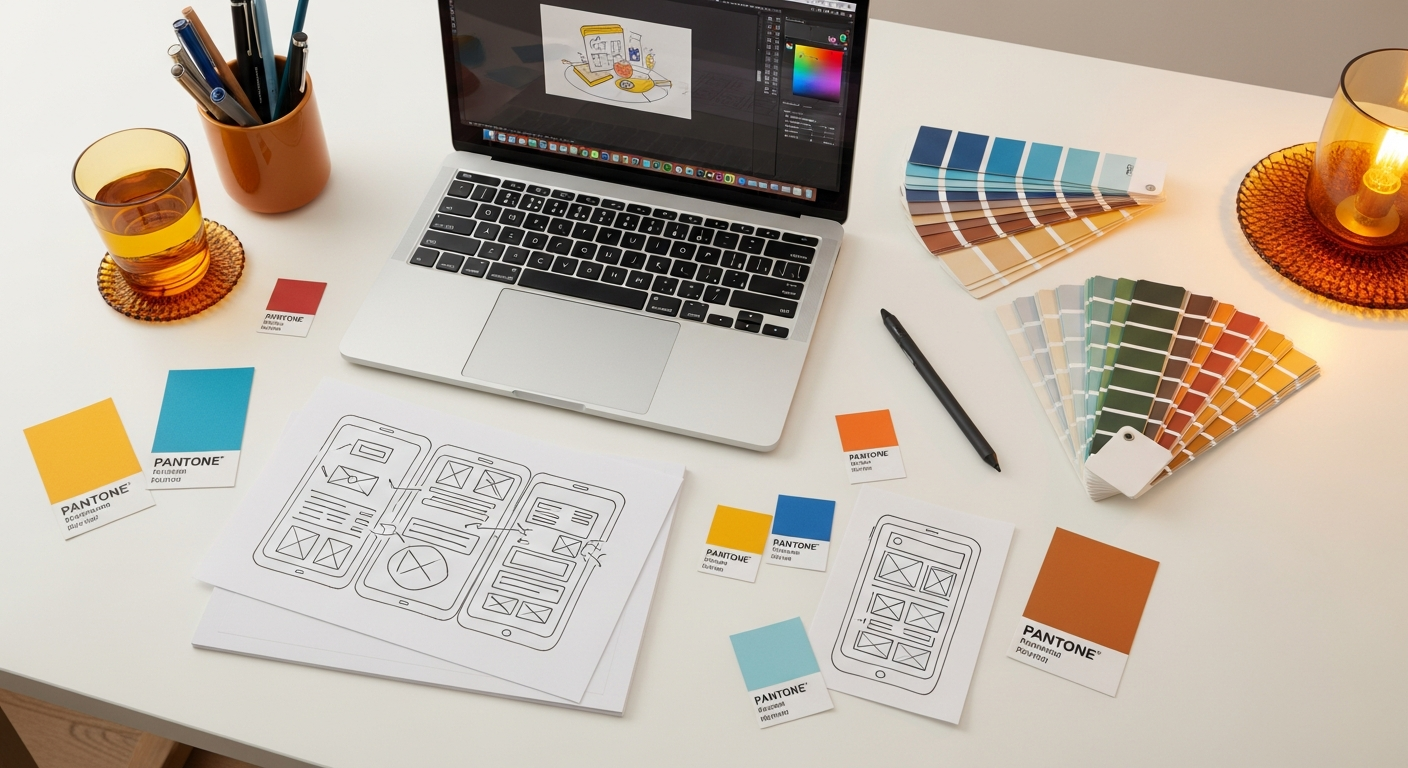
Beyond the Burger: Exploring Innovative Mobile Navigation Patterns for 2026
This article will delve into the cutting-edge mobile navigation patterns that are shaping the future of UI/UX. We’ll move beyond the simplistic “hamburger” to explore solutions that prioritize user flow, enhance accessibility, and leverage the full potential of modern mobile devices. Whether you’re a seasoned UX professional or a design student, understanding these patterns is crucial for crafting engaging and effective mobile experiences.
The Evolution of Mobile Navigation: Why Move Beyond the Hamburger?
The hamburger menu, typically represented by three horizontal lines, gained popularity as a compact way to house numerous navigation links without cluttering the main screen. While it certainly saves space, its primary drawback is discoverability. Users often don’t see what’s hidden behind the icon, leading to reduced engagement with features and a less intuitive browsing experience. Nielsen Norman Group (NN/g) research consistently highlights that hidden navigation takes longer to find and use, and often goes unnoticed by a significant portion of users.
Modern mobile design principles advocate for clarity, directness, and efficiency. Users expect to find what they need quickly and effortlessly. Hiding core functionality behind an abstract icon contradicts these principles. Furthermore, accessibility standards, such as WCAG (Web Content Accessibility Guidelines), encourage clear labeling and direct access to content, making patterns that require an extra tap to reveal options less ideal. The shift away from the hamburger menu is not just a trend; it’s a response to user behavior, accessibility requirements, and the desire to create more delightful and efficient digital products.
Consider the following limitations of the traditional hamburger menu:
- Low Discoverability: Users may not realize what content or features are available if they are hidden behind an icon.
- Increased Interaction Cost: An extra tap is required to access navigation, adding friction to the user journey.
- Ambiguity: The icon itself can be abstract, especially for new users, leading to a moment of hesitation.
- Poor for Core Functions: If your app has 3-5 primary sections, hiding them is detrimental to usability.
- Accessibility Challenges: For users with cognitive disabilities, remembering what’s hidden can be difficult.
As designers, our goal is to anticipate user needs and provide the most direct path to their objectives. This necessitates a thoughtful exploration of alternative navigation patterns.
Bottom Navigation Bar: The Ubiquitous & Effective Choice

The bottom navigation bar has emerged as one of the most popular and effective alternatives to the hamburger menu, particularly for apps with 3-5 primary destinations. Both Google’s Material Design and Apple’s Human Interface Guidelines (HIG) strongly advocate for its use. This pattern places key navigation links at the bottom of the screen, making them easily accessible with a thumb, especially on larger modern smartphones.
Key Advantages:
- Thumb Reachability: Positioned within the “thumb zone,” it’s incredibly ergonomic for one-handed use.
- High Discoverability: All primary destinations are visible at all times, clearly labeled with icons and text.
- Consistent Access: Users always know where to find core sections of the app, regardless of their current location.
- Improved Mental Model: Helps users build a clear understanding of the app’s structure.
Design Considerations for Bottom Navigation:
- Limit Items: Typically, 3-5 items are ideal. Too many items can make the bar cluttered and difficult to tap accurately.
- Clear Labeling: Always include both an icon and a text label for each item to ensure clarity, especially for new users or those with cognitive disabilities.
- Semantic Icons: Use icons that clearly represent their destination. Avoid abstract or ambiguous symbols.
- Active State: Clearly indicate the currently selected item to provide immediate feedback to the user.
- Consistency: The order and function of items should remain consistent throughout the app.
- Avoid Scrolling: The bottom navigation bar should generally remain fixed and not scroll with content.
- Accessibility: Ensure sufficient contrast, large enough tap targets (WCAG recommends 44×44 CSS pixels), and proper semantic markup for screen readers.
For example, apps like Instagram, Spotify, and YouTube all effectively leverage bottom navigation to provide quick access to their core features. When designing with tools like Figma, Sketch, or Adobe XD, you’ll find readily available UI kits and components that align with Material Design or HIG, making implementation straightforward. Remember to conduct user testing with prototypes to validate the effectiveness of your chosen icons and labels.
Tab Bars & Segmented Controls: Contextual & Efficient Grouping
While often confused with bottom navigation, tab bars and segmented controls serve distinct purposes, primarily for organizing content within a specific section or screen. They allow users to switch between different views, categories, or filtering options without navigating away from their current context.
Tab Bars (Top Navigation Tabs):
These are typically found at the top of a screen, below the app bar, and are excellent for organizing peer-level content. Think of them as sub-navigation within a primary section.
- Use Cases: Switching between “New,” “Popular,” and “Following” feeds within a social media app; categorizing products in an e-commerce app (e.g., “Men’s,” “Women’s,” “Kids’”).
- Advantages: High visibility, clear content separation, easy switching between related views.
- Considerations:
- Scrollable Tabs: If you have more tabs than can fit on screen, make them horizontally scrollable.
- Iconography: Often use text-only labels, but icons can be added if space allows and clarity is maintained.
- Consistency: Maintain the order and meaning of tabs.
Segmented Controls:
These are a group of mutually exclusive buttons, typically presented in a horizontal row, allowing users to select one option from a limited set. They are common in iOS design, often used for filtering or switching views.
- Use Cases: Toggling between “List” and “Map” views; selecting “Hourly,” “Daily,” or “Weekly” weather forecasts; choosing “All,” “Active,” or “Completed” tasks.
- Advantages: Clear selection, immediate feedback, compact design.
- Considerations:
- Limited Options: Best for 2-4 distinct options. More than that can become cramped.
- Single Selection: Always ensure only one segment can be active at a time.
- Accessibility: Ensure sufficient hit targets and proper state indication for screen readers.
Both tab bars and segmented controls are powerful tools for managing information hierarchy and providing contextual navigation. When designing, consider the information architecture carefully: are these options primary navigation (bottom bar), or secondary options within a screen (tabs/segmented controls)? Misusing them can lead to confusion.
Floating Action Buttons (FABs) & Action Sheets: Prioritizing Key Actions

Floating Action Buttons (FABs) are a prominent feature of Material Design, designed to represent the primary or most common action on a screen. They float above the UI, typically in the bottom-right corner, making them highly visible and accessible. Action sheets, on the other hand, provide a contextual list of actions related to a specific item or screen, appearing from the bottom or top of the screen.
Floating Action Buttons (FABs):
- Purpose: To highlight a single, most important action (e.g., “Compose” a new email, “Add” a new item, “Create” a new document).
- Placement: Usually fixed in the bottom-right corner, but can vary based on content and user flow.
- Appearance: Circular, elevated button, often with an icon and sometimes a text label (extended FAB).
- Advantages:
- High visibility for critical actions.
- Provides quick access to core functionality.
- Can animate to reveal related actions (speed dial FAB).
- Considerations:
- Single Primary Action: Avoid using multiple FABs on one screen, as this dilutes their purpose.
- Contextual Relevance: The action should always be relevant to the current screen’s content.
- Avoid Obstruction: Ensure the FAB doesn’t obscure important content or other interactive elements.
- Accessibility: Provide clear labels for screen readers and ensure sufficient contrast.
Action Sheets:
Action sheets present a set of choices related to a specific task or element, typically sliding up from the bottom of the screen. They are context-dependent and transient.
- Purpose: To offer a list of actions (e.g., “Share,” “Edit,” “Delete” for a selected item; “Choose Photo,” “Take Photo” when uploading an image).
- Appearance: A modal panel that slides up, containing buttons for each action and often a “Cancel” button.
- Advantages:
- Keeps the UI clean by hiding less frequent actions until needed.
- Provides a clear, focused list of options.
- Contextual and intuitive.
- Considerations:
- Limited Options: Best for a moderate number of actions (typically 3-7). Too many can make it scrollable and cumbersome.
- Clear Labels: Action labels should be concise and descriptive.
- Destructive Actions: Clearly distinguish destructive actions (e.g., “Delete”) with appropriate styling (e.g., red text).
- Accessibility: Ensure proper focus management and screen reader support when the sheet appears and disappears.
When used correctly, FABs and action sheets can significantly streamline user workflows and declutter interfaces. They are powerful tools for progressive disclosure, revealing options only when they are relevant and needed.
Gesture-Based Navigation: Intuitive Interactions for the Future
As touchscreens become more sophisticated, gesture-based navigation offers a highly intuitive and immersive way to interact with mobile applications. Moving beyond simple taps, gestures leverage natural human movements like swiping, pinching, and long-pressing to navigate and perform actions. This approach can free up screen space and create a more fluid user experience, though it comes with its own set of challenges.
Common Gesture Patterns:
- Swipe Gestures:
- Horizontal Swipe: Often used for navigating between sibling views (e.g., swiping between different tabs, image galleries, or onboarding screens).
- Vertical Swipe: Primarily for scrolling content, but can also trigger refresh actions (pull-to-refresh) or dismiss elements.
- Edge Swipe: Swiping from the edge of the screen to reveal a hidden menu (like a side drawer) or to go back (common in iOS).
- Pinch-to-Zoom: Universally understood for scaling content (images, maps).
- Long Press / Force Touch: Reveals contextual menus or previews content without navigating away (e.g., long-pressing an app icon for quick actions, or a photo for a preview).
- Shake: Less common, but can trigger actions like “undo” or “report a problem.”
Advantages of Gesture-Based Navigation:
- Immersive Experience: Can make interaction feel more natural and direct.
- Screen Real Estate: Reduces the need for visible UI elements, creating a cleaner interface.
- Speed and Efficiency: For learned gestures, interaction can be faster than tapping buttons.
Challenges & Considerations:
- Discoverability: This is the biggest hurdle. Hidden gestures are hard to learn and remember. Onboarding tutorials or subtle visual cues are often necessary.
- Learnability: Users need to be taught new gestures. Consistency across apps helps, but unique gestures can cause confusion.
- Memorability: If not used frequently, users may forget specific gestures.
- Conflict with System Gestures: Be careful not to conflict with OS-level gestures (e.g., iPhone’s home indicator swipe).
- Accessibility: Gestures can be challenging for users with motor impairments. Always provide alternative, tap-based methods for critical actions (WCAG 2.1 recommends pointer gestures should have single-pointer alternatives).
- Haptic Feedback: Use subtle haptic feedback to confirm gesture recognition and enhance the tactile experience.
When designing gesture-based interfaces, prioritize common, intuitive gestures. For novel gestures, provide clear visual feedback and consider incorporating them into an interactive onboarding experience. Tools like Maze or Hotjar can be invaluable for observing how users interact with gestures in prototypes and live apps, helping you refine their implementation.
Progressive Disclosure & Off-Canvas Menus: Managing Complexity Gracefully
Progressive disclosure is a design principle that defers advanced or less-frequent information and actions until the user needs them. This keeps the initial interface clean and focused, reducing cognitive load. Off-canvas menus, often associated with the hamburger but not exclusively, are a common implementation of progressive disclosure for navigation.
Off-Canvas Menus (Side Drawers / Navigation Drawers):
These menus slide in from the side of the screen, revealing a list of navigation options. While they save screen space, they share some discoverability challenges with the traditional hamburger icon.
- Use Cases: Ideal for apps with a large number of navigation items, or when the primary content needs maximum screen space (e.g., a complex settings menu, a news app with many categories, or a productivity app with numerous project lists).
- Activation: Typically triggered by a hamburger icon, an edge swipe (especially on Android), or a dedicated menu button.
- Advantages:
- Excellent for accommodating many navigation links.
- Frees up the main screen for content.
- Can be used for secondary or less-frequent navigation.
- Considerations:
- Discoverability: Still relies on an icon or gesture to reveal, which can be a barrier.
- Interaction Cost: Requires an extra tap/swipe to access.
- Context: Ensure the content revealed is relevant to the app’s overall structure and not just a dumping ground for miscellaneous links.
- Hierarchy: Clearly group and categorize items within the drawer.
- Accessibility: Ensure the drawer is properly focus-managed for keyboard and screen reader users when it opens and closes.
Other Progressive Disclosure Techniques:
- Accordions/Expandable Sections: Hiding detailed content until a user clicks to expand.
- “Read More” / “Show All”: Common for truncated text or lists.
- Tooltips/On-Hover Information: Providing additional context without cluttering the initial view (less common on mobile due to lack of hover state, but equivalent patterns exist).
- Modals/Dialogs: Presenting critical information or actions in a temporary, focused overlay.
The key to effective progressive disclosure is balancing information availability with cognitive load. Don’t hide essential information, but strategically defer less critical details. When designing off-canvas menus, ensure the trigger is clear and that the menu content is well-organized and easy to scan. Test with users to ensure they can find what they need without frustration.
Voice & Conversational UI: The Ultimate Hands-Free Navigation
As AI and natural language processing (NLP) advance, voice and conversational UI are becoming increasingly viable and powerful methods for mobile navigation. This approach allows users to interact with an app using spoken commands or text-based chat, offering a truly hands-free or alternative input experience.
Voice UI (VUI):
- How it Works: Users speak commands (e.g., “Hey [App Name], show me my upcoming tasks,” “Play next song,” “Call John Doe”).
- Use Cases: Smart assistants (Siri, Google Assistant), smart home control, navigation apps, media players, accessibility tools.
- Advantages:
- Hands-Free & Eyes-Free: Ideal for situations where hands or eyes are occupied (driving, cooking, exercising).
- Accessibility: Provides an alternative input method for users with motor impairments or visual disabilities.
- Efficiency: Can be faster than typing or tapping for complex queries.
- Considerations:
- Discoverability: Users need to know what commands are available.
- Accuracy: Speech recognition errors can be frustrating.
- Privacy: Concerns about data collection and always-on listening.
- Context: VUI needs to understand context to be effective.
- Feedback: Clear auditory or visual feedback is essential to confirm commands.
Conversational UI (Chatbots):
- How it Works: Users interact with an app through a text-based chat interface, often powered by AI.
- Use Cases: Customer support, appointment booking, e-commerce assistance, FAQs, personalized recommendations.
- Advantages:
- Natural Language: Users can express needs in plain language.
- Personalization: Can offer tailored experiences based on conversation history.
- Scalability: Chatbots can handle many queries simultaneously.
- Considerations:
- Scope: Best for well-defined tasks; complex or open-ended conversations can be challenging.
- Frustration: Users get frustrated if the bot doesn’t understand their intent.
- Human Handoff: Essential to provide an option to speak to a human when the bot fails.
- Tone & Persona: Designing a consistent and helpful conversational persona is crucial.
Integrating VUI or conversational elements into your app requires careful planning and robust backend support. While not a replacement for visual navigation, they offer powerful complementary methods, especially for accessibility and hands-free scenarios. As AI capabilities improve, expect these patterns to become increasingly sophisticated and integrated into everyday mobile experiences.
Adaptive & Contextual Navigation: Personalization as the New Standard
The future of mobile navigation isn’t just about static patterns; it’s about intelligence. Adaptive and contextual navigation systems leverage user data, location, time of day, and behavior to dynamically adjust the navigation options presented. This hyper-personalization aims to anticipate user needs and surface the most relevant actions or destinations at any given moment.
Key Principles:
- Personalization: Tailoring the navigation based on individual user preferences and history.
- Context Awareness: Adapting navigation based on environmental factors (location, time, device state, network).
- Predictive AI: Using machine learning to anticipate what a user might want to do next.
Examples & Implementations:
- Frequent Destinations: A navigation app might show your “Home” or “Work” as primary options based on time of day.
- Recently Accessed Items: A productivity app could surface recently opened documents or projects.
- Location-Based Menus: A retail app might highlight “Store Locator” or “In-Store Offers” when you are near a physical store.
- Behavioral Adaptations: If a user frequently accesses a specific feature, that feature might be promoted to a more prominent navigation spot.
- Dynamic Bottom Navigation: A bottom navigation bar that subtly changes its items based on the user’s current activity or content being viewed.
- Search-Driven Navigation: Relying heavily on smart search functionality where users type or speak their intent, and the system guides them to the right place.
Considerations & Challenges:
- Privacy & Trust: Users must trust that their data is being used ethically and transparently.
- Consistency vs. Flexibility: Overly dynamic navigation can be disorienting. A balance is needed to maintain a sense of familiarity.
- Algorithm Bias: Ensure AI algorithms are fair and don’t create “filter bubbles” or exclude important options.
- Complexity: Implementing truly adaptive navigation requires sophisticated data analysis and machine learning capabilities.
- User Control: Provide users with options to customize or override adaptive suggestions.
Adaptive navigation, while complex, holds immense potential for creating truly intelligent and user-centric mobile experiences. It moves beyond static interfaces to anticipate and serve the user, making interaction feel effortless and deeply personalized. As a designer, collaborating closely with data scientists and engineers will be crucial in bringing these experiences to life.
Hybrid Approaches & The Future of Mobile Navigation Design
No single navigation pattern is a silver bullet. The most effective mobile applications often employ a hybrid approach, strategically combining multiple patterns to cater to different levels of information hierarchy and user needs. The future of mobile navigation isn’t about choosing one pattern over another, but about intelligently integrating them to create a coherent and intuitive ecosystem.
Consider the following common hybrid scenarios:
- Bottom Navigation + Top Tabs: A primary bottom navigation bar for core sections, with top tabs for sub-categories within a selected section (e.g., a news app with “Home,” “Explore,” “Profile” in the bottom bar, and “Latest,” “Politics,” “Tech” as top tabs within “Explore”).
- Bottom Navigation + FAB: A bottom bar for primary navigation, augmented by a FAB for the most critical action on a given screen (e.g., “Add New Post” in a social media app).
- Off-Canvas Drawer + Search: A side drawer for extensive, less-frequent settings or account management, combined with a prominent search bar for direct content access.
- Gesture-Driven + Visual Cues: Leveraging intuitive gestures for common actions (e.g., swiping to dismiss), but always providing visible buttons or labels as an alternative for discoverability and accessibility.
The key to successful hybrid navigation lies in a deep understanding of your app’s information architecture, user flows, and target audience. Prototyping and extensive user testing are indispensable steps in validating your design choices. Tools like Figma, Sketch, and Adobe XD allow for rapid prototyping, while user testing platforms like UserTesting, Lookback, or Maze provide invaluable insights into how real users interact with your navigation.
Comparison of Mobile Navigation Patterns
To help you decide which pattern or combination best suits your app, here’s a comparative overview:
| Navigation Pattern | Primary Use Case(s) | Discoverability | Screen Real Estate | Thumb Reachability | Accessibility Considerations |
|---|---|---|---|---|---|
| Bottom Navigation Bar | 3-5 primary app destinations | High (always visible) | Low (fixed space at bottom) | Excellent | Good (visible labels, large targets) |
| Hamburger Menu (Off-Canvas Drawer) | Many secondary destinations, settings, account info | Low (hidden) | High (reveals on demand) | Low (requires reaching top-left) | Requires clear icon/label, proper focus management |
| Top Tab Bar | Switching between peer-level content sections within a screen | High (visible) | Medium (fixed space at top) | Medium (requires reaching top) | Good (visible labels, clear active state) |
| Floating Action Button (FAB) | Single, most important action on a screen | High (prominent) | Low (small, fixed) | Excellent | Good (clear icon, descriptive label for screen readers) |
| Gesture-Based Navigation | Fluid interaction, full-screen content, specific actions | Low (hidden, requires learning) | Very High (minimal UI elements) | Varies by gesture | Requires tap-based alternatives for WCAG compliance |
| Voice/Conversational UI | Hands-free, complex queries, accessibility alternative | Medium (requires explicit activation/knowledge of commands) | N/A (often overlay/modal) | N/A (hands-free) | Excellent for certain disabilities, but requires robust NLP |
Remember that the goal is always to create a seamless, efficient, and delightful experience for your users. By staying informed about emerging patterns and rigorously testing your designs, you can ensure your mobile applications remain at the forefront of UI/UX innovation.
Key Takeaways
- The traditional hamburger menu often hinders discoverability and increases interaction cost, making it less ideal for primary navigation in modern mobile apps.
- Bottom navigation bars are highly effective for 3-5 primary destinations, offering excellent thumb reachability and discoverability, aligned with Material Design and Apple HIG.
- Tab bars and segmented controls excel at organizing contextual content within a screen, providing clear visual separation and efficient switching between related views.
- Floating Action Buttons (FABs) and Action Sheets effectively highlight primary actions and progressively disclose secondary options, respectively, enhancing clarity and reducing clutter.
- Gesture-based navigation offers immersive and space-saving interactions, but requires careful consideration for discoverability, learnability, and accessibility alternatives.
- Adaptive and contextual navigation, powered by AI, represents the future of personalization, dynamically adjusting menus based on user behavior and environment to anticipate needs.
Frequently Asked Questions
Q: Why is the hamburger menu considered problematic for mobile navigation?
A: The hamburger menu hides navigation options, leading to low discoverability. Users often don’t explore hidden content, increasing interaction cost (an extra tap) and making it harder for them to form a clear mental model of the app’s structure. Nielsen Norman Group research consistently shows it’s less efficient than visible navigation.
Q: When is a bottom navigation bar the best choice for an app?
A: A bottom navigation bar is ideal for apps with 3-5 primary, equally important destinations. Its placement ensures excellent thumb reachability on large screens, and its always-visible nature provides high discoverability, making it efficient for frequent switching between core sections. Both Material Design and Apple HIG recommend it for these scenarios.
Q: How can I make gesture-based navigation more discoverable for users?
A: To improve gesture discoverability, consider incorporating an interactive onboarding tutorial for new users, using subtle visual cues (e.g., a faint arrow indicating a swipe direction), providing clear haptic feedback upon gesture recognition, and always offering alternative tap-based methods for critical actions to ensure accessibility.
Q: What are the main benefits of adaptive and contextual navigation?
A: Adaptive and contextual navigation personalizes the user experience by dynamically adjusting navigation options based on user behavior, location, time, and other data. This anticipates user needs, surfaces the most relevant actions, and can significantly increase efficiency and engagement, making the app feel more intelligent and intuitive.
Q: How do accessibility standards like WCAG influence mobile navigation design?
A: WCAG emphasizes clear labeling, sufficient contrast, large enough tap targets (minimum 44×44 CSS pixels), and keyboard/screen reader accessibility. For navigation, this means visible labels are generally preferred over abstract icons, hidden menus require proper focus management, and gesture-based interactions must always have a single-pointer (tap) alternative for users with motor impairments.
The journey of mobile UI/UX design is one of continuous refinement and innovation. As technology advances and user behaviors evolve, so too must our approach to fundamental elements like navigation. Moving beyond the historical reliance on the hamburger menu opens up a world of possibilities for creating more intuitive, accessible, and delightful mobile experiences. By embracing patterns like bottom navigation, contextual tabs, strategic FABs, intelligent gestures, and adaptive systems, you can design applications that not only look good but also perform exceptionally well, guiding users effortlessly through their digital journeys in 2026 and beyond. Always remember to prioritize user needs, adhere to established design principles, and rigorously test your solutions to ensure they meet the demands of a dynamic mobile landscape.
Article by Dr. Sarah Chen, Lead UX Strategist and Design Educator at LayoutScene Academy.