
Crafting Engaging Empty States: Design Patterns That Convert Users, Not Confuse Them
For UI/UX designers, an empty state is not an absence of design; it’s an opportunity for thoughtful interaction. It’s a chance to educate, onboard, offer solutions, or even inject a touch of brand personality. The difference between an empty state that converts and one that confuses often lies in the intentionality behind its design. In this comprehensive guide, we’ll dive deep into the psychology, principles, and patterns of effective empty state design, equipping you with the knowledge to transform these challenging moments into powerful user engagement tools for any digital product or service.
Understanding the “Empty State”: More Than Just Nothing
Before we delve into design patterns, let’s firmly establish what an empty state is and why it holds such significance in the user journey. An empty state occurs when a UI element, a section of an application, or an entire screen has no content to display to the user. This can happen for a variety of reasons, each presenting a unique design challenge and opportunity:
- First-Time Use / Onboarding: When a user first opens an application or navigates to a new feature, there’s often no existing data. Think of a new email inbox, a to-do list with no tasks, or a photo gallery with no pictures uploaded yet. This is perhaps the most common and crucial empty state, serving as a first impression and a guide for initial interaction.
- No Search Results: A user performs a search, but the system finds no matching items. Instead of a frustrating dead end, this empty state can offer helpful suggestions or alternative actions.
- Error States: Something went wrong – perhaps a network error, a failed upload, or an invalid input. An empty state here needs to clearly explain the problem and provide a path to resolution.
- Data Clear / Deleted: All content has been removed or deleted by the user. This empty state can confirm the action and prompt the user to create new content.
- Filtered Results / No Matching Criteria: When filters are applied, and no items meet the specified criteria. Similar to no search results, this requires guidance on adjusting filters.
The importance of designing these states cannot be overstated. As Jakob Nielsen of the Nielsen Norman Group (NN/g) frequently emphasizes, every interaction point, no matter how minor, contributes to the overall user experience. A poorly designed empty state can lead to:
- Confusion: Users don’t know why the screen is empty or what to do next.
- Frustration: Users feel stuck, unsupported, or that the product is broken.
- Abandonment: Users give up on the task or, worse, on the product entirely.
- Missed Opportunities: A chance to educate, guide, or delight is lost.
Conversely, a well-designed empty state can educate users, reduce cognitive load, encourage engagement, and even build brand loyalty by demonstrating empathy and helpfulness. It’s about transforming a potential negative moment into a positive, actionable one.
The Psychology Behind Effective Empty States: Turning Frustration into Engagement

Effective empty state design taps into fundamental principles of human psychology and user experience. When users encounter an empty screen, their immediate reaction can range from confusion and frustration to curiosity and anticipation. Your design should aim to mitigate the former and capitalize on the latter.
- Reducing Cognitive Load: A blank screen can be overwhelming because it offers no immediate information or direction. A well-designed empty state reduces this load by clearly explaining the situation and offering a straightforward path forward. Think of it as a helpful guide appearing when you’re lost.
- Managing Expectations: Users expect a certain outcome when they interact with a product. If that outcome isn’t immediately available, an empty state needs to manage their expectations gracefully. It should acknowledge the current state (e.g., “No tasks yet”) and suggest the desired future state (“Add your first task”).
- Providing Feedback: Humans crave feedback. When an action leads to an empty state (like a search with no results), users need to know that their input was received and processed, even if the outcome wasn’t what they expected. This builds trust and prevents them from thinking the system is unresponsive.
- Injecting Delight: As Don Norman discusses in “The Design of Everyday Things,” emotional design plays a significant role in user satisfaction. A touch of humor, a charming illustration, or a clever piece of microcopy can transform a potentially negative experience into a positive, memorable one. This delight fosters a stronger emotional connection with the product and brand.
- Guiding Towards Action: The primary psychological goal of many empty states is to convert a passive observer into an active participant. By clearly indicating what action the user can take, and making that action easy to perform, you leverage the psychological principle of affordance – making it clear what actions are possible.
Consider the user’s emotional journey. Upon encountering an empty state:
- Initial Confusion/Disappointment: “Why is this empty? Is something broken?”
- Seeking Explanation: “What happened here?”
- Seeking Guidance: “What can I do now?”
- Taking Action: “Okay, I’ll try that.”
- Achieving Success/Resolution: “Great, it worked!”
Your empty state design should smoothly transition users through these stages, turning potential frustration into a guided, positive experience. This human-centered approach is at the heart of converting users rather than confusing them.
Core Design Principles for Converting Empty States
To consistently craft empty states that convert, rather than confuse, you must adhere to several fundamental design principles. These principles serve as a checklist to ensure your empty states are not just visually appealing, but also highly functional and user-centric.
1. Clarity & Information: What Happened? Why Is It Empty?
The first rule of an empty state is to explain why it’s empty. Ambiguity breeds frustration. Provide concise, clear information about the current situation. For instance, instead of just a blank screen, state “You haven’t added any friends yet” or “No results found for ‘purple widgets’.”
- Be Direct: Use plain language. Avoid jargon.
- Be Honest: Acknowledge the current state without being apologetic unless it’s an error.
- Contextualize: Ensure the message makes sense within the specific part of the application.
2. Guidance & Affordance: What Can I Do Next? How Do I Start?
Once users understand the situation, they need to know what to do next. This is where guidance and clear calls to action (CTAs) come into play. An effective empty state always offers a path forward.
- Clear CTAs: Provide one primary action that directly addresses the empty state. Examples: “Add Your First Task,” “Upload Photos,” “Search Again.”
- Visual Cues: Use arrows, pointers, or subtle animations to draw attention to the CTA or relevant input fields.
- Progressive Disclosure: If there are multiple actions, prioritize the most important one. Secondary actions can be less prominent.
3. Delight & Brand Voice: Personality, Humor, Illustrations
Empty states are prime real estate for injecting personality and strengthening brand identity. A touch of delight can transform a potentially dull or frustrating experience into a memorable and positive one. This is where your brand’s unique voice shines through.
- Illustrations & Icons: Custom illustrations or relevant icons can make an empty state more engaging and less stark. They can convey emotion, purpose, or a narrative. Material Design guidelines encourage meaningful imagery without being distracting.
- Microcopy: Craft witty, empathetic, or encouraging microcopy. This is not just about explaining; it’s about connecting.
- Animation (Subtle): Gentle animations can add charm and draw attention without being intrusive.
- Consistency: Ensure the tone and visual style align with your overall brand guidelines.
4. Accessibility (WCAG): Ensuring Inclusivity
Accessibility is not an optional extra; it’s a fundamental requirement. Your empty states must be usable by everyone, including individuals with disabilities. Referencing WCAG (Web Content Accessibility Guidelines) is crucial here.
- Alt Text for Images: All illustrative images should have descriptive alt text for screen readers.
- Clear Contrast: Ensure sufficient color contrast between text and background for readability (WCAG 2.1 AA standard).
- Keyboard Navigation: All interactive elements (like CTAs) must be navigable and actionable via keyboard.
- Screen Reader Compatibility: Ensure messages and CTAs are correctly announced by screen readers. Avoid relying solely on visual cues for information conveyance.
By adhering to these principles, you move beyond merely filling a blank space to creating a valuable, user-friendly interaction.
Common Empty State Patterns: When to Use Which
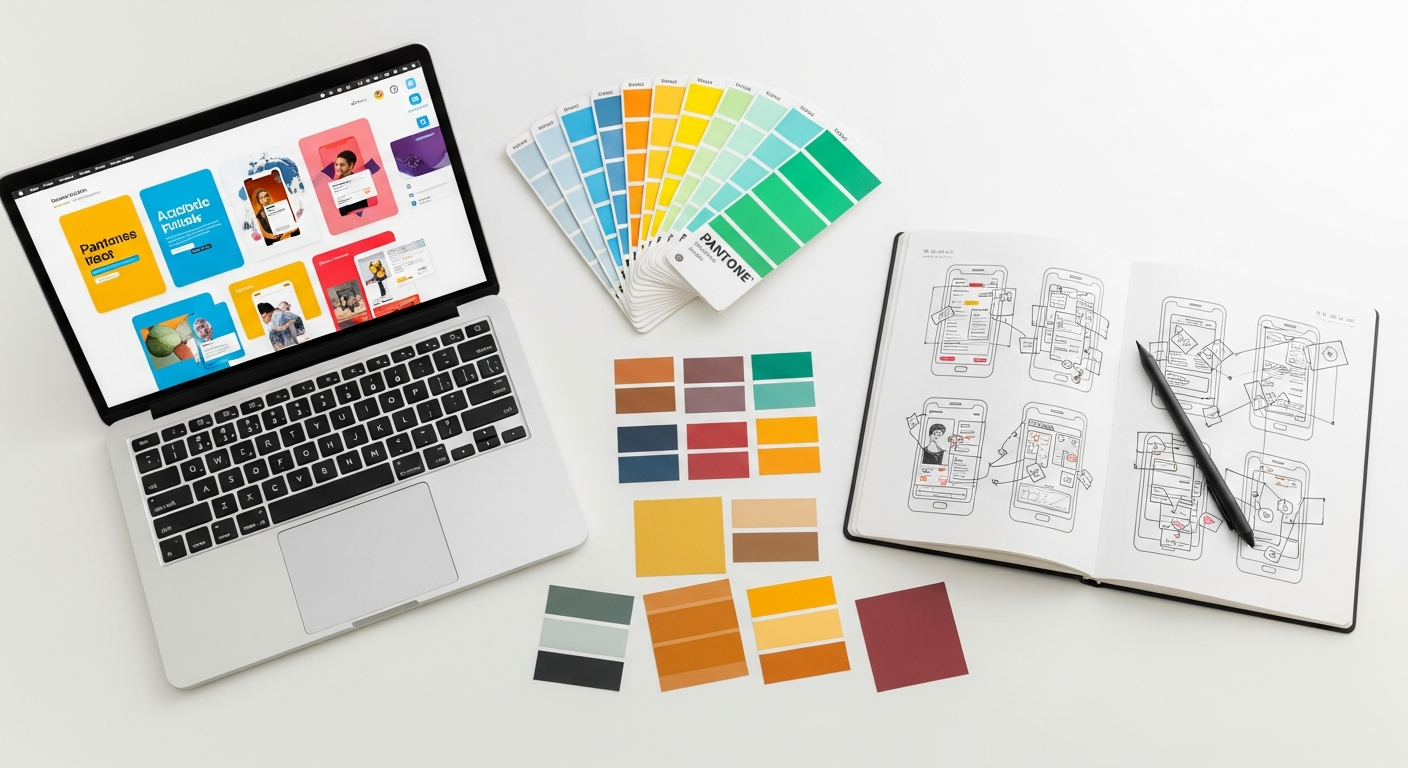
Different scenarios call for different empty state patterns. Understanding these common types will help you select the most appropriate and effective approach for your specific design challenge.
1. First-Time Use / Onboarding Empty States
These are perhaps the most critical empty states as they shape the user’s initial perception and guide them through their first interaction. The goal is to educate, motivate, and get the user to perform their first action.
- Purpose: Welcome, educate, guide to initial action.
- Elements:
- Friendly greeting.
- Brief explanation of the feature’s value.
- Clear primary CTA to get started (e.g., “Create Your First Project,” “Add Friends”).
- Optional: Small illustration or animation that hints at the feature’s function.
- Example: A new social media feed showing “Welcome! Follow some friends to see their updates.” with a “Find Friends” button.
2. No Results / Search Empty States
When a user’s search query or filter application yields no matching items, this empty state prevents a dead end and helps them refine their input.
- Purpose: Explain why no results were found, suggest alternatives.
- Elements:
- Clear message: “No results found for ‘X’.”
- Suggestions for improvement: “Check your spelling,” “Try different keywords,” “Adjust your filters.”
- CTA to perform a new search or clear filters.
- Optional: A subtle “magnifying glass with a cross” icon.
- Example: An e-commerce site saying “Sorry, no products match ‘purple widgets’.” followed by “Try searching for ‘widgets’ or ‘purple items’.” with a “Clear Filters” button.
3. Error States
These empty states appear when something has gone wrong, such as a network issue, invalid input, or a system error. The focus is on clear communication and problem resolution.
- Purpose: Inform user of the error, explain what happened, provide a solution.
- Elements:
- Clear, non-technical error message.
- Explanation of possible causes (if helpful and concise).
- Actionable steps to resolve (e.g., “Check your internet connection,” “Try again later,” “Contact support”).
- Appropriate icon (e.g., warning triangle, broken link).
- Example: “Network Error: Could not load content. Please check your internet connection.” with a “Retry” button.
4. Data Empty / Cleared States
This occurs when all user-generated content for a specific section has been removed or deleted, or simply hasn’t been created yet after initial onboarding.
- Purpose: Confirm the empty state, prompt creation of new content.
- Elements:
- Message confirming the absence of data: “You have no saved items.”
- CTA to add new content.
- Optional: Illustration that metaphorically represents creation or adding.
- Example: A notes app showing “Your notes list is empty.” with a prominent “Add New Note” button.
Here’s a comparison table summarizing these patterns:
| Pattern Type | Primary Purpose | Key Elements | Best Use Case | Potential Pitfalls |
|---|---|---|---|---|
| First-Time Use | Onboard, educate, motivate initial action. | Welcome message, value proposition, clear primary CTA, optional illustration. | New user sign-ups, first feature interaction. | Overwhelming with too much info, unclear CTA, generic message. |
| No Results | Explain absence of results, guide to refinement. | “No results” message, search query display, suggestions for re-search/filters, re-search CTA. | Search pages, filtered lists, category views. | Blaming the user, offering no alternatives, unclear next steps. |
| Error State | Inform of error, explain simply, provide solution. | Clear error message, brief explanation, actionable recovery CTA (e.g., Retry, Contact Support), error icon. | Network issues, failed actions, invalid form submissions. | Technical jargon, blaming the user, no clear path to resolution, generic “something went wrong.” |
| Data Empty | Confirm absence of data, prompt new content creation. | “No items” message, CTA to create/add new content, optional illustrative icon. | Empty inboxes, task lists, photo galleries, saved items. | Lack of guidance for adding content, blandness, feeling like a dead end. |
Choosing the right pattern depends heavily on the context and the user’s intent. Always consider what the user was trying to achieve and what information or action they need most at that moment.
Crafting Calls to Action (CTAs) That Convert
A well-designed empty state is incomplete without a compelling Call to Action (CTA). The CTA is the bridge that turns a passive observation (“This is empty”) into an active engagement (“I can fix this”). Crafting CTAs that convert requires careful consideration of placement, language, and visual hierarchy.
1. Placement and Prominence: Make it Easy to Find
The primary CTA should be immediately visible and central to the empty state. It’s often the single most important element on the screen.
- Central Positioning: Place the main CTA in a prominent, easily scannable location, typically centered below the explanatory text and illustration.
- Visual Weight: Use a primary button style (e.g., a solid background color with contrasting text) to make it stand out. Avoid secondary button styles for the main action.
- Single Primary Action: While you might have secondary actions (like “Learn More” or “Contact Support” for an error state), ensure there’s one clear, dominant path forward. Too many options can lead to decision paralysis.
2. Clear and Action-Oriented Language: What Will Happen?
The microcopy on your CTA button is crucial. It should clearly communicate what action the user will take and what outcome they can expect.
- Start with a Verb: “Add,” “Create,” “Upload,” “Start,” “Explore,” “Try Again.”
- Be Specific: Instead of “Go,” use “Add Your First Item.” Instead of “Click Here,” use “Start Building Your Profile.”
- Match User Intent: The CTA should directly address the reason for the empty state. If it’s an empty to-do list, “Add a Task” is perfect.
- Concise: Keep it short and to the point. Aim for 2-5 words.
Consider these examples:
- Instead of: “Get Started” -> Use: “Create Your First Playlist” (for an empty music app)
- Instead of: “Search” -> Use: “Try a Different Search” (for no results)
- Instead of: “Fix It” -> Use: “Reconnect to Wi-Fi” (for a network error)
3. Contextual Relevance: Align with the User Journey
Your CTA should be highly relevant to the specific empty state and the user’s current context. What action would be most helpful or logical for them to take next?
- First-Time Use: Guide them to the core value proposition. “Start Your Free Trial,” “Upload Your First Photo.”
- No Results: Help them refine their input. “Clear Filters,” “Search All Products.”
- Error States: Offer a path to recovery. “Retry Connection,” “Report a Problem.”
Remember that the goal of the CTA is to convert the user from an idle observer to an active participant. By making your CTAs prominent, clear, and action-oriented, you significantly increase the likelihood of users taking the desired next step, transforming potential confusion into productive engagement.
Illustrations, Microcopy, and Visual Hierarchy: Bringing Empty States to Life
Beyond the functional aspects, the aesthetic and textual elements of an empty state play a vital role in its effectiveness. Illustrations, well-crafted microcopy, and a clear visual hierarchy are what truly bring an empty state to life, making it engaging and delightful rather than stark and uninviting.
1. The Power of Illustrations and Iconography
Visuals are often the first thing users notice. A well-chosen illustration or icon can:
- Convey Meaning Quickly: A relevant image can communicate the purpose of the empty state or the expected content without heavy text. For instance, a cloud with an arrow for “Upload Files.”
- Add Personality: Custom illustrations are excellent vehicles for brand personality, humor, and charm. They can make the user smile and feel a connection to the product.
- Reduce Cognitive Load: Instead of reading paragraphs, users can grasp the situation at a glance.
- Guide the Eye: Illustrations can subtly direct the user’s attention towards the CTA or other important elements.
When selecting visuals, ensure they are:
- Relevant: Directly relate to the context of the empty state.
- Consistent: Match the overall visual style and branding of your product (e.g., flat, isometric, hand-drawn).
- Accessible: Always include descriptive alt text for screen readers (WCAG guideline).
2. The Art of Microcopy
Microcopy—the small bits of text that guide users—is exceptionally powerful in empty states. It sets the tone, clarifies, and motivates. Effective microcopy is:
- Empathetic: Acknowledge the user’s situation. “It looks a little lonely here…”
- Informative: Clearly explain why the state is empty and what it’s for. “Your inbox is empty because you’re caught up!”
- Instructive: Guide the user on what to do next. “Start by adding your first project.”
- Brand-Aligned: Reflect your brand’s voice – whether it’s friendly, professional, witty, or encouraging.
- Concise: Get straight to the point. Users scan, they don’t read novels.
Consider the difference between “No Data” and “You haven’t added any tasks yet. Let’s get productive!” The latter is far more engaging and encouraging.
3. Establishing Visual Hierarchy
Visual hierarchy dictates the order in which users perceive information. In an empty state, you want to guide their eyes from understanding the situation to taking action.
- Primary Message: The explanation of the empty state should be prominent, often the largest or boldest text.
- Illustration/Icon: Positioned to support the primary message, drawing attention without overshadowing the text or CTA.
- Call to Action: The most visually distinct element, typically a button with strong contrast, indicating the primary action.
- Secondary Information/Actions: Smaller text or less prominent button styles for additional guidance or alternative actions.
Tools like Figma, Sketch, and Adobe XD allow designers to experiment with different layouts, font sizes, colors, and button styles to establish an effective visual hierarchy that naturally leads the user towards the desired action. By thoughtfully combining these elements, you transform a potentially confusing void into a clear, inviting, and actionable space.
Testing and Iteration: Ensuring Your Empty States Don’t Confuse
Even the most intuitively designed empty state can fall short if it hasn’t been tested with real users. What seems clear to you, the designer, might be confusing to someone else. Testing and iteration are indispensable phases to ensure your empty states truly convert rather than confuse.
1. User Testing Methods
Various methods can help you gather feedback on your empty states:
- Usability Testing: Conduct one-on-one sessions where users interact with prototypes or live versions of your empty states. Observe their reactions, listen to their comments, and identify points of confusion. Ask questions like:
- “What do you think this screen is telling you?”
- “What would you do next?”
- “Does this message make sense to you?”
- A/B Testing: For live products, test different versions of an empty state (e.g., different illustrations, microcopy, or CTA wording) against each other. This is particularly useful for measuring conversion rates on first-time use empty states.
- First Click Testing: Present users with an empty state and ask them where they would click first to achieve a specific goal. This helps validate the prominence and clarity of your CTAs.
- Five-Second Tests: Show users an empty state for just five seconds, then ask them what they remember, what the screen was about, and what they could do. This helps gauge immediate understanding and impact.
- Surveys and Feedback Forms: Include contextual feedback options within your product, allowing users to report issues or confusion directly from an empty state.
Tools like UserTesting.com, Maze, and Hotjar can facilitate these testing processes, providing valuable qualitative and quantitative data.
2. Metrics to Track
To quantify the success of your empty states, monitor relevant metrics:
- Conversion Rate: For first-time use empty states, track the percentage of users who complete the primary action (e.g., “Add First Item”) after encountering the empty state.
- Task Completion Rate: Measure how many users successfully overcome the empty state (e.g., finding results after a “no results” state, resolving an error).
- Bounce Rate: A high bounce rate from an empty state might indicate users are confused and leaving the product.
- Time on Page: While not always a direct indicator, unusually long times could suggest confusion, while very short times might suggest immediate abandonment.
- Support Tickets: An increase in support requests related to specific empty states is a clear red flag.
3. Iterative Design Process
Design is rarely a one-and-done process. Based on your testing insights, be prepared to iterate:
- Analyze Feedback: Identify common pain points, misunderstandings, or missed opportunities.
- Hypothesize Solutions: Brainstorm design changes that address the identified issues.
- Implement Changes: Update your designs (in Figma, Sketch, etc.).
- Re-test: Put the revised empty states back in front of users or launch another A/B test.
This continuous loop of design, test, and refine ensures that your empty states evolve to be as effective and user-friendly as possible, consistently converting users and preventing confusion.
Key Takeaways
- Empty states are crucial design opportunities to engage and guide users, not just blank screens.
- Prioritize clarity, providing clear explanations for why a state is empty and what actions can be taken.
- Always include a prominent, action-oriented Call to Action (CTA) to guide users towards their next step.
- Leverage illustrations, empathetic microcopy, and visual hierarchy to add delight, personality, and improve usability.
- Ensure all empty states are accessible, adhering to WCAG guidelines for inclusive design.
- Continuously test your empty states with real users and iterate based on feedback to optimize for conversion and minimize confusion.
Frequently Asked Questions
Q: What’s the biggest mistake designers make with empty states?
A: The biggest mistake is treating empty states as an afterthought or simply leaving them blank. This leads to user confusion, frustration, and a missed opportunity to onboard, guide, or delight. Ignoring them means you’re overlooking a critical part of the user journey that can significantly impact first impressions and feature adoption.
Q: How can I make an empty state feel less “empty” without overwhelming the user?
A: The key is balance. Use a clean layout with ample white space. Introduce a single, relevant illustration or icon that subtly communicates context. Craft concise, empathetic microcopy that explains the situation and offers a clear path forward. A single, prominent Call to Action (CTA) is essential. Avoid cluttering the space with too many options or excessive text.
Q: Should all empty states have an illustration?
A: Not necessarily all, but most can benefit. Illustrations add personality, context, and visual appeal, making the experience more engaging. However, some highly functional or serious applications might opt for clear iconography and text over whimsical illustrations. The choice should always align with your brand’s tone and the specific context of the empty state. Always ensure illustrations have appropriate alt text for accessibility.
Q: How do empty states relate to onboarding?
A: Empty states, particularly first-time use empty states, are an integral part of the onboarding experience. They serve as a crucial touchpoint to welcome new users, explain the value of a feature, and guide them through their initial interaction. A well-designed onboarding empty state can significantly improve user retention and feature adoption by making the first steps clear and inviting.
Q: What’s the role of microcopy in an empty state?
A: Microcopy is incredibly important in empty states. It provides the essential context, explains why the screen is empty, and tells the user what they can do next. Good microcopy is clear, concise, empathetic, and aligned with your brand’s voice. It transforms a potentially confusing situation into a helpful and encouraging moment, guiding users toward action and building trust.
Conclusion
Empty states are more than just placeholders for content; they are strategic design opportunities that profoundly impact the user experience. By embracing them as critical touchpoints, you transform potential moments of confusion and frustration